User Profile

AB21805
Bronze Contributor
Joined 6 years ago


User Widgets
Recent Discussions
Re: installing visual C ++ via intune
packing something like this as a bat file: ech0 off CD /d %~dp0 set IS_X64=0 && if "%PROCESSOR_ARCHITECTURE%"=="AMD64" (set IS_X64=1) else (if "%PROCESSOR_ARCHITEW6432%"=="AMD64" (set IS_X64=1)) if "%IS_X64%" == "1" goto X64 start /wait vcredist_x86.exe /quiet /norestart MKDIR c:\Windows\Scousefix\CPlusPlusX86Installed goto END :X64 start /wait VC_redist.x86.exe /quiet /norestart MKDIR c:\Windows\Scousefix\CPlusPlusX86andx64Installed goto END :END point this to the intunewin and in the install command in intune when uploading the intunewin put in "install.bat" making sure you name the bat "install.bat" prior to wraping it1.2KViews0likes0CommentsInvalid profile
Hi all, I have tried to enrol a device to intune using configurator into apple school manager which works find then gets passed into intune however when I assign a profile (existing or new) it fails. When pressing the enrol button on the ipad it says "invaild profile" I cant go no further all I can do is release from org then try again but I have tried multpile times no luck any ideas?Moving a folder from Site Pages
Hi everyone, A staff member has accidentally moved a folder containing many files into the Site Pages section, and we’re unable to find a way to relocate it to another location besides Site Pages without manually saving each file individually, which is very time-consuming. My question is: is there an easy way to move this folder and its files to another location, such as a document library? Thank you for your help!159Views0likes2CommentsTracking Usage on SharePoint Communication Site
Hi, We have a SharePoint communication site and are looking for ways to track its usage beyond just the landing page. Specifically, we want to understand who is accessing not only the landing page but also the document libraries linked through the quick links on the page. Could you advise on how to conduct an audit that captures usage data for the entire site, including all libraries accessed via the quick links? What options should I consider when setting up the audit, or is there an alternative method to achieve this? Thank you!Issue when searching in Outlook web - Something went wrong
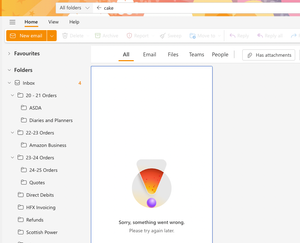
Hi everyone, I have a user who’s unable to search their inbox in Outlook web. The Outlook app works fine, but the search feature isn’t functioning in outlook web. I’ve already cleared the cache for the browser and attempted to log into the same account on a different device and browser, but no luck. Does anyone have any suggestions?Solved410Views0likes1CommentStatus Change in. Sharepoint based on Email Response in Power Automate
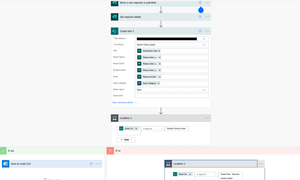
Hi all I have a flow set up where form submissions are added to a SharePoint list, and an FAQ email is automatically sent as a response to the person who filled out the form. The SharePoint list includes a Status column, and I want this status to change to "Closed" after 7 days if there has been no response to the email. Is it possible to trigger a status change only if there’s no reply to the original email sent from the first flow? (Screenshot of th first flow) In the second flow (screenshot below), I set up a recurrence every 7 days to automatically change the status to "Closed." However, this is currently closing all items in the SharePoint list, not just those that haven't received a response. Where am I going wrong, and how can I adjust the flow to track email replies and close only the items with no responses? Any advice on improving the flow to incorporate this feature would be greatly appreciated. Thanks in advance for your help!logging into device with black screen
Hi all, I have had a batch of devices which are having issues when they log into the devices they get a black screen and just the cursor loaded however restarting the device and getting the user to log back in fixes it. We have had several devices do this, why could this be? Is there a better fix than the work aroundNeed Assistance with Wallpaper Configuration on Fully Managed Android Devices
Hi everyone, I'm trying to configure Android devices (specifically Samsung A7) as fully managed with a custom wallpaper for both the home and lock screens, using a launcher app. I've set up a configuration policy under Device Restrictions > Device Experiences, with the experience type set to Microsoft Launcher (fully managed). I included the wallpaper URL, sized correctly to the device’s pixel resolution. However, the image appears zoomed in on the home screen and lock screen. Interestingly, when I tested the same setup in Kiosk mode, the image displays correctly on the home screen, but it doesn’t apply to the lock screen. In contrast, the Microsoft Launcher (fully managed) setup does apply the wallpaper to both screens, but the image is zoomed in on the home screen. Does anyone have suggestions for fixing this issue? I'd consider using Kiosk mode if it allowed setting the lock screen image as well, but it only sets the home screen. Additionally, I’m unable to get the camera app to appear in Kiosk mode. Any ideas would be appreciated!Re: INstalling win32 app - inprint 3
It was a command rather than a script. I added this .\inprint.msi /passive in a .cmd file and used that to deploy inprint .\inprint.msi /passive this was for the custom core file which needs to be installed first. In the install command within intune point to the .cmd files for each390Views0likes0CommentsINstalling win32 app - inprint 3
Hi all, I'm attempting to deploy an app called InPrint 3 using Intune. The installation requires modifying the core.msi file to package the license key, which I've done successfully. After packaging the application, I uploaded it to Intune for deployment. However, during installation via Intune, I receive an error: "The application was not detected after installation completed successfully." When I install the modified MSI manually, it works perfectly. The detection rule in Intune is set to look for the MSI, but it seems that Intune isn't detecting it correctly. Any suggestions on what might be causing this issue? If I install the inprint.msi via intune before the core.msi the applications doesnt get the license keyRe: Using powershell to create folders within users onedrive
Hi I've been using Connect-PnPOnline, and everything seems to be working except for exporting URLs into a CSV, which isn't functioning at all. It used to work fine in previous years, so I'm unsure what's causing the issue now. As a temporary solution, I've gained access to all OneDrives, rather than just the specific URLs I need. Here's the script I used to gain access: # Set Parameters $AdminSiteURL = "https://tenant-admin.sharepoint.com" $SiteCollAdmin = "email address removed for privacy reasons" # Connect to PnP Online to the Tenant Admin Site Connect-PnPOnline -Url $AdminSiteURL -Interactive # Get All OneDrive Sites $OneDriveSites = Get-PnPTenantSite -IncludeOneDriveSites -Filter "Url -like '-my.sharepoint.com/personal/'" # Loop through each site ForEach($Site in $OneDriveSites) { # Add Site Collection Admin Set-PnPTenantSite -Url $Site.URL -Owners $SiteCollAdmin Write-Host -f Green "Added Site Collection Admin to: $($Site.URL)" } Since the URLs are displayed in the PowerShell window, I’m manually copying them into the URLs.csv file, which should have been automatically populated according to this guide. I then remove the URLs I don’t need and run the following script: # Import URLs $userURLs = Import-Csv -Path "C:\users\$env:USERNAME\Desktop\URLs.csv" # Add a folder in each ODFB foreach ($url in $userURLs) { Connect-PnPOnline -Url $url.PersonalUrl Add-PnPFolder -Name "Folder1" -Folder "Documents" } This method is a bit cumbersome but has been effective in creating the folders. I'll also need to remove the Admin permissions from all OneDrives afterward, and I’m hoping the following script will do the trick: # Set Parameters $AdminSiteURL = "https://tenant-admin.sharepoint.com" $SiteCollAdmin = "email address removed for privacy reasons" # Connect to PnP Online to the Tenant Admin Site Connect-PnPOnline -Url $AdminSiteURL -Interactive # Get All OneDrive Sites $OneDriveSites = Get-PnPTenantSite -IncludeOneDriveSites -Filter "Url -like '-my.sharepoint.com/personal/'" # Loop through each site ForEach($Site in $OneDriveSites) { Connect-PnPOnline $_.Url -Credentials $Cred $User = Get-PnPUser | Where { $_.LoginName -like $LoginID } If ($User -ne $Null) { Remove-PnPSiteCollectionAdmin -Owners $LoginID Write-Host "`tRemoved user from Site Collection Administrator Group!" -f Green } } I'll keep you updated on whether this works. In the meantime, do you know of a way to manage permissions only for the specific OneDrives I need, without granting access to all? Could you also check if you encounter the same issue with the CSV file not populating with URLs, just in case I’m overlooking something? Thanks in advance! Harm_Veenstra459Views0likes1CommentAssistance Needed: Best Practices for Setting Up macOS Devices in Intune
Hi all, I'm looking for the best way to set up macOS devices in Intune. These devices are already sittting in Intune but currently have no profiles attached. My goal is to configure them so that they are fully ready for users to use right away, without needing to install apps or perform additional setup after logging in. Could someone please guide me on the correct settings and configurations required to achieve this? Additionally, if anyone has useful links or videos that could assist, I'd greatly appreciate it. Thank you!Re: Using powershell to create folders within users onedrive
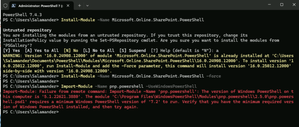
Hi Harm_Veenstra This did not work, I did reply with a screenshot showing I tried the same: I checked my PowerShell version, and it is: When I attempt to use Connect-SPOService, I get a "command not recognized" error.656Views0likes3Comments


Recent Blog Articles
No content to show