User Profile

Logan_Silliman
 Microsoft
Joined 7 years ago


User Widgets
Recent Discussions
Update to Microsoft Desktop Virtualization API v. 2023-09-05 by August 2, 2024 to avoid any impact
[Recommended actions updated on July 29, 2024] WARNING! Be mindful when using secrets in deployment templates and follow Azure best practices when managing secrets. Our examples in this discussion post are to be used for educational purposes only. Older Microsoft Desktop Virtualization API version(s) utilized for your Azure Virtual Desktop host pool resource will no longer support ‘get’ actions for registration token retrieval as of August 2nd, 2024. The affected API versions are as follows: 2019-01-23-preview 2019-09-24-preview 2019-12-10-preview 2020-09-21-preview 2020-11-02-preview 2020-11-10-preview 2021-01-14-preview On August 2nd, 2024, these affected API versions will no longer support the retrieval of the registration token. Users on older versions will not be able to use the 'get' action to retrieve the token. However, with the newer versions, there are two ways for customers to retrieve registration tokens moving forward: [Recommended] Using list* resource functions: Microsoft.DesktopVirtualization/hostpools resources now expose a listRegistrationTokens() function. This works if you already have valid registration tokens on your host pool and you want to retrieve them from an existing host pool. Using a 'post' action to securely retrieve the token AZ CLI: az desktopvirtualization hostpool retrieve-registration-token - az desktopvirtualization hostpool | Microsoft Learn REST: Host Pools - Retrieve Registration Token - REST API (Azure Desktop Virtualization) | Microsoft Learn AZ PowerShell: Get-AzWvdHostPoolRegistrationToken (Az.DesktopVirtualization) | Microsoft Learn Action Required Review any workflows you may have that rely on readers retrieving access tokens and update them to extract the registration tokens for a host pool in a new way. Ensure you are using up to date versions of the Microsoft Desktop Virtualization API. To take action, here are examples of how to extract the registration tokens for a host pool and update to the 2023-09-05 API version using Bicep and ARM templates. WARNING! Be mindful when using secrets in deployment templates and follow Azure best practices when managing secrets. Our examples in this discussion post are to be used for educational purposes only. [Recommended] Take action using list* resource functions This solution works if you already have valid registration tokens on your host pool and you want to retrieve them from an existing host pool. If you are using Bicep templates in your deployment: @sys.description('AVD Host Pool resource ID. (Default: )') param hostPoolResourceId string var varHostpoolSubId = split(hostPoolResourceId, '/')[2] var varHostpoolRgName = split(hostPoolResourceId, '/')[4] var varHostPoolName = split(hostPoolResourceId, '/')[8] // GET hostpool resource hostPoolGet 'Microsoft.DesktopVirtualization/hostPools@2023-09-05' existing = { name: varHostPoolName scope: resourceGroup('${varHostpoolSubId}', '${varHostpoolRgName}') } @sys.description('The registration token of the host pool. This is not secure! Only for educational/testing purposes. Please follow security practices @ https://learn.microsoft.com/en-us/azure/azure-resource-manager/bicep/scenarios-secrets ') output registrationToken array = hostPoolGet.listRegistrationTokens() If you are using ARM templates in your deployment: { "$schema": "https://schema.management.azure.com/schemas/2019-04-01/deploymentTemplate.json#", "contentVersion": "1.0.0.0", "metadata": { "_generator": { "name": "bicep", "version": "0.28.1.47646", "templateHash": "2750874554099795062" } }, "parameters": { "hostPoolResourceId": { "type": "string", "metadata": { "description": "AVD Host Pool resource ID. (Default: )" } } }, "variables": { "varHostpoolSubId": "[split(parameters('hostPoolResourceId'), '/')[2]]", "varHostpoolRgName": "[split(parameters('hostPoolResourceId'), '/')[4]]", "varHostPoolName": "[split(parameters('hostPoolResourceId'), '/')[8]]" }, "resources": [], "outputs": { "registrationToken": { "type": "array", "metadata": { "description": "The registration token of the host pool. This is not secure! Only for educational/ testing purposes. Please follow security practices @ https://learn.microsoft.com/en-us/azure/azure-resource-manager/bicep/scenarios-secrets " }, "value": "[listRegistrationTokens(extensionResourceId(format('/subscriptions/{0}/resourceGroups/{1}', format('{0}', variables('varHostpoolSubId')), format('{0}', variables('varHostpoolRgName'))), 'Microsoft.DesktopVirtualization/hostPools', variables('varHostPoolName')), '2023-09-05')]" } } } Other ways to take action One alternative is to always (re)create your host pool, which in turn will re-generate registration tokens that can then be retrieved using the PUT operation. If you are using Bicep templates in your deployment... Use the retrieveToken.bicep module to retrieve the registration token from a host pool by using a PUT operation: @sys.description('Optional. Host Pool token validity length. Usage: \'PT8H\' - valid for 8 hours; \'P5D\' - valid for 5 days; \'P1Y\' - valid for 1 year. When not provided, the token will be valid for 8 hours.') param tokenValidityLength string = 'PT8H' @sys.description('Generated. Do not provide a value! This date value is used to generate a registration token.') param baseTime string = utcNow('u') param vLocation string param vHostPoolName string param vHostPoolType string param vPreferredAppGroupType string param vMaxSessionLimit int param vLoadBalancerType string resource hostPool 'Microsoft.DesktopVirtualization/hostPools@2023-09-05' = { name: vHostPoolName location: vLocation properties: { hostPoolType: vHostPoolType preferredAppGroupType: vPreferredAppGroupType maxSessionLimit: vMaxSessionLimit loadBalancerType: vLoadBalancerType registrationInfo: { expirationTime: dateTimeAdd(baseTime, tokenValidityLength) registrationTokenOperation: 'Update' } } } @sys.description('The registration token of the host pool.') output registrationToken string = reference(hostPool.id).registrationInfo.token Here's an example of using the retrieveToken.bicep module to extract the registration token: @sys.description('AVD Host Pool resource ID. (Default: )') param hostPoolResourceId string var varHostpoolSubId = split(hostPoolResourceId, '/')[2] var varHostpoolRgName = split(hostPoolResourceId, '/')[4] var varHostPoolName = split(hostPoolResourceId, '/')[8] // Call on the hostpool resource hostPoolGet 'Microsoft.DesktopVirtualization/hostPools@2023-09-05' existing = { name: varHostPoolName scope: resourceGroup('${varHostpoolSubId}', '${varHostpoolRgName}') } module hostPool 'retrieveToken.bicep' = { name: varHostPoolName scope: resourceGroup('${varHostpoolSubId}', '${varHostpoolRgName}') params: { vHostPoolName: varHostPoolName vMaxSessionLimit: hostPoolGet.properties.maxSessionLimit vPreferredAppGroupType: hostPoolGet.properties.preferredAppGroupType vHostPoolType: hostPoolGet.properties.hostPoolType vLoadBalancerType: hostPoolGet.properties.loadBalancerType vLocation: hostPoolGet.location } } @sys.description('The registration token of the host pool.') output registrationToken string = hostPool.outputs.registrationToken If you are using ARM templates in your deployment: { "$schema": "https://schema.management.azure.com/schemas/2019-04-01/deploymentTemplate.json#", "contentVersion": "1.0.0.0", "metadata": { "_generator": { "name": "bicep", "version": "0.28.1.47646", "templateHash": "15215789985349638425" } }, "parameters": { "hostPoolName": { "type": "string" }, "location": { "type": "string" }, "baseTime": { "type": "string", "defaultValue": "[utcNow('u')]" } }, "variables": { "expirationTime": "[dateTimeAdd(parameters('baseTime'), 'PT1H1M')]" }, "resources": [ { "type": "Microsoft.DesktopVirtualization/hostPools", "apiVersion": "2023-09-05", "name": "[parameters('hostPoolName')]", "location": "[parameters('location')]", "properties": { "maxSessionLimit": 2, "hostPoolType": "Personal", "loadBalancerType": "Persistent", "preferredAppGroupType": "Desktop", "registrationInfo": { "expirationTime": "[variables('expirationTime')]", "registrationTokenOperation": "Update" } } } ], "outputs": { "token": { "type": "string", "value": "[reference(resourceId('Microsoft.DesktopVirtualization/hostPools', parameters('hostPoolName'))).registrationInfo.token]" } } } WARNING! Be mindful when using secrets in deployment templates and follow Azure best practices when managing secrets. Our examples in this discussion post are to be used for educational purposes only. Additional Support If you have any questions, comments, or concerns about this, please feel free to post a comment.7.1KViews0likes11CommentsRe: Update to Microsoft Desktop Virtualization API v. 2023-09-05 by August 2, 2024 to avoid any impact
JasonMasten official documentation will be updated soon! For now, please follow the recommendation from this blog post. For all intents and purposes, the list API behaves the same as Host Pools - Retrieve Registration Token - REST API (Azure Desktop Virtualization) | Microsoft Learn & its documentation may be helpful in the short term.2.1KViews1like2CommentsRe: Update to Microsoft Desktop Virtualization API v. 2023-09-05 by August 2, 2024 to avoid any impact
Great question! It depends! if this module is being invoked for different hostpools, then yes, it should be safe! If this module is invoked in parallel for the same hostpool, you will likely end up with conflicts. The provided samples are are intended solely for educational purposes. You should adapt them to fit your production use cases: e.g. you can store the resulting hostpool registrationToken in a keyvault and have all subsequent deployments access this value from key vault. Even better, you can start using listRegistrationTokens() function instead, which will retrieve existing tokens and won't recreate them.2.5KViews1like4CommentsCollect and query Graphics Data for Azure Virtual Desktop connections – Now in Public Preview
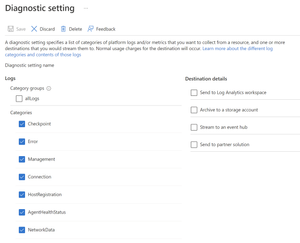
Graphics data logs for Azure Virtual Desktop are in public preview! You can now set up the diagnostics table in Azure Log Analytics and collect graphics data for your Azure Virtual Desktop connections. The graphics data table generates information whenever end-to-end delay and dropped frames percentages fall below a healthy threshold for Azure Virtual Desktop. This table helps administrators understand factors across the server, client, and network that could be contributing to slow or choppy experiences for a user. Set up To start collecting graphics data, you’ll need to ensure your Azure Virtual Desktop host pools have diagnostics enabled and that the Connection Graphics Data Logs Preview table is selected. You can check and modify these settings in the Azure Portal: Visit your Azure Virtual Desktop Host Pools in the Azure Portal. Select the host pool where you’d like to set up network data, then select Diagnostic settings. Select Edit setting, or +add diagnostic setting if you don’t have a diagnostic setting already. Select allLogs or the individual categories you would like to collect. Confirm Connection Graphics Data Logs Preview is selected. Select a destination (Log Analytics workspace for Azure Virtual Desktop Insights users) Save and repeat for other host pools. Sample queries You can run these sample Kusto queries in the Log Analytics query editor. For each query, replace alias@domain, start_time, end_time, VmName, or HostPoolName with the information you would like to search for. Search graphics data by a specific user or users // Query for a specific user or group of users let Users = datatable(User:string) [ "alias@domain.com", "alias@domain.com" ]; WVDConnectionGraphicsDataPreview | join kind = leftouter ( WVDConnections | extend Protocol = iff(UdpUse in ("<>", "0"), "TCP", "UDP") | extend GatewayRegion = iff(GatewayRegion in ("<>", ""), "Unknow", GatewayRegion) | summarize GatewayRegion = take_anyif(GatewayRegion, GatewayRegion != "Unknown") by CorrelationId, UserName, SessionHostName, Protocol ) on CorrelationId | where UserName in (Users) | project-away CorrelationId1 | project-reorder TimeGenerated, UserName, Protocol, GatewayRegion, SessionHostName Search graphics data in a specific time range // Query for a specific time range let start_time = todatetime('2022-09-01 00:00:00.0'); let end_time = todatetime('2022-09-15 00:00:00.0'); WVDConnectionGraphicsDataPreview | join kind = leftouter ( WVDConnections | extend Protocol = iff(UdpUse in ("<>", "0"), "TCP", "UDP") | extend GatewayRegion = iff(GatewayRegion in ("<>", ""), "Unknown", GatewayRegion) | summarize GatewayRegion = take_anyif(GatewayRegion, GatewayRegion != "Unknown") by CorrelationId, UserName, SessionHostName, Protocol ) on CorrelationId | where TimeGenerated between (start_time .. end_time) | project-away CorrelationId1 | project-reorder TimeGenerated, UserName, Protocol, GatewayRegion, SessionHostName Search graphics data for a specific session host // Query for a specific Session Host let VmName = ""; WVDConnectionGraphicsDataPreview | join kind = leftouter ( WVDConnections | extend Protocol = iff(UdpUse in ("<>=", "0"), "TCP", "UDP") | extend GatewayRegion = iff(GatewayRegion in ("<>", ""), "Unknown", GatewayRegion) | summarize GatewayRegion = take_anyif(GatewayRegion, GatewayRegion != "Unknown") by CorrelationId, UserName, SessionHostName, Protocol ) on CorrelationId | where SessionHostName == VmName | project-away CorrelationId1 | project-reorder TimeGenerated, UserName, Protocol, GatewayRegion, SessionHostName Search graphics data for a specific host pool // Query for a specific Host Pool let HostPoolName = ""; WVDConnectionGraphicsDataPreview | join kind = leftouter ( WVDConnections | extend Protocol = iff(UdpUse in ("<>", "0"), "TCP", "UDP") | extend GatewayRegion = iff(GatewayRegion in ("<>", ""), "Unknown", GatewayRegion) | summarize GatewayRegion = take_anyif(GatewayRegion, GatewayRegion != "Unknown") by CorrelationId, UserName, SessionHostName, Protocol ) on CorrelationId | where extract("/subscriptions/.*/resourcegroups/.*/providers/.*/hostpools/(.*)", 1, _ResourceId) == HostPoolName | project-away CorrelationId1 | project-reorder TimeGenerated, UserName, Protocol, GatewayRegion, SessionHostName Query all graphics data and correlate with username, protocol, gateway region, and session host name // Query all rows from graphics data table and add username, protocol, gateway region, and session host name information from connections table WVDConnectionGraphicsDataPreview | join kind = leftouter ( WVDConnections | extend Protocol = iff(UdpUse in ("<>", "0"), "TCP", "UDP") | extend GatewayRegion = iff(GatewayRegion in ("<>", ""), "Unknown", GatewayRegion) | summarize GatewayRegion = take_anyif(GatewayRegion, GatewayRegion != "Unknown") by CorrelationId, UserName, SessionHostName, Protocol ) on CorrelationId | project-away CorrelationId1 | project-reorder TimeGenerated, UserName, Protocol, GatewayRegion, SessionHostName Please feel free to submit feedback here or leave questions on this post! To learn more about the Connection Graphics Data Logs Preview and other connection quality resources, see Connection quality in Azure Virtual Desktop or our Network Data announcement from April.30KViews0likes0CommentsCollect and query Network Data for Azure Virtual Desktop connections
You can now collect network data for Azure Virtual Desktop connections using the NetworkData diagnostics table in Azure Log Analytics. The NetworkData table records round trip time and available bandwidth regularly throughout the connection (~ every 2 minutes). It has several benefits for Azure Virtual Desktop users over the RemoteFX network performance counters: Each record is connection-specific and includes the correlation ID of the Azure Virtual Desktop connection that can be tied back to the user The round trip time measured in this table is protocol-agnostic and will record the measured latency for TCP or UDP connections Set up The NetworkData table is only supported in commercial clouds. To start collecting network data, you’ll need to ensure your Azure Virtual Desktop host pools have diagnostics enabled and that the NetworkData table is selected. You can check and modify these settings in the Azure Portal: Visit your Azure Virtual Desktop Host Pools in the Azure Portal. Select the host pool where you’d like to set up network data, then select Diagnostic settings. Select Edit setting, or +add diagnostic setting if you don’t have a diagnostic setting already. Select allLogs* or the individual categories you would like to collect. Confirm NetworkData is selected. Select a destination (Log Analytics workspace for Azure Virtual Desktop Insights users) Save and repeat for other host pools. You can verify data is flowing by returning to the host pool page, selecting Logs, and running one of the sample queries below. Users must be connecting to generate data, and the data may take up to 15 minutes to show up in the Azure Portal. Sample queries You can run these sample Kusto queries in the Log Analytics query editor or find them using the QoE label. For each query, replace alias@domain with the alias of the user you want to look up. Query average RTT and bandwidth: // 90th, 50th, 10th Percentile for RTT in 10 min increments WVDConnectionNetworkData | summarize RTTP90=percentile(EstRoundTripTimeInMs,90),RTTP50=percentile(EstRoundTripTimeInMs,50),RTTP10=percentile(EstRoundTripTimeInMs,10) by bin(TimeGenerated,10m) | render timechart // 90th, 50th, 10th Percentile for BW in 10 min increments WVDConnectionNetworkData | summarize BWP90=percentile(EstAvailableBandwidthKBps,90),BWP50=percentile(EstAvailableBandwidthKBps,50),BWP10=percentile(EstAvailableBandwidthKBps,10) by bin(TimeGenerated,10m) | render timechart Query available bandwidth for a specific user: let user = "alias@domain"; WVDConnectionNetworkData | join kind=leftouter ( WVDConnections | distinct CorrelationId, UserName ) on CorrelationId | where UserName == user | project EstAvailableBandwidthKBps, TimeGenerated | render columnchart Query available RTT for a specific user: let user = "alias@domain"; WVDConnectionNetworkData | join kind=leftouter ( WVDConnections | extend Protocol = iff(UdpUse in ("0","<>"),"TCP","UDP") | distinct CorrelationId, UserName, Protocol ) on CorrelationId | where UserName == user | project EstRoundTripTimeInMs, TimeGenerated, Protocol | render columnchart Top 10 users with the highest RTT: WVDConnectionNetworkData | join kind=leftouter ( WVDConnections | distinct CorrelationId, UserName ) on CorrelationId | summarize AvgRTT=avg(EstRoundTripTimeInMs),RTT_P95=percentile(EstRoundTripTimeInMs,95) by UserName | top 10 by AvgRTT desc Top 10 users with the lowest available bandwidth: WVDConnectionNetworkData | join kind=leftouter ( WVDConnections | distinct CorrelationId, UserName ) on CorrelationId | summarize AvgBW=avg(EstAvailableBandwidthKBps),BW_P95=percentile(EstAvailableBandwidthKBps,95) by UserName | top 10 by AvgBW asc Glossary: Estimated available bandwidth (kilobytes per second): The average estimated available network bandwidth over the last connection time interval. Estimated round trip time (milliseconds): The average estimated time it takes for a network request to go from the end user device, over the network to the session host, and back to the end user device over the last connection time interval. Correlation ID: The activity ID of the Azure Virtual Desktop connection that can be correlated with other diagnostics from that connection. Thank you, and please feel free to submit feedback here or leave questions on this post!13KViews1like8CommentsAzure Monitor for Windows Virtual Desktop is generally available!
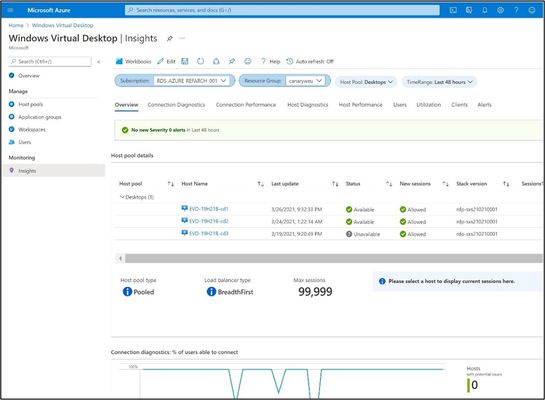
Today, we are thrilled to announce that Azure Monitor for Windows Virtual Desktop is now generally available! Building on top of Azure Monitor, Windows Virtual Desktop Insights provides IT administrators with a 360° view of their environment’s health. With Azure Monitor for Windows Virtual Desktop, you can find and troubleshoot problems in the deployment, view the status and health of host pools, diagnose user feedback and understand resource utilization. General availability comes with many improvements, including the following: Improved data collection and new guidance to help you optimize for cost Updated setup experience with easier UI, expanded support for VM set-up, automated Windows Event Log setup, and more Relocated Windows Virtual Desktop agent warnings and errors at the top of the Host Diagnostics page to help you prioritize issues with the highest impact Accessibility enhancements Workbook versioning: GA release is Version 1.0.0 For our existing users- if you used Azure Monitor for Windows Virtual Desktop in public preview, we have made some updates to our guidance and default configuration to help reduce your Azure Monitor Log Analytics cost in GA. If you haven’t already, you must take action to implement these revised recommendations. See our blog post for instructions. We are incredibly excited about this major milestone and are looking forward to continuing to provide updates and expand scenario support in our monitoring journey. As always, we welcome your comments and feedback below! Best, Logan Silliman Learn more about Azure Monitor for Windows Virtual Desktop: Get started with Using Azure Monitor for Windows Virtual Desktop Estimate and manage your Log Analytics storage costs with Estimate Azure Monitor costs Review terms and concepts in our glossary If you encounter a problem, check out our troubleshooting guide for helpRe: Updated guidance on Azure Monitor for WVD
Hey amalkabraham - these changes do not impact our charts monitoring CPU utilization. CPU information is based on the Processor performance counters, which send data per CPU. Process performance counters send data per the individual processes running per session, which is why ingestion can be so high for this type of counter. Process counters are only visible in the Host Diagnostics: Host browser, where you can monitor any performance counter you collect (UI automatically adjusts based on collection). If you do choose to remove the Process counters listed above, the one impact on CPU monitoring is that you won't be able to break down CPU utilization by the individual processes (i.e. using Process- % Processor time). You can always expand or reduce the set of counters you collect based on your monitoring preferences!9.4KViews0likes0CommentsUpdated guidance on Azure Monitor for WVD
Hey Tech Community! If you are currently using Azure Monitor for Windows Virtual Desktop, we have made some updates to our guidance and default configuration to help reduce your Azure Monitor Log Analytics cost. You must take action to implement these revised recommendations: We have removed 5 per-process performance counters from the default configuration, which has a minimal impact on UI and should reduce data ingestion by over 80% depending on your environment size and usage: Process(*)\% Processor Time Process(*)\% User Time Process(*)\ Thread count Process(*)\ IO Write Operations/second Process(*)\ IO Read Operations/second Existing customers must disable these counters manually to see reductions in data ingestion. To do so, follow the steps in Configuring performance counters to manage your agent configuration. If you rely on these counters, you can keep them enabled and monitor them in the Host Diagnostics: Host browser. We have also updated our Configuration Workbook to improve checks on your Windows Virtual Desktop workspace diagnostic settings. Use the Configuration Workbook to ensure that your environment is set up correctly. To do so, you can follow instructions in our How-to guide. We recommend using a designated Log Analytics workspace for your Windows Virtual Desktop session hosts to ensure that performance counters and events are only collected for the virtual machines in your Windows Virtual Desktop deployment. To set up a new Log Analytics workspace, see Create a Log Analytics workspace in the Azure portal. We are continuing to investigate ways to optimize and improve your experience with monitoring Windows Virtual Desktop. We’re always eager to hear your thoughts- please leave comments and questions in the responses below! Best, Logan Learn more about Azure Monitor for Windows Virtual Desktop: Get started with Using Azure Monitor for Windows Virtual Desktop Review terms and concepts in our glossary If you encounter a problem, check out our troubleshooting guide for help10KViews2likes2CommentsAzure Monitor for Windows Virtual Desktop public preview
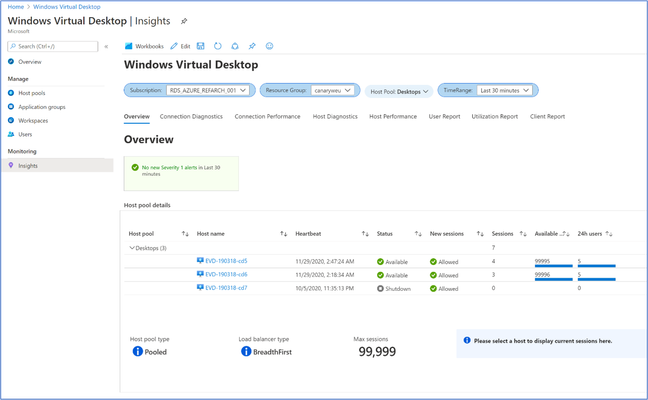
Today, we are excited to announce public preview of Azure Monitor for Windows Virtual Desktop! Full observability is key to ensure your employees do not have any interruptions or performance issues with their virtual desktops. Azure Monitor for Windows Virtual Desktop provides a centralized view for with the monitoring telemetry and visualizations IT professionals need to debug and troubleshoot issues. With Azure Monitor for Windows Virtual Desktop, you can: View a summary of host pool status and health Find and troubleshoot problems in the deployment including top errors, connectivity issues, host diagnostics, performance issues, client information, and more Diagnose user feedback by looking at data per user Understand utilization of resources to make decisions on scaling and cost management To get started with setup instructions, relevant terminology and concepts, and troubleshooting see our How-to guide. While the feature today surfaces many top customer-requested data points, we are looking forward to continuing to improve our tools to meet your monitoring needs – please let us know your feedback by replying to this post!