User Profile

rbergertd
Copper Contributor
Joined 7 years ago


User Widgets
Recent Discussions
Re: Invalid connection file - Any ideas how to get past this?
evasse Eva, this appears to be limited to my workstation Remote Desktop client. Even after total removal and reinstall, I get the error. I built up another VM to test installing the client on and am able to access my resources via the Remote Desktop client installed on the new workstation. So I think at this point I've got a fully functional deployment. Just something wonky with my client install (which I've yet to resolve :))25KViews1like1CommentRe: Error Upon Deployment from GitHub template.
If you are using AD DS, make sure your AD Connect is properly configured and syncing to your Azure AD. Even though my machines would join my AD DS server domain, I needed to configure/enable AD Connect for my deployment to successfully go all the way through. More info that may help: https://techcommunity.microsoft.com/t5/Windows-Virtual-Desktop/Requirement-to-have-an-on-prem-AD/m-p/386816#M441KViews0likes1CommentRe: Requirement to have an on-prem AD
HandA gerry_1974 Right now, that seems to be the case. In my proof of concept environment, I am running an AD DS server in my Azure tenant, then joining my host pool to that domain through the Windows Virtual Desktop offering. Although at first I was still getting failures with my deployment, even with the AD DS domain existing and the session hosts successfully joining. What fixed this for me, was connecting my AD DS server to AD Connect. I think AD Connect has to be actively syncing and connected to Azure AD for this to work right now due to the interaction it has with the Azure AD users (granting them access to the pool, etc). I went through this bit-by-bit and this is what got me a working deployment (DSC failures on the session host otherwise).35KViews1like0CommentsRe: Invalid connection file - Any ideas how to get past this?
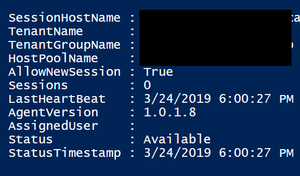
stevenzelenko Just a little more info, I just checked the status of my RDS Session host and it all looks good. I am convinced this has gotta be something on the client end. I tried forcefully removing the .RDP files that the client creates in AppData and letting it recreate them, but it's still giving me the same error so who knows. The thing that is a bummer, is what I am working on, I really need the native RDP experience and don't want to even start testing it with the HTML5 piece. :(25KViews0likes3CommentsRe: Invalid connection file - Any ideas how to get past this?
evasseHi Eva I did try this, no dice. I am assuming you were talking about removing the feed from the Remote Desktop application, which I did 'unsubscribe' and then 'resubscribe' to it - to pull my resources all over again. One of the weird things, is my icon is blank for the RDP within the list of resources. As I said above, I tried to manually browse to the location where the RDP file lives and launch it from there - where I am greeted with some different errors... but HTML5 is still working. Sort of puzzled. :)26KViews0likes1CommentRe: Invalid connection file - Any ideas how to get past this?
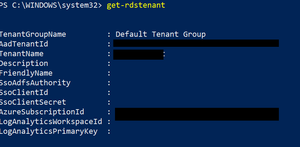
stevenzelenko Thanks for the rec. I did check the tenant multiple times and I *think* everything is provisioned. Does this look okay to you? It's so odd, but I'm happy to end the night on a win with at least figuring out HTML5 is working. :)26KViews0likes6CommentsRe: Invalid connection file - Any ideas how to get past this?
One thing to note is that, the HTML5 portal does work. So, I've got something! I tried to remove the feed, and re-add it, but no dice. I thought it may of been related to the autodiscovery via e-mail, as I do not have e-mail configured in my test tenant. But, since the web portal works I do not believe it's that.26KViews1like8CommentsInvalid connection file - Any ideas how to get past this?
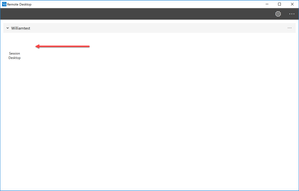
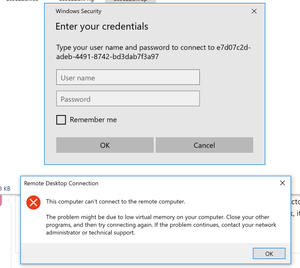
Hey all, I've been chipping away at getting a WVD proof of concept going, and I'm at the point where I have a successful deployment, and I think I am ALMOST all the way there. I have a demo tenant that is running AD DS, with AD Connect syncing my AD DS users to Azure AD. I created my WVD tenant, and then deployed my pool through the market place, and joined my session hosts to the domain. My test user is able to log in through the Remote Desktop app and it pulls down the default Session Desktop, but when I try and launch it I received this error (Invalid Connection File). I navigate to the actual RDP file, and tried to launch from there - I get prompts to log in, and my UPN gets past them but then it errors out again. I'm not sure how to get past this point - anyone have any ideas?26KViews0likes14Comments
Recent Blog Articles
No content to show