User Profile

lucafabbri365
Brass Contributor
Joined 7 years ago


User Widgets
Recent Discussions
ZAP (Zero-Hour Auto Purge) on internal traffic
Greetings !! Well I have ZAP enabled (Anti-spam inbound policy & Anti-malware policy) and it is working fine with some exceptions. Internal traffic that should be ZAP(ed) reports: "ZAP took no action due to a tenant policy (ZAP disabled)". I suppose there is something else that is preventing ZAP on internal traffic. Do any IP addresses whitelisted in the Connection filter policy (Default) bypass the Anti-spam inbound policy ? Any thoughts ? Thank you.631Views0likes0CommentsRe: New external sender warning banner appearing
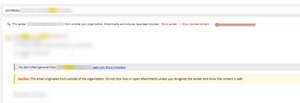
Hello Dan_Snape, yep, I know it is due to the external tag, but the message layout and position is different from what appeared before: Some of our users are still seeing the "old version" so I suppose it's something that is being rolled out these days. I prefer the "new version" because it is more evident and allows me to remove the warning set through the transport rule, which is annoying in all message previews. However is no mention of this change anywhere; that's why I asked.1.6KViews0likes0CommentsNew external sender warning banner appearing
Greetings !!! Starting from this morning (2024-05-06) a new warning banner is appearing on messages received by external senders (just some Exchange Online users in the tenant are affected by this): I was unable to find any article that talks about this addition. Do you ? Thank you.2.6KViews0likes3CommentsRe: Teams external users with Teams accounts not managed by an organization...
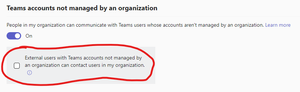
Hello, it seems the issue is still occurring (since TSBenz started this post in far November 2022): we are experiencing the same issue. MS Teams admin center The communication is initiated by our Teams user vs. a Microsoft (consumer) Account; it receives the message, but while trying to approve it the error "Something went wrong. Please try again." appears: Any update about this issue?6.7KViews0likes0CommentsRe: Missing Office 365 apps on the App launcher after creating collection (Azure AD/Entra ID)
The described behavior reached the Microsoft Product Group who is aware about it. To mitigate this issue, the recommended approach is to consistently re-add the same Office apps on every App Launcher changes from an un-licensed (Office 365) account. They are planning to submit a feature request. Expect further updates during CY24Q1, which falls between January and March.2.3KViews0likes0CommentsBlock any email clients on Windows except Outlook Web
Greetings, I'm opening this discussion to speak about how to block access to Exchange Online from any email client (Outlook, Windows 10 Mail, new Outlook for Windows, third-party client) on Windows devices (either Intune-unmanaged, Intune-managed, Microsoft Entra joined, Microsoft Entra registered, Microsoft Entra hybrid joined). Outlook web is only allowed. TEST 1 My initial attempt, as mentioned in this post how to block the Outlook desktop app while allow them use the Outlook On the Web (OWA), was to block access through a Conditional Access policy. Target resources: Office 365 Exchange Online Conditions > Device platforms: Windows Phone, Windows, Linux Conditions > Client apps: Mobile apps and desktop clients, Exchange ActiveSync clients, Other clients Grant: Block access Results: I realized it isn't applicable because even if it meets the goal, however it is also blocking applications like Microsoft Teams. TEST 2 I modified the CA policy by allowing access from compliant devices or hybrid joined: Target resources: Office 365, Office 365 Exchange Online and Office 365 SharePoint Online Conditions > Device platforms: Windows Phone, Windows, Linux Conditions > Client apps: Mobile apps and desktop clients, Exchange ActiveSync clients, Other clients Grant: Grant access to Require device to be marked as compliant, Require Microsoft Entra hybrid joined device (Require one of the selected controls) Results: In this way, I can force clients to be compliant (Intune-managed) or hybrid joined, at least; however, I cannot control access from email clients (consider, for example, a scenario in which end-users have Outlook installed for opening file in MSG or EML format). TEST 3 The only way I found to achieve the goal was to take action on Exchange Online, by manipulating these properties for each mailbox via PowerShell (Set-CASMailbox) : MAPIEnabled = false (block Outlook) UniversalOutlookEnabled = false (block Windows Mail app) OneWinNativeOutlookEnabled = false (block new Windows Mail app) It seems even if blocked (2), however I can still configure and access to mailbox via Windows Mail. I also realized (Welcome Sir !!! 🙂) even if the above properties appear at Plan level (Get-CASMailboxPlan), however it isn't possible to set them (Set-CASMailboxPlan); but it is possible to disable, for example, IMAP and POP (?), This solution assumes running a PowerShell script for setting these properties on new mailbox creation. Any other suggestion ?Missing Office 365 apps on the App launcher after creating collection (Azure AD/Entra ID)
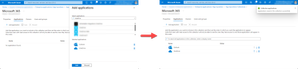
Greetings, I'm creating a new App launcher collection on Azure AD/Entra ID portal. The user performing this task has Global Administrator role with no license. The idea is to group Office 365 Apps (Outlook, Calendar People, Delve, OneDrive, SharePoint, etc.) into separate categories (collections) for a simpler user experience. Every time I add any Office 365 app in this new collection (e.g. Microsoft 365) and save it... ...the app disappears on page refresh/reload. This issue doesn't occur if the user (either Global Admin, Cloud Application Admin or Application Admin role) performing the task has an Office 365 license assigned. Is that an expected behavior? I don't understand why it is necessary to waste an Office 365 license for this administrative task. Thank you.SolvedRe: Password Expiration with AAD connect Password hash sync
Hello Sujesh1415, assuming you enabled the EnforceCloudPasswordPolicyForPasswordSyncedUsersfeature, as per Microsoft article http://Implement%20password hash synchronization with Azure AD Connect sync: "...Azure AD does not go to each synchronized user to remove the DisablePasswordExpiration value from the PasswordPolicies attribute. Instead, the DisablePasswordExpiration value is removed (None) from PasswordPolicies during the next password hash sync for each user, upon their next password change in on-premises AD". Microsoft recommends enabling EnforceCloudPasswordPolicyForPasswordSyncedUsers prior to enabling password hash sync, so that the initial sync of password hashes does not add the DisablePasswordExpiration value to the PasswordPolicies attribute for the users. But if you enabled the feature AFTER setting up password hash sync, then you have to choices for setting PasswordPolicies to None: Wait for the user’s next password change to occur on the on-premises AD Run a PowerShell script (once) to update it: Single user: Set-AzureADUser -ObjectId <user ID> -PasswordPolicies None All users: Get-AzureADUser -All $true | Set-AzureADUser -PasswordPolicies None Does it answer to your question ?27KViews0likes2CommentsWipe with no logged user
Hello Community, I'm writing this post to submit at your opinion an issue related to device wiping through Intune. Scenario There are two Windows 10 21H2 devices, Azure AD joined (no Hybrid), managed by Intune (no Autopilot/hash imported) and assigned to end users. On both I launched a wipe with "Wipe device, and continue to wipe even if device loses power. If you select this option, please be aware that it might prevent some devices running Windows 10 and later from starting up again.". Their status appears as protectedWipe pending... The wipe didn't occur (waiting more that 30 minutes). They are both connected to wired network and can communicate to Internet. There is NO LOGGED user there. After I logged on Windows into one of them, then the wipe started. Does the wipe need a logged user to work ? I suppose, not (there is no reference about this on Microsoft articles - if yes, I didn't find it). Of course, there is a reason about this behavior. Please, any useful information could be appreciated. Meanwhile, I'll start investigating the Intune logs on the device. Thank you, Luca2.9KViews0likes1CommentRe: [FIXED] How to prevent sign in page from asking new users for additional security verification
Hello all, is there a way to manage "additional security verification" prompt (no Windows Insider OS) ? Windows Hello for Business (Intune) is not configured; Azure > Properties > Manage Security defaults > already set to No. I noticed it is related to PIN request (for devices joined to Azure AD and managed by Intune): if end-user try to configure PIN, additional security info appears (of course, just first time). Is there a way to force/enable PIN request but disable security verification ?29KViews0likes1CommentRe: Password Expiration with AAD connect Password hash sync
Hello KoflT, yours is a good question. Well, Fine-grained Password Policy is supported by Azure Active Directory Domain Services (Azure AD DS) for sure. Azure AD DS integrates with existing Azure AD tenant, but is a different service. Definition "Azure Active Directory Domain Services (AD DS) provides managed domain services such as domain join, group policy, lightweight directory access protocol (LDAP), and Kerberos / NTLM authentication. You use these domain services without the need to deploy, manage, and patch domain controllers (DCs) in the cloud." References https://azure.microsoft.com/en-us/updates/aadds-fgpp/ (Microsoft Azure) https://docs.microsoft.com/en-us/azure/active-directory-domain-services/overview#:~:text=Azure%20Active%20Directory%20Domain%20Services%20(AD%20DS)%20provides%20managed%20domain,(DCs)%20in%20the%20cloud. (Microsoft Docs) https://docs.microsoft.com/en-us/azure/active-directory-domain-services/password-policy (Microsoft Docs) Instead, we are speaking about password expiration on Azure AD tenant. This post https://social.msdn.microsoft.com/Forums/vstudio/en-US/5f10faf7-98ec-4681-96e9-4fc987a564e1/onpremise-password-policy-amp-azure-ad-password-policy?forum=WindowsAzureAD (Visual Studio forums) treats the same argument: basically, you can define a password policy per custom domain in Azure AD. I think the logic is the same I described previously: it depends on the password policy set for the custom domain where Azure AD user belongs and the password policy set for the same user, on-premise: if they match the behavior is the same (password will expire at same time), otherwise they will have different expiration time. Please, let me know if it's clear, or I can write down some practical examples. Bye, Luca68KViews0likes0CommentsRe: SharePoint access from third party application
BradD, thank you very much for useful information. You are right, REST is an accessing method. So as I discovered, another method is to use https://docs.microsoft.com/en-us/sharepoint/dev/sp-add-ins/get-to-know-the-sharepoint-rest-service?tabs=csom (no Microsoft Graph) ? Regarding authentication, if I use Service Principal with MSFT Graph, then I have to create an Azure app, but if I use SharePoint REST API v1, should I register Azure app too (link: https://docs.microsoft.com/en-us/sharepoint/dev/solution-guidance/security-apponly-azuread) to use server-side auth. ? Thank you again, Luca10KViews0likes0CommentsSharePoint access from third party application
Hello Community, I'm writing to ask for a question regarding SharePoint Online access from third party application. Basically I have a third party application written in Python (on-premise) needs to access to SharePoint online (read/write documents stored in a list) via REST API (or Microsoft Graph). Which is the best way ? REST API or Microsoft Graph ? Which are supported authentication types ? (It should be a server side authentication - no client side - so a, what is called, "Service Account" is preferable. Thank you, LucaSolved11KViews0likes3CommentsRe: Password Expiration with AAD connect Password hash sync
ThomasK007, I try to give you a detailed answer. Until you have the EnforceCloudPasswordPolicyForPasswordSyncedUsers disabled (which is the default), an Azure AD user coming from on-premise AD (synced by AAD Connect) has its account password set to Never Expire. "Password expiration policy If a user is in the scope of password hash synchronization, by default the cloud account password is set to Never Expire. You can continue to sign in to your cloud services by using a synchronized password that is expired in your on-premises environment. Your cloud password is updated the next time you change the password in the on-premises environment." Reference: https://docs.microsoft.com/en-us/azure/active-directory/hybrid/how-to-connect-password-hash-synchronization#public-preview-of-the-enforcecloudpasswordpolicyforpasswordsyncedusers-feature | Microsoft Docs Once you enable the EnforceCloudPasswordPolicyForPasswordSyncedUsers feature and set the PasswordPolicies attribute to None (instead of DisablePasswordExpiration), the expiration time for an Azure AD user should be calculated referring to read-only attribute LastPasswordChangeTimestamp (you can retrieve it by using the Get-MsolUser cmdlet), depending on expiration policy. Now if you have AAD Connect with password hash sync, same password expiration policy set on both Azure AD and on-premise AD (e.g. 90 days), every time a password is changed on-premise AD, pwdlastset attribute is updated, the password itself synced with Azure AD and the LastPasswordChangeTimestamp updates accordingly - so they both expires at same time (maybe few minutes off); if you also have the password writeback functionality in place (link: https://docs.microsoft.com/en-us/azure/active-directory/authentication/concept-sspr-writeback | Microsoft Docs) the behavior described above works when the password is change from Azure AD and synced back to on-premise AD. It should be right (please, can someone else confirm that ?) I hope I was clear. Bye, Luca75KViews2likes6CommentsRe: Password Expiration with AAD connect Password hash sync
Hello TimLB, well, we implemented the EnforceCloudPasswordPolicyForPasswordSyncedUsers feature time ago, and set the same password expiration policy like on-premise AD (90 days*) but unfortunately, it was enabled with password hash sync already in place; so every time a new user is synced to Azure AD (initial sync of password) the PasswordPolicies attribute is set to DisablePasswordExpiration value by default. The (manual) solution is to change it via PowerShell: Single user: Set-AzureADUser -ObjectId <user ID> -PasswordPolicies None In bulk: Get-AzureADUser -All $true | Set-AzureADUser -PasswordPolicies None I hope Microsoft can find a more flexible way to manage it. * - There is a limit when there are multiple on-premise AD domains with different password expiration policy, all syncing with same Azure AD tenant through AAD Connect and sharing the same registered domain.77KViews3likes9CommentsRe: Birthdays calendar behavior
Hello RobertSparnaaij, thank you for your reply; you confirmed my doubts. Experiment I made this experiment/test (just to increase my knowledge). The objective was to set the Reminder to 0 days (default is 18 hours) for all recurring appointments/events inside Birthdays' calendar, in bulk. I achieved the objective by using https://developer.microsoft.com/en-us/microsoft-365/blogs/microsoft-graph-powershell-preview-now-on-powershell-gallery/. This is the piece of PowerShell code: # You'll be asked to sign in via web browser: Connect-Graph -Scopes "Calendars.ReadWrite","User.Read.All" $userId = (Get-MgUser | Where-Object {$_.DisplayName -eq "Bill Gates"}).Id # If the 'Top' parameter is missing, it returns one calendar only (the default user's calendar): $calendarId = (Get-MgUserCalendar -UserId $userId -Top 10 | Where-Object {$_.Name -eq "Birthdays"}).Id # If the 'Top' parameter is missing, it returns 10 events only (maybe it's the default: Get-MgUserCalendarEvent -CalendarId $calendarId -UserId $userId -Top 2000 | %{ Update-MgUserEvent -EventId $_.Id -UserId $userId -ReminderMinutesBeforeStart 0} Even if the Update-MgUserEvent cmdlet returns the error below (for each item in loop), Reminder was changed successfully. Of course, the error itself can be suppressed by adding the parameter -ErrorAction SilentlyContinue. Update-MgUserEvent : The server responded with an unrecognized response, Status: OK At line:1 char:80 + ... p 1000 | %{ Update-MgUserEvent -EventId $_.Id -UserId $userId -Remind ... + ~~~~~~~~~~~~~~~~~~~~~~~~~~~~~~~~~~~~~~~~~~~~~~~~~~~~~~~~~ + CategoryInfo : InvalidOperation: ({ UserId = 0a24...oftGraphEvent }:<>f__AnonymousType41`3) [Update-MgUserEvent_UpdateExpanded], RestException`1 + FullyQualifiedErrorId : OK,Microsoft.Graph.PowerShell.Cmdlets.UpdateMgUserEvent_UpdateExpanded Bye, Luca7.7KViews1like1Comment


Recent Blog Articles
No content to show