User Profile

blods
Brass Contributor
Joined 7 years ago


User Widgets
Recent Discussions
Re: How does a SharePoint Term store Admin access the term store?
VasilMichev I know this is an old message, but I cant believe this doesn't come up more often. People are just put off using the term store because of this Microsoft oversite. The problem here - is that the yourcompany-admin.sharepoint.com site, that is used for SharePoint Term store management amongst other things - is a site in its own right, which separately needs to have permissions set to allow people to be able to read and write to the term store. This is not obvious - even with the global admin role, because you don't see the normal offering of things like PERMISSIONS, or SITE SETTINGS at the top right navigation when you are on the Term store. However - if you are an admin, you can copy things like this /_layouts/15/settings.aspx into the end of the URL above - which will take you to a typical SharePoint site settings page, which includes a permissions section. When you look in there - you can see that for example 'Global Reader' only has read access to this site, hence Karens issue above. I'm not sure what the appropriate group would be to put in someone who needs to be able to create Term store items but I'm sure htis is where the problem is.1.6KViews0likes0CommentsRe: Wiki in Modern Page format
Thats exactly NOT what every other Wiki does. Wikipedia the most famous wiki on earth doesn't do that - The tree index is something that you expect to see in some guides, but is not a wiki. The entire idea of a wiki - is that you do not need a hierarchy and ALL of the content is flat and searchable.17KViews0likes0CommentsRe: API to to get and post data in Microsoft Lists
Vrun2216 I'm not sure what you mean by List account. Lists have been around for decades and are created in sharepoint sites, including individuals personal MySites. Depends on the security requirements of your app or what you are trying to do - but here are some suggestions. 1) You could have one single list that everyone can access which contains all the tasks. One column of that list could be the name of the person who is the assignee. You could then create a view for that list where you filter on my persons name - so essentially saying where the Assignee = [Me]. That would mean - anyone looking at that list would only see their own tasks. 2) If this is just about notification - you could create a power automate - and trigger an email to a person, or a message in Teams 3) If this is actually a Task - then again you could use powerautomate to put the task into a Microsoft Planner or into individuals Microsoft To Do The first one is simple but not particularly secure. If the assignees need to have write permissions, then they could potentially see other peoples tasks - but maybe that doesnt matter to you. But yes - Power Automate is your friend21KViews1like2CommentsDocument in App and in Browser Look Different (is this a bug)
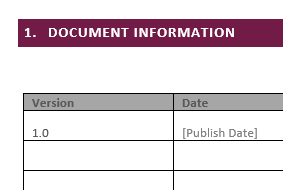
I'm wondering of this is a bug but it's been extremely frustrating and perhaps someone has a suggestion I have a style I apply to section header - as visible below, where its says section 1 is document information. This at least is how it appears from within MS Word. When the same document is opened in the web pages of O365 - then the NUMBER section at the start loses the purple background - and so because it's then white text on a white background - just looks like an indent (see bottom screen shot). Does anyone have any suggestions - or know if this is a known issue?8.5KViews0likes2CommentsRe: Quality Problems in Microsoft Stream
blods Interestingly this is now fixed. It was well over 24 hours before it rendered the video to a better quality. So that is good to know, but a bit frustrating when you have done a training video and want to push out out there and then. Would be nice to know from Microsoft what the timings are on this.Quality Problems in Microsoft Stream
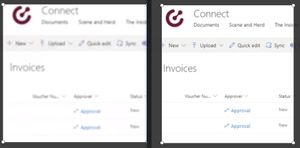
When recording training videos, I try to optimize the readability by dropping my screen resolution to 1920x1080 - and then I use OBS to record the screen to an MP4. The video below is a 789kbps 60 frames per second video. When I play it back on my PC - it looks like the video on the right (cropped). When I upload to Microsoft Stream it looks blurred like the below left. I know the video takes some time to do a second render - but I've waited over 24 hours now - and also tried reuploading it, and it remains blurred. Does anyone have any clues, as its very frustrating. Other videos uploaded are sharp, and Im not sure what combination of stars align to cause this issue (is it my choice of resolution, my choice of OBS, my configuration of OBS, my use of MP4, although I have also tried MOV with the same results). Any suggestions!No modern page search from SharePoint for Mobile
You dont appear to be able to search modern pages from SharePoint Online - unless they're marked as news. We've moved what was our existing old style SharePoint wiki library, into a modern page library in a communications site, and while you can find these pages when searching from SharePoint in the web browser - they don't appear when using the Search box inside the SharePoint for Mobile. I expect the SharePoint for Mobile app - has some logic, that includes the display of 'wiki pages' and modern pages marked as news pages - but I cant see how we can ensure that our modern pages - which are important knowledge articles get returned for phone users.577Views0likes0CommentsHow can you tell which of your profiles any link you click in an Email will use when Edge starts?
I have Chromium edge, pinned twice - once for my admin account, once for my work account. I guess other people might pin their home accounts and work accounts. When you have Edge open twice, with two profiles - which one will be used, when you click on a URL in outlook. I say this, because at work - you might have Teams links, or Helpdesk links that needs one profile or another. Dont mind what the logic is - just trying to understand it.Solved3.4KViews0likes12CommentsRe: Windows 10 OneNote and Office 365 Outlook, no way to add meeting notes to a meeting
Its still possible to use this feature but you might need to check your Outlook plugins to make sure that you have the right version https://business.tutsplus.com/tutorials/use-onenote-with-outlook-calendar--cms-3156336KViews0likes3CommentsRe: OneNote Windows 10 Best Practices
Here's a few things that I've captured in various sessions with staff. - If all staff can access/store their Onenotes on a o365 Sharepoint or Hotmail account, then try to move everyone to the Windows 10 version of OneNote. The OneNote desktop 2016 is no longer being developed, and so new features are ONLY available on the Windows 10 version. The primary reason to need the desktop version - is if you need to collaborate on OneNotes through a windows file server share, or need to store the Onenotes locally on your PC. Only the desktop 2016 version supports this. However the newer Windows 10 version, looks the same across the Web, Windows, Android, Apple versions - so its much less confusing for users to try to stick to this one across all platforms (including Windows). - OneNote is for capturing and recording thoughts and ideas. Its strength lies in how quickly you can throw notes into (using voice, using screen capture, using the print driver, using the scanner Office lens) - and then how quickly you can find those notes as the Search in OneNote is fantastic. Make sure that everyone fully understands the myriad of ways that notes can be created and how well the search performs. I have a OneNote for my house, with every Room being a section. So this includes photos or repair work, records of the colors of paint used on walls, photos of receipts used when buying shelves etc. I find this a great OneNote to show staff to help them understand how you could use it, as it touches on all of the elements. - In regards to 'When to use OneNote'. The challenge with Microsoft is often two fold. Firstly there is normally ten different ways to do the same thing, and secondly a lot of Microsoft guidance, tool sets, training doesn't differentiate between a company of 200,000, 2,000 or a company of 200. The primary different in content should consider whether the content is managed or unmanaged. OneNote is unmanaged content. I explain the difference to staff in terms of car manufacturers. If you're buying a car - you will want various documentation and literature available to you. The manual for the car is going to be very well managed data. That will be well formatted, well checked / approved / version controlled - and there will be only one source of truth when it comes to the cars manual. However another source of information might be community driver - people discussing issues they've had with the car, tips they have about it, ideas for ways it can be improved. This is unmanaged content. This doesnt require any kind of control at all, it doesnt need curating particularly - This is just useful information which people have thrown into a pot which may or may not be useful to others. If the content in the Onenote becomes extremely important, critical, or part of some production system - then it should ideally be transferred to word documents, where it will have oversight and governance. So OneNote is ideal for meeting minutes, its great place to capture any kind of notes, or prepare information that someone has asked you or a team to collate together. Use it to record conversations, ideas, capture web pages that you've not had time to visit, throw in paragraphs of text that you find interesting. Through OneDrive - Its also a very useful way to collaborate with third party contractors. Instead of emailing requirements, status updates and so on - create a shared OneNote which gives you a searchable mechanism to quickly capture and share anything you like. - I'll mention the Search again, because it's brilliant. I have 30 or so Notebooks spread across work and home and various contractors. Typing in OneNote search instantly brings me to the page despite my having over years of content. - To get staff using it. I create default OneNote libraries in each departments SharePoint site, and give all staff access to their Personal OneDrive and their departmental one. To hep engagement, training is focused on how they can capture their staff appraisals, reviews, and so on - in the personal share, and capture team and department meetings in the other one. At a very minimum this should be configured as default for all staff.5.7KViews1like0CommentsRe: OneNote 2016 v OneNote 10
My digging into this led me to conclude that moving to the Windows 10 version was preferable for most users. It is definitely confusing having both available and both working - but Microsoft have quite rightly recognised the need to have all the versions of their apps looking and behaving the same across all platforms. The Windows version of OneNote has the advantage that it looks and behaves the same across the web, android and apple versions. That means one set of guides for users, one set of notifications about new features or changes, one set of screen shots. There are a few things that I miss from the desktop version - version control, the navigation - but the Windows 10 version has really come on fast with new features. I think the last update was the first time, that new features came out ONLY on the Win10 version of OneNote - rather than coming out on 2016 first. The only reason I would advise someone to use the 2016 desktop version, is if they collaborate with notes only through a file share - rather than doing it through the web/sharepoint2.1KViews0likes1CommentRe: How Can i make video like that ?
Two of the most useful tools are OBS and Hit Film 4, both of which are free. The particular effect in that video are more straight forward than most, as in the main - all that's happening is that two images are being combined. Things like Ticks are suddenly sliding up onto the screen. This is simpler than many people realise, as its just using the green screen or chroma key effect which both OBS and Hitfilm support. So just put an image/icon/logo into anything like powerpoint, word, or anything - and as long as you have a green background, you can then capture and overlay that image on top of the video footage of someone working on their computer. If you purchase some cheap green A0 paper and stick it to some cardboard - you can also create your own green screen very easily which is how people do those videos where they're just a talking head in the corner of the screen.1.1KViews0likes0Comments
Recent Blog Articles
No content to show