User Profile

Richard_Gration
Copper Contributor
Joined 3 years ago


User Widgets
Recent Discussions
Re: Change in Files On-Demand behaviour in recent update to OneDrive for Windows
Thanks for posting this. I gave it a try and, as expected, it does make the OneDrive administrative template appear in gpedit.msc. However, setting 'Use Files On Demand' to disabled makes no difference, even after rebooting the machine. I presently have OneDrive version: Build 24.101.0519.0010 (64-bit). So, unfortunately the problem still persists as per my original post. It is clearly possible for the previous OneDrive behaviour to still work with the current version of the OneDrive software as my work PC continues to allow 'Files On Demand' to be toggled off with exactly the same version of OneDrive installed. It is disrespectful of its customers that Microsoft forces these changes on users. Users should be able to select whether they want 'Files On Demand' or not, and not be forced into a change they don't want or need.13KViews0likes1CommentRe: Change in Files On-Demand behaviour in recent update to OneDrive for Windows
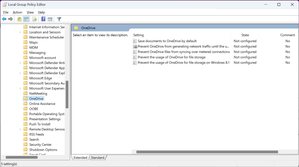
Hi LeonPavesic, Thanks for your reply. However, I'm not sure it is correct that by clicking on the new 'Download all files' button that 'all your OneDrive files will be downloaded to your local hard drive, and the Files On-Demand feature will be turned off'. The link in your reply to https://www.elevenforum.com/t/enable-or-disable-onedrive-files-on-demand-in-windows-11.4371/ actually says: You will know that Files On-Demand is turned on if you see the https://www.elevenforum.com/t/what-do-the-onedrive-sync-status-icons-mean-in-windows-11.11685/ next to your files in File Explorer. As per my original post, what I am seeing is the status icons next to the files in File Explorer (rather than superimposed on the file icons as occurs when you have files on-demand disabled). So what appears to be happening is that files on-demand is being forced on, but all files on OneDrive are being marked as 'always keep on device'. I had previously tried the Group Policy Editor approach, but there is no 'Use OneDrive Files On-Demand settings' policy: I tried manually creating [HKLM\SOFTWARE\Policies\Microsoft\OneDrive\FilesOnDemandEnabled] as a REG_DWORD in the registry and setting it to 0, but that didn't seem to make any difference.27KViews4likes0CommentsChange in Files On-Demand behaviour in recent update to OneDrive for Windows
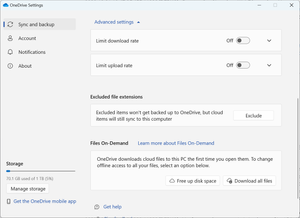
I have two PCs - one I use at home and another I use at work. Both are running Windows 11 23H2 and are fully up to date with Microsoft updates. Both are running OneDrive version 23.214.1015.0001. I had to recently clean reinstall Windows on my home PC as I had windows authentication errors I couldn't fix. However, after a clean reinstall the newly installed OneDrive has lost the option to turn off 'Files On-Demand' that existed previously and now the only option available is to 'Free up disk space' or 'Download all files', ie. Files On-Demand is now forced on, but you have a choice to mark everything to be downloaded and kept on the local system. This results in the file status icons (blue cloud = online only; green tick = downloaded; solid green circle with white tick = always keep on device) being shown separately from the file icon rather than superimposed on the file icon (as used to occur when Files On-Demand was disabled). This is what I see on my home PC OneDrive 'Sync and backup' advanced settings: But this is what I see on my work PC OneDrive settings: Microsoft says in answer to 'Why don't I see the option to disable Files On-Demand' (https://support.microsoft.com/en-us/office/save-disk-space-with-onedrive-files-on-demand-for-windows-0e6860d3-d9f3-4971-b321-7092438fb38e😞 We are updating the OneDrive sync app advanced settings for Files On-Demand for users who have the feature enabled. The behavior change occurs for users who have Files On-Demand enabled. There is no change at this time for users that have the feature disabled from OneDrive settings or by admin policy. After this change, users who have Files On-Demand enabled will see two buttons: Download files as you open them: This is the default and recommended behavior. New files from the cloud are online-only by default, not taking up disk space. Files are downloaded to the device if a user opens them or chooses the option to “Always keep on this device” from the context menu in File Explorer. Files created on the device are available offline by default. Download all files now: This setting is equivalent to choosing the option to “Always keep on this device” from the context menu in File Explorer for the entire OneDrive folder. Selecting this option causes all files from the cloud to be downloaded, taking up disk space on the device. The behavior of this setting is equivalent to the legacy option of turning off Files On-Demand mode, with some improvements like updated icons. I want to revert to the previous behaviour of switching off Files On-Demand altogether rather than being forced to have it on and then marking everything as 'always keep on device'. Clearly this is possible because that is how my work PC behaves with exactly the same version of OneDrive installed. Does anyone know what registry settings will force OneDrive to revert to the old behaviour of having a slider switch to turn off Files On-Demand? Alternatively, if it is not easily possible to make the slider switch reappear, how do I simply turn off Files On-Demand altogether?33KViews2likes8Comments
Recent Blog Articles
No content to show