User Profile

lilyolason
Former Employee
Joined 4 years ago


User Widgets
Recent Discussions
My Team and My Organization tabs within Viva Insights app in Teams
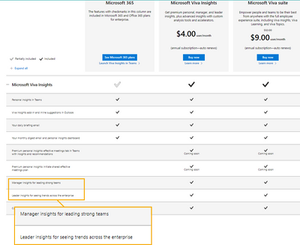
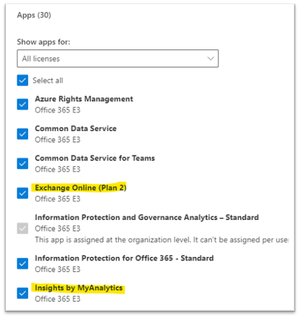
The My Team tab within the Viva Insights app in Teams lets you view insights about your personal interactions with members of your team. If you’re a manager or leader with nine or more measured employees in your reporting structure, you can use the My Organization tab to see aggregated insights about your team’s working patterns (to learn how we define measured employees and managers, see the bottom of this article). However, some users might not see these tabs when they set up the Viva Insights app in Teams in their environment. It's important to understand that these tabs are only available with specific Viva Insights subscriptions and service plans, and that they require additional administrator actions and configuration before they become available in the Viva Insights app in Teams. Let’s explore these requirements in more detail. Subscriptions and service plans While Personal Insights through the Viva Insights app in Teams is included in the Microsoft 365 and Office 365 plans, Team and Organizational Insights require additional (add-on) subscriptions and/or service plans, as explained below. Note: To see this list, go to Microsoft Viva Insights pricing. For access to the My Team tab, you need: One of the premium Microsoft Viva Insights subscriptions, AND One of the Microsoft 365 SKU that has the Insights by MyAnalytics OR Microsoft MyAnalytics (Full) service plan. For access to the My Organization tab, you need: One of the premium Microsoft Viva Insights subscriptions. For more information on the service plans, refer to Microsoft 365 plans. User Licenses All members of the teams or organization need to be assigned the appropriate Viva Insights license. For access to the Viva Insights app in Teams and the Outlook add-in, users need a Teams and Exchange Online license, respectively. To access premium features in the Teams app, however, users need additional licenses. Premium features The My Team tab is only accessible to users who are: Assigned Viva Insights License, AND Assigned the Insights by MyAnalytics OR Microsoft MyAnalytics (Full) licenses. The My Organization tab is only accessible to users who are: Assigned Viva Insights License, AND Have the Insights business leader role assigned. Group Insights is only accessible to users who: Are assigned Viva Insights License, AND Assigned the Insights by MyAnalytics OR Microsoft MyAnalytics (Full) licenses. Are identified as Manager in WPA Admin Portal, AND Have nine or more employees reporting to them in Azure Active Directory. License assignment The Microsoft Viva Insights license can be assigned by following this navigation: Microsoft 365 admin center (https://admin.microsoft.com/) > Users > Active users > Find affected user > License and apps> Apps (under License) > Microsoft Viva Insights > Save changes. Note: For My Team features, team managers can add any user/employee who exists in Azure Active Directory to their team. For the best experience, we recommend that these users have an Exchange Online license. Refer to these articles for more information: Manager, leader, and advanced insights Setup for manager and leader insights Permissions and roles for My Organization For access to the My Organization tab, in addition to the licenses assigned above, the user also needs to be assigned either the Insights administrator or Insights business leader role. These roles can be assigned by following this navigation: Azure Active Directory admin center (https://aad.portal.azure.com/) > Users > Find users > Assign role > Add assignments (Insights administrator or Insights business leader) > Add. Active assignments can be verified using the Manage > Assignments > active assignments tab. Note: When using Privileged Identity Management in Azure, roles are typically assigned as eligible, and the end user then activates them by going to the Azure Portal. Once activated, Azure Active Directory will start stamping the user token with the roles. In such a case, ensure that the user has activated the roles above. For more information, refer to Activate privileged access group roles in PIM - Azure AD | Microsoft Docs. Refer to these articles for more information: Leader insights in the My organization page | Microsoft Docs User Roles for feature access Insights Business Leader Configure Manager settings After the licenses and roles discussed earlier have been assigned, you need to configure the manager settings using the guidance in this article: Manager settings. If you’re unable to access this page, you most likely don’t have the appropriate licenses or roles assigned. Once the licenses and roles are assigned, it may take up to one hour for these settings to become available. Organizational data When using Organizational data as a data source for Advanced Insights in Viva Insights—which provides data to the My Team and My Organization tabs, and Group Insights—you might see the following alerts. These alerts indicate you’re missing valid data related to organizational hierarchy. In the Workplace Analytics > Effective Managers tab or in Teams > Effective managers, after uploading the first org data: "The minimum number of employees or managers required for this insight has not been met." (The following image is from Teams.) In Workplace Analytics > Leader & Manager settings, after uploading the manager.csv file, a message about not meeting minimum team size. These issues can occur if the manager hierarchy generated from the organizational hierarchy file doesn’t contain enough managers to be used for the behavior cards, especially when the number of reports indicates there aren’t any managers with nine or more reports. For the behavior cards to work properly, there need to be five or more valid managers, either from the organizational data file or the manager list To solve these issues, you’ll need to: Re-upload the organizational hierarchy file in Workplace Analytics with the correct hierarchy. For the behavior to work correctly, the hierarchy file should result in managers having at least nine reports and the organization having more than five valid managers. Check the HR file and ensure that: - Everything (UPNs, etc.) is in lower case. - File name does not contain any special characters. - The encoding of the CSV file is UTF-8. Ensure that there are no loops at the top of the hierarchy. Here’s an example: Aaron -> Ajay -> Marc -> Omar -> Laura -> Steve -> Evie -> Steve In this case, Steve reports to Evie and Evie reports back to Steve. To address this loop, you would need to change Evie’s manager so: - It has a domain that matches your primary domain e.g., na@yourdomain.com. - It is not null. Note: When you prepare organizational data for upload to Viva Insights, use the time zone names (the TimeZone attribute) exactly as they appear in Time zones for Viva Insights. Measured employees and valid managers As stated in the Workplace Analytics Glossary | Microsoft Docs, measured employees are employees to whom your Viva Insights admin assigned licenses during setup. After license assignment, Viva Insights extracts Microsoft 365 data about meetings, email, unscheduled calls, and instant messages for these people. If you are an analyst or limited analyst, this is the population that you can analyze within Viva Insights. The number of measured employees can help determine whether you have good data coverage for analysis. A valid manager needs to have nine or more direct or indirect reports in Azure Active Directory or in uploaded organizational data. For more information, refer to Manager settings. Back to top6.8KViews2likes2CommentsViva Insights app in Teams and Briefing email available for Government Community Cloud
We're excited to announce that we're releasing the Microsoft Viva Insights app in Microsoft Teams and the Briefing email to the Government Community Cloud (GCC) in June 2022. Viva Insights app in Microsoft Teams with personal insights The Viva Insights app in Teams shows you personalized recommendations that help you do your best work and build better work habits—for example, following through on commitments made to collaborators and protecting focus time in the day for uninterrupted, individual work. For more information about the Viva Insights app in Teams, refer to our documentation. Briefing email The daily Briefing email helps you stay in control of your calendar and be intentional about your day. The Briefing email shows you relevant items to help you better prepare for the day ahead, like outstanding commitments, requests, and follow-ups to and from collaborators; documents related to the day’s meetings; and suggested focus time. You’ll receive the Briefing email within two hours of the start of your workday as it’s set up in Outlook. For more information about the Briefing email, refer to our documentation.1.2KViews1like1CommentConfigure Microsoft Viva Briefing and Digest email settings
Microsoft Viva sends the following types of emails based on your activity and actionable tasks in Microsoft 365. Briefing emails: Sent near the start of your workday (as set in Outlook) when you have actions needed to prepare for a meeting or in response to an email. The Briefing email isn’t sent when you have no actionable items. Frequency: Daily Digest emails: Summarizes data about your work patterns over the past four weeks and suggests ways to improve them. Frequency: Twice a month Note: For Briefing emails, all you need is an Exchange Online service plan. For Digest emails, you also need the MyAnalytics service plan assigned to the user. Both of these service plans are available by default as part of your Microsoft 365 subscription. To find out which Personal insights service plans are generally available with a subscription to the Microsoft 365 plans, refer to Microsoft 365 plans. Important: These emails are system-generated and don’t go through the standard email delivery process; they can't be managed by email rules or transport rules. Admins and end users can opt out of these emails using the following settings. Disable Viva Insights emails As an admin, you can disable Viva Insights emails at the tenant level using the following options: Disable briefing emails at a tenant level Disable digest emails at a tenant level You can also disable these emails at a user level using the following options: Disable briefing emails at a user level Disable digest emails at a user level Additionally, end users can opt out of these emails using the following options: Opt-out of Briefing email Opt-out of Digest email Note: If you’re not able to save the settings related to Briefing or Digest emails in the Microsoft 365 admin center, try opening the admin center in an in-private window. Also, check the service health for any service-level events: How to check Microsoft 365 service health. Not receiving your daily Briefing? Here are three reasons why a user might not receive a Briefing email. Briefing emails are sent within two hours of the start of the workday (as set in Outlook). Once the tenant has been enabled, several criteria must be met before the Briefing message is delivered to a mailbox. Briefing emails aren’t sent to users who are out of office or have all-day meetings with “out of office” marked inside of Free or Busy. Users only receive the Briefing email if Viva detects at least one actionable insight to review. We don’t support Shared Mailboxes for briefing emails. If you’ve recently migrated a mailbox from Shared and back to User, you’ll need to initiate a mailbox move—which resets the Azure Active Directory sync—to accurately reflect the new status. Once done, emails from Viva Insights should begin to flow within a few weeks. Note: When using PowerShell to retrieve a user’s mailbox info, look for the attribute RecipientType. The user’s time zone and language need to be configured correctly. In addition to confirming the time zone and language are correctly configured, confirm that the daily Briefing send time is set to before noon and that the user’s mailbox has actionable items to generate daily briefing emails. For example, when running Get-MailboxRegionalConfiguration -identity for all the users not receiving Briefing emails, you may notice that a user’s mailbox language setting isn’t properly configured. By design, we skip these mailboxes and the user won’t receive the Briefing email. They should receive Briefing emails once they set the language. Reference link: Set-MailboxRegionalConfiguration (ExchangePowerShell) | Microsoft Docs Here are other reasons why mailboxes could be skipped: The mailbox language isn’t supported by Briefing A user has Briefing disabled, either via admin or user settings A user has no tasks detected in email or no document suggestions for today's meetings A user’s Outlook holiday calendar shows a holiday A user is out of office A user’s delivery time is set after 12 PM on the Briefing settings page The following content in the Briefing emails have additional requirements on top of the basic Exchange Online plan requirement: Ability to enroll in a focus plan Enrollment in a focus plan through the Briefing email is currently available only to users who have a Viva Insights service plan enabled. For more information, refer to: To enroll in focus time Catch up with your team To use this content, a user needs to have both a MyAnalytics service plan and a premium Viva Insights license. For more information, refer to: Catch up with your team12KViews2likes4Comments