User Profile

alazarg
Copper Contributor
Joined 4 years ago


User Widgets
Recent Discussions
Re: Deploy File to Intune Enrolled Devices as Win-32 App
Kay_Urban That is a good question! To deploy multiple file using one deployment action, you can modify the install, remove and detect scripts. for example to modify "install-file.ps1" ----------------------------- #Installation Script: Install-file.ps1 $FileName1 = "FileToDesktop1.pdf" $FileName2 = "FileToDesktop2.pdf" $FileName3 = "FileToDesktop3.pdf" $ScriptPath = [System.IO.Path]::GetDirectoryName($MyInvocation.MyCommand.Definition) Copy-Item -Path "$ScriptPath\$FileName1" -Destination "$Env:Public\Desktop" Copy-Item -Path "$ScriptPath\$FileName2" -Destination "$Env:Public\Desktop" Copy-Item -Path "$ScriptPath\$FileName3" -Destination "$Env:Public\Desktop" ----------------------------------------- I hope this helps.23KViews1like2CommentsInvite external user | Expire Invitation
I though it would be great to add control features on guest account during invitation. Does anyone know if there is any road map for adding: 1. Invitation Expiry date 2. Last day of Access 2.1. Allow access renewal on request or Auto renewal ? I know you can use access review or access packages for similar controls but not all guests fall under the same category. Having these feature on the invitation screen can be handy to manage guest users. Thank you,Deploy File to Intune Enrolled Devices as Win-32 App
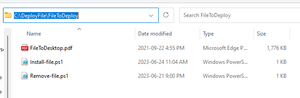
I had a request to Deploy a pdf file to user's desktop and could not find clear documentation, hence here is how I successfully deployed it and decided to share is with this amazing community. Deploy File to Intune Enrolled Devices Deploy a file to Intune enrolled device's to "C:\Users\Public\Desktop" through Intune Step 1: Prepare the files: The File Install-file.ps1 Remove-file.ps1 Detect-file.ps1 Step 2" Create an Install, Remove & Detect script & save each scripts A. Install: #Installation Script: Install-file.ps1 $FileName = "FileToDesktop.pdf" $ScriptPath = [System.IO.Path]::GetDirectoryName($MyInvocation.MyCommand.Definition) Copy-Item -Path "$ScriptPath\$FileName" -Destination "$Env:Public\Desktop" B. Remove: # Remove Installation: Remove-file.ps1 $FileName = "FileToDesktop.pdf" Remove-Item -Path "$Env:Public\Desktop\$FileName" C. Detect: # save this in a separate folder #Detect File : Detect-file.ps1 $FileName = "FileToDesktop.pdf" if (Test-Path -Path "$Env:Public\Desktop\$FileName"){ Write-Output "0" } Step 3: collect Install-file .ps1, Remove-file .ps1 and the required files in one folder as shown above and create an Intune installation Package. PS C:\Intune\WindowsIntunePrepTool> .\IntuneWinAppUtil.exe Please specify the source folder: C:\DeployFile\FileToDeploy Please specify the setup file: FileToDesktop.pdf Please specify the output folder: C:\DeployFile Do you want to specify catalog folder (Y/N)?N Step 4. Deploy Intune installation file with the following commands Upload the IntunePackage as " App : Windows app (Win32) Install Command: %windir%\system32\windowspowershell\v1.0\powershell.exe -executionpolicy bypass -file "Install-file.ps1" Uninstall Command: %windir%\system32\windowspowershell\v1.0\powershell.exe -executionpolicy bypass -file "Remove-file.ps1" Operating system architecture = select both 32/64-bit Detection rule: use custom detection script and upload the Detect script created above. Following the above steps, it is straight forward and easy to deploy a file to Intune Enrolled devices when required.Re: OMS Agent on Azure Sentinel Log forwarder not receiving and forwarding logs to sentinel workspace
Thank you very much for the input KennethML The disk size full issue was resolved by increasing the OS Disk size. When creating Linux VM in Azure, OS disk is 32GB and for Log forwarder that need to be increased to at least 256 GB, as follows: Select the disk, choose from the list, and save. The syslog server will maintain the log file cleanup with its scheduled task.4.1KViews0likes0CommentsTeams Message: Verify Group setting
Hi Teams, Having issue with sending Teams chat to wrong group. would it be possible to add a setting to enable "Verify messaging group" before sending the message to the entire wrong group like: Set-TeamMessagingSettings -GroupId 4ba546e6-e28d-4645-8cc1-d3575ef9d266 -AllowUserVerifyMessageGroup true Thank you!1.5KViews0likes2CommentsTeams Chat Verify before sending feature
Hi MS Teams, @Susan Cockrell Is there a feature to enable/disable "Verify Chat group" before sending the message to verify that you are chatting in the right group, or is there anything in the road map to add such feature in each chat group where users can enable it on selected sensitive chat groups? If not, please consider to add such feature. Chat seems easy to communicate and some user loose track of which chat group is on top and can save lots of unnecessary chats floating everywhere. Thank you!1.7KViews2likes2Comments


Recent Blog Articles
No content to show