User Profile

Bridgett_B
Copper Contributor
Joined 4 years ago


User Widgets
Recent Discussions
Power Query import using relative path of PDF file error
Hello, I have a query that currently imports a pdf file based on a specific file name and location. I'm trying to make the file name and location relative but keep getting an error. I'm using Excel365. This is the Source line from the hard coded pdf import: let Source = Pdf.Tables(File.Contents("C:\Users\User26\Documents\Projects\IG Receivable - Schools\PCR's- Adobe Extension.pdf"), [Implementation="1.3"]), When I change the code in the advanced editor to the following in order to make it relative I get an stating "DataFormat.Error: External table is not in the expected format" let FolderPath = Excel.CurrentWorkbook(){[Name="FolderPath"]}[Content]{0}[Column1], PCRFileName = Excel.CurrentWorkbook(){[Name="PCRFileName"]}[Content]{0}[Column1], Source = Excel.Workbook(File.Contents(FolderPath & PCRFileName), null, true), PCRs = Source(Pdf.Tables(File.Contents((FolderPath & PCRFileName),[Implementation="1.3"]))) in PCRs I suspect the issue is with the PCRs = Source line of the code but haven't been able to figure out what. Any suggestions? Thank you BridgettSolved956Views0likes2CommentsIndex Match Match not returning expected results, referencing structured Table columns
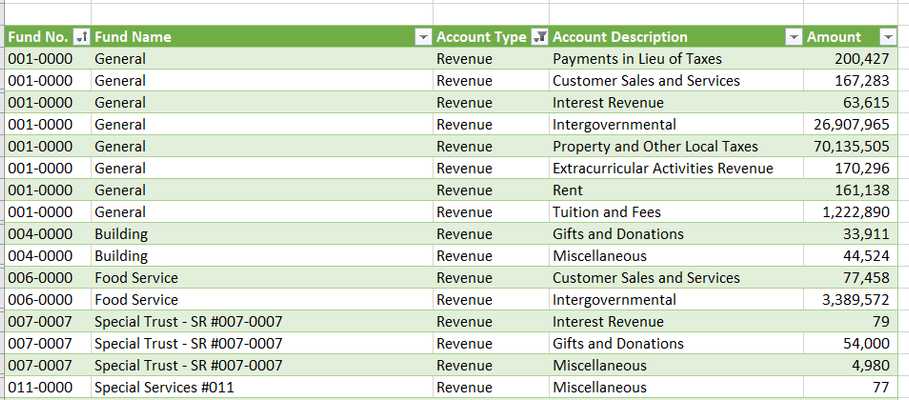
Hi Everyone, I've been looking at this so long with no success and I think I just need a fresh set of eyes/another opinion so I would appreciate any input you may have. I'm using Office 365. I've used Power Query to give me the table below, which is named Revenue___Expense_GRNP_Trial: I'm using an index match match formula to pull that data into a separate tab of the same workbook with this formula =(IFERROR(INDEX(Revenue___Expense_GRNP_Trial[[Amount]:[Amount]],MATCH('Program Revenues-Schools'!$B10,Revenue___Expense_GRNP_Trial[[Account Description]:[Account Description]],0),MATCH('Program Revenues-Schools'!D$5,Revenue___Expense_GRNP_Trial[[Fund No.]:[Fund No.]],0)),0)) That formula works for only the first "fund" in that table even though my formula is referencing that entire fund column. I say this because it won't work for any other fund in the list and if I change the sort on that original table so that the fund is descending instead of ascending, it won't even pick up fund 001-0000. Everything is formatted the same, "general" and if you look at column I, fund 006-0000 is definitely in the original data table. It's like the reference range is only looking at a limited number of rows in the table and I can't see where the error in my INDEX formula is. Any help would be appreciated! BridgettSolved1.5KViews0likes2CommentsRe: power query with relative data source not refreshing accurate data
Yes and it will update correctly if I save the workbook after making changes to the table data. If I don't save the workbook, it won't refresh with accurate data. I did finally figured out what it's doing. For examples sack lets say the workbook I have my query in is workbook A. My relative data sources in workbook A are setup on a designated "settings" tab and are various (CELL,"filename") formulas that are giving the file path and file name of the current workbook. When I open another Excel workbook, let's say workbook B, those formulas in the workbook A are updating to reflect the file name and directory path of workbook B. I think I'm going to have to either hard code that file name in, which could be problematic, or make it a parameter that the user can change/update on their own.3.3KViews0likes2CommentsRe: power query with relative data source not refreshing accurate data
Hi Martin_Weiss This particular query doesn't have any joins and it's is just data transformations that will create that lookup column and 2 calculated columns, accrued medicare and accrued SERS. That lookup field will be used in the Excel file itself (outside of PQ). This is the full code for the Query: let FolderPath = Excel.CurrentWorkbook(){[Name="FolderPath"]}[Content]{0}[Column1], FileName = Excel.CurrentWorkbook(){[Name="FileName"]}[Content]{0}[Column1], Source = Excel.Workbook(File.Contents(FolderPath & FileName), null, true), WAGACT_Sheet = Source{[Item="WAGACT",Kind="Sheet"]}[Data], #"Removed Top Rows" = Table.Skip(WAGACT_Sheet,2), #"Promoted Headers" = Table.PromoteHeaders(#"Removed Top Rows", [PromoteAllScalars=true]), #"Changed Type" = Table.TransformColumnTypes(#"Promoted Headers",{{"FND", type text}, {"FUNC", type text}, {"SCC", type text}, {"ACCRUED", type number}, {"MEDICARE", type number}, {"CONTRACT_REMAIN", type number}, {"CONTRACT_OBLI", type number}, {"OBJ", Int64.Type}}), #"Removed Columns" = Table.RemoveColumns(#"Changed Type",{"SUBJ", "OPU", "IL", "JOB", "JBN", "CONTRACT_REMAIN", "CONTRACT_OBLI"}), #"Changed Type1" = Table.TransformColumnTypes(#"Removed Columns",{{"FND", type text}, {"SCC", type text}, {"FUNC", type text}}), #"Renamed Columns2" = Table.RenameColumns(#"Changed Type1",{{"MEDICARE", "MEDICARE_WAGACT"}}), #"Added Custom Medicare" = Table.AddColumn(#"Renamed Columns2", "MEDICARE", each if [MEDICARE_WAGACT] = null then [ACCRUED] * .0145 else [MEDICARE_WAGACT]), #"Reordered Columns" = Table.ReorderColumns(#"Added Custom Medicare",{"FND", "SCC", "FUNC", "OBJ", "EMP_ID", "EMP_NAME", "ACCRUED", "MEDICARE"}), #"Inserted First Characters" = Table.AddColumn(#"Reordered Columns", "First Characters", each Text.Start(Text.From([FUNC], "en-US"), 2), type text), #"Added Conditional Column1" = Table.AddColumn(#"Inserted First Characters", "First 2_Func", each if Text.StartsWith([First Characters], "19") then null else if Text.StartsWith([First Characters], "4") then null else [First Characters]), #"Removed Columns2" = Table.RemoveColumns(#"Added Conditional Column1",{"First Characters"}), #"Added Conditional Column" = Table.AddColumn(#"Removed Columns2", "19", each if Text.StartsWith([FUNC], "19") then [FUNC] else null), #"Inserted First Characters1" = Table.AddColumn(#"Added Conditional Column", "First Characters.1", each Text.Start(Text.From([19], "en-US"), 3), type text), #"Added Suffix1" = Table.TransformColumns(#"Inserted First Characters1", {{"First Characters.1", each _ & "0", type text}}), #"Removed Columns1" = Table.RemoveColumns(#"Added Suffix1",{"19"}), #"Added Suffix" = Table.TransformColumns(#"Removed Columns1", {{"First 2_Func", each _ & "00", type text}}), #"Added Conditional Column4xxx" = Table.AddColumn(#"Added Suffix", "Custom", each if Text.StartsWith([FUNC], "4") then 4 else null), #"Added Suffix2" = Table.TransformColumns(#"Added Conditional Column4xxx", {{"Custom", each Text.From(_, "en-US") & "000", type text}}), #"Renamed Columns1" = Table.RenameColumns(#"Added Suffix2",{{"Custom", "4000"}}), #"Added Custom SERS" = Table.AddColumn(#"Renamed Columns1", "Accrued SERS", each if [OBJ]>140 then [ACCRUED]* .14 else 0), #"Rounded Off SERS" = Table.TransformColumns(#"Added Custom SERS",{{"Accrued SERS", each Number.Round(_, 2), type number}}), #"Merged Columns" = Table.CombineColumns(#"Rounded Off SERS",{"First 2_Func", "First Characters.1", "4000"},Combiner.CombineTextByDelimiter("", QuoteStyle.None),"GFunction"), #"Reordered Columns1" = Table.ReorderColumns(#"Merged Columns",{"FND", "SCC", "GFunction", "FUNC", "OBJ", "EMP_ID", "EMP_NAME", "ACCRUED", "MEDICARE", "Accrued SERS"}), #"Removed Columns3" = Table.RemoveColumns(#"Reordered Columns1",{"FUNC"}), #"Added Conditional Column2" = Table.AddColumn(#"Removed Columns3", "Accrued Medicare", each if [MEDICARE] = 0 then [ACCRUED]*.0145 else [MEDICARE]), #"Removed Columns6" = Table.RemoveColumns(#"Added Conditional Column2",{"MEDICARE"}), #"Reordered Columns3" = Table.ReorderColumns(#"Removed Columns6",{"FND", "SCC", "GFunction", "OBJ", "EMP_ID", "EMP_NAME", "ACCRUED", "Accrued Medicare", "Accrued SERS"}), #"Renamed Columns" = Table.RenameColumns(#"Reordered Columns3",{{"ACCRUED", "Accrued Wages"}}), #"Added Custom" = Table.AddColumn(#"Renamed Columns", "Fund", each Text.PadStart( [FND],3, "0")), #"Reordered Columns2" = Table.ReorderColumns(#"Added Custom",{"Fund", "FND", "SCC", "GFunction", "OBJ", "EMP_ID", "EMP_NAME", "Accrued Wages", "Accrued Medicare", "Accrued SERS"}), #"Removed Columns4" = Table.RemoveColumns(#"Reordered Columns2",{"FND"}), #"Merged Columns1" = Table.CombineColumns(#"Removed Columns4",{"Fund", "GFunction"},Combiner.CombineTextByDelimiter("-", QuoteStyle.None),"Lookup"), #"Grouped Rows" = Table.Group(#"Merged Columns1", {"Lookup"}, {{"Lookup.1", each _, type table}, {"Accrued Wages", each List.Sum([Accrued Wages]), type number}, {"Accrued Medicare", each List.Sum([Accrued Medicare]), type number}, {"Accrued SERS", each List.Sum([Accrued SERS]), type number}}), #"Removed Columns5" = Table.RemoveColumns(#"Grouped Rows",{"Lookup.1"}), #"Sorted Rows" = Table.Sort(#"Removed Columns5",{{"Lookup", Order.Ascending}}), #"Changed Type2" = Table.TransformColumnTypes(#"Sorted Rows",{{"Accrued Wages", Int64.Type}, {"Accrued Medicare", Int64.Type}, {"Accrued SERS", Int64.Type}}) in #"Changed Type2"3.4KViews0likes4Commentspower query with relative data source not refreshing accurate data
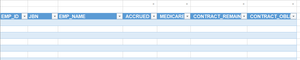
I have a query that is referencing a relative data source that works fine when that source is a specific file. However when I try to direct it to a specific table within that file it isn't reading the data correctly. I'm using Excel 2016. There are only 2 tabs in my Test.xlsx workbook, a settings tab that holds the file location and a tab that shows my table of data. Example: This table, "WAGACT", is on a tab named "WAGACT". I just deleted all of the data from that table. This is the result of the query when it's refreshed: It should be completely blank but it's still pulling in information from somewhere. I just can't see where it's coming from or how to fix it. I have the following code: let FolderPath = Excel.CurrentWorkbook(){[Name="FolderPath"]}[Content]{0}[Column1], FileName = Excel.CurrentWorkbook(){[Name="FileName"]}[Content]{0}[Column1], Source = Excel.Workbook(File.Contents(FolderPath & FileName), null, true), WAGACT_Sheet = Source{[Item="WAGACT",Kind="Sheet"]}[Data], #"Removed Top Rows" = Table.Skip(WAGACT_Sheet,2), Do you see anything wrong with the code that could be causing this? or does anything else come to mind that I should check/change? When I go to the data source settings, it's only showing this, nothing external to the file I'm working with. I'm still very new to m code other than some work with formulas/columns so I greatly appreciate any help or advice. BridgettSolved3.7KViews0likes6CommentsExpression error when changing a source from absolute to relative path in Power Query
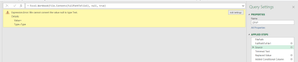
I am trying to make a query source relative so that the workbook can be shared across users in our organization. I’ve followed several other tutorials and forum posts but am getting an error that I haven’t seen mentioned yet. The error being: Expression.Error: We cannot convert the value null to type Text. Details: Value= Type=Type This error appears at the Source in the applied steps. I added the formula =LEFT(CELL("filename",$A$1),FIND("[",CELL("filename",$A$1),1)-1) into cell A1 of a new tab in the workbook and then named that cell FilePath. Then, using the Advanced Editor, added 2 lines before the Source step. Just to be specific and clarify for this particular issue, GRNP is my table name and GRNP Trial Balance-BEFORE.xlsx is the filename of the workbook where the query resides. let FilePath = Excel.CurrentWorkbook(){[Name="GRNP"]}[Content]{0}[Column1], FullPathToFile1 = FilePath & "GRNP Trial Balance-BEFORE.xlsx", Source = Excel.Workbook(File.Contents(FullPathToFile1), null, true), #"Trimmed Text" = Table.TransformColumns(Source,{{"Column1", Text.Trim, type text}}), #"Replaced Value" = Table.ReplaceValue(#"Trimmed Text",null,"blank space",Replacer.ReplaceValue,{"Column1"}), I think the error is referring to the …..,null, true) in the Source step but I don’t know what how to fix it. I am using Excel 2016 with Windows 10 Enterprise. I’m still very much a beginner and the task I’m trying to achieve is still a little too far advanced for me troubleshoot on my own so I would appreciate whatever input you may have! BridgettSolved2.5KViews0likes4Comments


Recent Blog Articles
No content to show