User Profile

Cangkir
Brass Contributor
Joined 4 years ago


User Widgets
Recent Discussions
Re: Macro to select multiple values in Data Validation List
JoaoTeixeira If you're willing to use an add-in, you can try a free Excel add-in called "Search deList". You can find it here: https://www.mrexcel.com/board/threads/i-created-an-excel-add-in-called-search-delist-to-create-searchable-data-validation.1189466/ This new version has some additional features, some of them: Several ways to search, like using AND or OR or LIKE operator , with or without keyword order. Sort the list by original order or ascending order. Widen or shorten the combobox width at run time. Insert multiple entries into the cell.1.5KViews0likes0CommentsRe: Paste TO visible cells only in a filtered cells only
If anyone still has problem with this, please check out this article: https://www.mrexcel.com/board/threads/excel-vba-easy-way-to-paste-to-visible-cells.1239792/ it shows you how to make copy-paste visible cells functionality available in any open workbook.2.3KViews0likes0CommentsRe: Copying/Paste Filtered Cells
J199430 Excel does not provide a direct method for copying and pasting from visible cells to visible cells. So here's a method using VBA. Please check out this article: https://www.mrexcel.com/board/excel-articles/excel-vba-easy-way-to-paste-to-visible-cells.70/ And you can put the code in PERSONAL.xlsb and assign a toolbar button to it. The benefit of doing it this way: The macro is available on any open workbook & easy to access (i.e. via a ribbon button) You don’t need to put the macro on all your workbooks, just on PERSONAL.xlsb.454Views0likes0CommentsRe: VBA Dropdown, not working on older versions of excel
BlakeBessigner Searching and creating the dropdowns manually via an add-in would add further steps for the user and overcomplicate a process that is intended to be as easy as possible, The title is somewhat misleading. In reality, the add-in is not for creating data validation; rather, it is designed to automatically generate a searchable combobox based on existing data validation. The list in the combobox is sorted and unique.1.7KViews0likes0CommentsRe: VBA Dropdown, not working on older versions of excel
BlakeBessigner BlakeBessigner wrote: Mainly looking for What version of Excel is causing this issue and how to work around it. The VBA code pastes all the devices I need to a column on the "Dropdowns" sheet, then it uses the Sort, Unique, and Filter functions to create the array of devices the dropdowns point to. When I run this on my machine it works 100% of the time, but when this code is ran on my Boss's machine it fails with an error. Try using "Search_deList_v2.1", it's a free Excel add-in, it works on Excel 2007 or later. Its function is to speed up the search in the data validation list. In any cell that has data validation (with type List) pressing ALT+RIGHT arrow will open a User Form with a combobox. You can type multiple keywords (separated by a space) in the combobox to search items on the list. It also gives you a unique & sorted list. By using this add-in, you don't need VBA to have this searchable combobox, so you can save your files as .xlsx. This new version has some additional features, some of them: Several ways to search, like using AND or OR or LIKE operator , with or without keyword order. Sort the list by original order or ascending order. Widen or shorten the combobox width at run time. Insert multiple entries into the cell. You can find it here: https://www.mrexcel.com/board/threads/i-created-an-excel-add-in-called-search-delist-to-create-searchable-data-validation.1189466/1.7KViews0likes2Comments- 1.2KViews0likes0Comments
Re: Width drop down list
PimMult Try using a free Excel add-in called "Search deList". You can find it here: https://www.mrexcel.com/board/threads/i-created-an-excel-add-in-called-search-delist-to-create-searchable-data-validation.1189466/ This new version has some additional features, some of them: Several ways to search, like using AND or OR or LIKE operator , with or without keyword order. Sort the list by original order or ascending order. Widen or shorten the combobox width at run time. Insert multiple entries into the cell.1.4KViews1like2CommentsRe: Paste TO visible cells only in a filtered cells only
rajm189 hi this VBA is working fine, but it’s taking time if we are using in larger number of cells, can we get quicker VBA ? Sorry for the late reply. It depends on your data. About how many rows is your data? Do you copy from filtered range? Does your data have multiline cells?38KViews0likes0CommentsRe: The annoying excel scientific notation
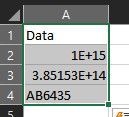
cchai Assuming the formula shows original number, maybe this way: Use macro to add apostrophe (') in front of the numbers. Something like this: Sub to_Text() Dim c As Range For Each c In Range("A2", Cells(Rows.Count, "A").End(xlUp)) c = "'" & c.Formula Next End Sub Before After1.5KViews0likes0CommentsRe: Excel VBA to filter a table based on multiple search criteria entry in ActiveX Control Textbox
alex_n When I copied the code to the actual file and right-sized it by changing the column number to 6 as the search items sit in column 6 it says there's a bug: To change the search column to column 6, change this part (in Private Sub TextBox1_GotFocus()): va = .DataBodyRange.Columns(2).Value to va = .DataBodyRange.Columns(6).Value Also, after applying the multi search, i could not apply filter to the table: The filter actually isn't on the table but in the helper column. Why do you need to apply filter to the table after applying the multi search? it does not return the expected result Is it on my sample workbook or on your actual workbook? Can you give an example?9.3KViews0likes0CommentsRe: Excel VBA to filter a table based on multiple search criteria entry in ActiveX Control Textbox
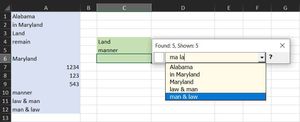
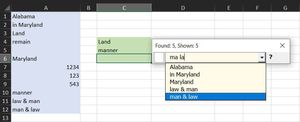
alex_n Try this: It's similar to what HansVogelaar Hans proposed. It uses a temporary helper column, but the column is not part of the table. I put it 2 column next to the table. How it works: It uses a temporary helper column, but the column is not part of the table. I put it 2 column next to the table. It's a live search i.e. the list will be filtered as you type Type some keywords (it can be more than 2) in the textbox, separated by a space, e.g "ma la", the search ignores the keywords order, so keywords "ma la" will match "Maryland" and "Alabama" The result will be displayed after you type the second character. The reason behind this is to speed up the search. Searching with 1 character will return the most results, and on large data sets it can give you a noticeable lag. Searching by 2 characters or more will be faster. You can set this behavior in this part of the code: Private Const CN As Long = 2 'start searching after typing certain number of character, change to suit Speed test: I tested it on 148K rows of data, and it gave me the result almost instantly. The code: 'https://techcommunity.microsoft.com/t5/excel/excel-vba-to-filter-a-table-based-on-multiple-search-criteria/m-p/3812945 Option Explicit Private va, vb Private cell_Start As Range Private oldVal As String Private Const CN As Long = 2 'start searching after typing certain number of character Private Sub CommandButton1_Click() If Not cell_Start Is Nothing Then cell_Start.EntireColumn.Clear End If TextBox1.Text = "" End Sub Private Sub TextBox1_GotFocus() 'load column 2 data to va With Sheets("Sheet1").ListObjects("Materials") va = .DataBodyRange.Columns(2).Value Set cell_Start = .Range.Cells(1).Offset(, .Range.Columns.Count + 1) cell_Start.Value = "Tag" End With Call add_1 End Sub Private Sub add_1() Dim i As Long Dim t ReDim vb(1 To UBound(va, 1), 1 To 1) For i = 1 To UBound(vb, 1) vb(i, 1) = 1 Next End Sub Private Sub TextBox1_Change() Dim tx1 As String On Error GoTo skip: Application.EnableEvents = False Application.ScreenUpdating = False With TextBox1 tx1 = UCase(Trim(.Value)) ' If Len(tx1) < CN Then oldVal = tx1 Call add_1 cell_Start.Resize(UBound(vb, 1) + 1, 1).AutoFilter cell_Start.Offset(1).Resize(UBound(vb, 1), 1) = "" Else If tx1 <> oldVal Then If InStr(1, tx1, oldVal, vbBinaryCompare) = 0 Then Call add_1 Call get_filterX cell_Start.Resize(UBound(vb, 1) + 1, 1).AutoFilter cell_Start.Offset(1).Resize(UBound(vb, 1), 1) = vb cell_Start.Resize(UBound(vb, 1) + 1, 1).AutoFilter Field:=1, Criteria1:="1" End If End If oldVal = tx1 End With Application.EnableEvents = True Application.ScreenUpdating = True Exit Sub skip: Application.EnableEvents = True Application.ScreenUpdating = True MsgBox "Error number " & Err.Number & " : " & Err.Description End Sub Sub get_filterX() 'search without keyword order, case insensitive Dim i As Long, x, z, q Dim v As String Dim flag As Boolean z = Split(Trim(UCase(TextBox1.Value)), " ") For i = 1 To UBound(va, 1) If vb(i, 1) = 1 Then v = UCase(va(i, 1)) For Each q In z If InStr(1, v, q, vbBinaryCompare) = 0 Then vb(i, 1) = 0: Exit For Next End If Next End Sub9.2KViews0likes3CommentsRe: How can I create multiple dependent drop down lists
Lycias Here's an example of 3 level dependent data-validation using the new function in Excel 365. The functions used are: SORT, UNIQUE, FILTER, XLOOKUP & TEXTSPLIT https://www.mrexcel.com/board/threads/3-or-more-dependent-data-validation-with-vba-easy-to-set-up.1185808/post-6010313140KViews0likes0CommentsRe: Can not type when opeing a dropdownlist (AutoComplete for Drop-down List)
If you're willing to use an add-in, try a free Excel add-in called "Search deList" to get searchable data validation. You can find it here: https://www.mrexcel.com/board/threads/i-created-an-excel-add-in-called-search-delist-to-create-searchable-data-validation.1189466/2.5KViews0likes0CommentsRe: Dropdown List with "description" and actual "value"
sandrosg Here's another option, using vba & data validation: Helper range: $G$6:$G$8. Data validation formula: =$G$6:$G$8. On the Error Alert tab, uncheck mark on "Show error alert after invalid data is entered". In Sheet1 code window, put this code: Private Sub Worksheet_Change(ByVal Target As Range) On Error GoTo skip: If Target.Cells.CountLarge > 1 Then Exit Sub If Len(Target) = 0 Then Exit Sub If Not Intersect(Target, Range("F14:F16")) Is Nothing Then 'Range("F14:F16") is range with data validation Dim tx As String, c As Range, v tx = Target.Value If Len(tx) > 0 Then If InStr(tx, " : ") Then v = Split(tx, " : ")(1) Else v = Target.Value End If Application.EnableEvents = False 'Range("F6:F8") is col Distance Set c = Range("F6:F8").Find(What:=v, LookIn:=xlValues, lookAt:=xlWhole, MatchCase:=False, SearchFormat:=False) If Not c Is Nothing Then Target = v Else MsgBox "Wrong Entry" Target.ClearContents End If Application.EnableEvents = True End If End If Exit Sub skip: Application.EnableEvents = True MsgBox "Error number " & Err.Number & " : " & Err.Description End Sub4.6KViews1like0CommentsRe: Auto complete text in a drop down list cell
Heather_Hagart In case anyone needs it, I just shared a new version of "Search deList" add-in, i.e Search_deList_v2.1. Its function is to speed up the search in the data validation list. In any cell that has data validation (with type List) pressing ALT+RIGHT will open a User Form with a combobox. You can type multiple keywords (separated by a space) in the combobox to search items on the list. By using this add-in, you don't need VBA to have this searchable combobox, so you can save your files as .xlsx. This new version has some additional features, some of them: - Several ways to search, like using AND or OR or LIKE operator , with or without keyword order. - Sort the list by original order or ascending order. - Widen or shorten the combobox width at run time. - Insert multiple entries into the cell. You can find it here (please check post #81): https://www.mrexcel.com/board/threads/i-created-an-excel-add-in-called-search-delist-to-create-searchable-data-validation.1189466/post-597851754KViews0likes0CommentsRe: Autocomplete dropdown
Faradn Try a free Excel add-in called "Search deList". It works on Excel 2007 or later. I just released a new version. You can find it here: https://www.mrexcel.com/board/threads/i-created-an-excel-add-in-called-search-delist-to-create-searchable-data-validation.1189466/post-59785173.4KViews0likes0CommentsRe: Filtered List - Cant Copy from one column to another
Tony2021 To copy-paste from visible cells to visible cells, try using “Sub CopyVisibleToVisible1” macro. You can put the macro in Personal.xlsb & assign the macro to a toolbar button, so you can use it on any open workbook. You can find it here: https://techcommunity.microsoft.com/t5/excel/paste-to-visible-cells-only-in-a-filtered-cells-only/m-p/3648053/highlight/true#M1666043.4KViews0likes2Comments
Recent Blog Articles
No content to show