User Profile

Nathan_Pfeifer
Former Employee
Joined 5 years ago


User Widgets
Recent Discussions
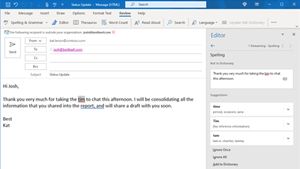
Communicate clearly with Editor in Outlook
Office Insiders on Windows, Shruthi and Senzeni, Program Managers on the Word and Outlook teams, respectively, are excited to let you know that, acting on your feedback, we’ve updated the powerful Editor feature you love in Word and brought those improvements to Outlook for Windows! With Editor, you can put your best foot forward in all your written communication. Try it out and let us know what you think! Read all about it, right here Cheers, Nathan Office Insider Community Manager Become an Office Insider and gaining exclusive access to new features and help shape the future of Office. Join Now: Windows | Mac | iOS | Android832Views0likes1CommentBookmark locations in documents in Word for the web
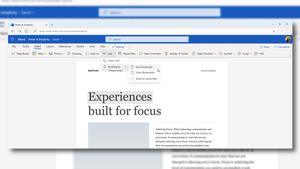
Hello Office Insiders: Now, a feature you love in Word for Windows and Word for Mac has made its way to Word on the web! You can now bookmark locations in your document and quickly access them later. A bookmark in Word works like a bookmark you might place in a book. It marks a place that you want to save and refer to again later. You can enter as many bookmarks as you need, but make sure to give each one a unique name so they’re easy to identify. Try it out and let us know what you think? Read the blog here! Cheers, Nathan Office Insider Community Manager Become and Office Insider and gain exclusive access to new features and help shape the future of Office. Join Now: Windows | Mac | iOS | Android738Views0likes0CommentsFeedback in action: Unhide slides in PowerPoint
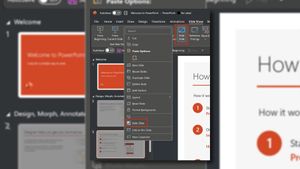
Hello Office Insiders: Up until now, it was unclear how to show a slide that had been hidden because the command name did not change depending on the state of the slide. It remained Hide Slide, even when the selected slide was already hidden. We heard from many of you that this experience was confusing! And we agree with your feedback. So, we’ve updated the command name so that it reads Unhide Slide when the selected slide is currently hidden. Learn how to use it and it's availability right here. Cheers, Nathan Office Insider Community Manager Become and Office Insider and gain exclusive access to new features and help shape the future of Office. Join Now: Windows | Mac | iOS | Android458Views0likes0CommentsEasily organize your workbook with the Navigation pane in Excel for Mac
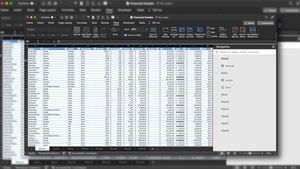
We're excited to share that the Navigation pane you’ve grown to love and rely on in Excel for Windows is now coming to Mac! The Navigation pane helps you quickly get an idea of the layout of your workbook and the objects within it, jump to a particular part of your workbook, and organize your workbook using follow-on actions. You can also easily rename a sheet, scan the data you’ve gathered so far, or hide a chart, all from one place. Find out how to use it and it's availability, in this blog by Program Manager on the Excel team, Sharon Grimshaw. Cheers, Nathan Office Insider Community Manager Become an Office Insider and gaining exclusive access to new features and help shape the future of Office. Join Now: Windows | Mac | iOS | Android763Views0likes0CommentsCopy Values Quickly From the Status Bar in Excel for Windows
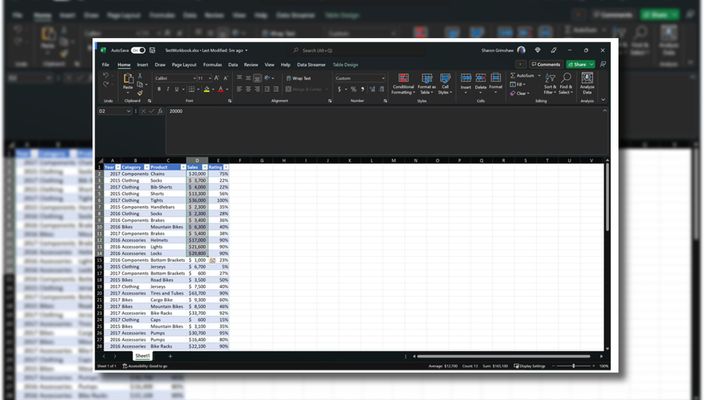
We are excited to announce that you can now copy values from the status bar in Excel for Windows with just one click. Excel has long given you quick facts about your data – like sum, average, and count – on the status bar when you highlight cells. The natural next step was to ask: how do I get that information from the status bar back into my workbook? We’ve heard from many of you that this was something you wanted to do. Fast forward to today: You can now select the value that you want to copy and move it to the clipboard. Then, you can simply paste the information wherever you need in your workbook. Discover how it works, requirements and availability in this blog post by Program Manager on the Excel team, Sharon Grimshaw. Cheers, Nathan Office Insider Community Manager Become an Office Insider and gain exclusive access to new features and help shape the future of Office. Join Now: Windows | Mac | iOS | Android3KViews0likes2CommentsNew location for key functions and direct access to other Microsoft 365 apps in Outlook
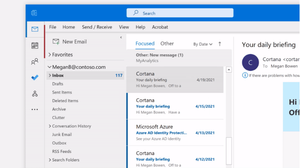
We are excited to share some changes to Outlook for Windows. You can now access your email, calendar, tasks, and other main functions from the area to the left of the folder pane. You can also customize this area with icons for apps such as To Do, Org Explorer, Yammer Communities, and Bookings, meaning you’re able to launch these and other popular Microsoft 365 apps from directly inside Outlook. Try it out and let us know what you think! Read the blog post here Thanks, Nathan Pfeifer Office Insider Community Manager Become an Office Insider and gaining exclusive access to new features and help shape the future of Office. Join Now: Windows | Mac | iOS | Android1.1KViews0likes0CommentsText and array manipulation functions in Excel
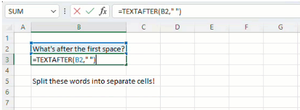
We are thrilled to share with you the availability of 14 new Excel functions designed to help you more easily manipulate text and arrays in your worksheets. Text manipulation functions TEXTBEFORE – Returns text that’s before delimiting characters TEXTAFTER – Returns text that’s after delimiting character TEXTSPLIT – Splits text into rows or columns using delimiters Array manipulation functions VSTACK – Stacks arrays vertically HSTACK – Stacks arrays horizontally TOROW – Returns the array as one row TOCOL – Returns the array as one column WRAPROWS – Wraps a row array into a 2D array WRAPCOLS – Wraps a column array into a 2D array TAKE – Returns rows or columns from array start or end DROP – Drops rows or columns from array start or end CHOOSEROWS – Returns the specified rows from an array CHOOSECOLS – Returns the specified columns from an array EXPAND – Expands an array to the specified dimensions Read the blog and give these a try! Cheers, Nathan Pfeifer Office Insider Community Manager Become an Office Insider and gaining exclusive access to new features and help shape the future of Office. Join Now: Windows | Mac | iOS | Android1.9KViews0likes0CommentsAdd a live camera feed with cameo in PowerPoint for Mac
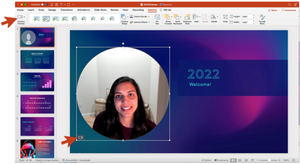
With cameo in PowerPoint for Mac, you can seamlessly embed live camera feeds into your slides and create a more immersive experience for your audience. Doing so can also help you be more prepared for your live presentation (such as presenting in Teams). Cameo gives you full control of live camera feeds. Just as with images, you can move, resize, crop, and apply transitions or styles to the camera feed and use Designer to enhance the look of your slides that use cameo. Read all about how to put cameo into action in our blog! Thanks, Nathan Pfeifer Office Insider Community Manager Become an Office Insider and gaining exclusive access to new features and help shape the future of Office. Join Now: Windows | Mac | iOS | Android4.8KViews0likes0CommentsOffice Insider Spotlight: Chantal Bossé
By her own admission, Chantal Bossé was shy and bookish growing up. But technology—especially PowerPoint and other Office apps—turned out to be the key to her personal and professional transformation. In a 2019 post on the Humans of IT blog, Chantal acknowledged that public speaking used to make her feel “downright panicked.” However, her early years in corporate training and growing mastery of software tools led her to eventually launch her own business, with a particular focus on helping people communicate visually with ease and confidence. “Now,” she wrote, “I’m teaching and coaching others that need to overcome this fear, and I leverage technology to help them.” We recently reached out to the Microsoft MVP, podcaster, and TEDx speaker coach to discuss her professional journey, what she enjoys about the Office Insider program, her favorite PowerPoint innovations from the last year, and which animated film character she relates to most. Tell us about your career path. How did you start out in tech? Chantal: Well for me, I call it my other life, because I have my bachelor’s degree in biochemistry. But in the beginning of the ‘90s, my boyfriend at the time—who is still my partner, for 34 years—he started his business as a computer technician. And he said, “Why don’t you have those skills?” And I said, “I don’t know. I just don’t get the hang of this.” But by the mid-‘90s, I was already working as an instructional designer in telecommunications. I had to learn how to use Office. That’s what we were using at the time for documentation, presentations, and everything. So, I started designing courseware, and I finally got the hang of it. I think Office 95 was when I got the hang of PowerPoint. I was that loony at the time, arguing with the instructors that, “No, it’s not OK to slap a wall of text in your presentations. I produced this thick binder for the course, I’m not republishing the binder as slides. I’m sorry.” At the time I was already starting to do funky stuff in PowerPoint—doing some network plans and animating them—because I just loved it. And that’s when I decided, “OK, I cannot work in this field anymore.” So I started my own business in 2004, and my sole focus was visual presentations. I was always really keen on saying, “It’s visuals—it’s not a wall of text.” Take a look at the full blog post here. Cheers, Nathan Office Insider Community Manager Become an Office Insider and gaining exclusive access to new features and help shape the future of Office. Join Now: Windows | Mac | iOS | Android525Views0likes0CommentsOffice Insider Spotlight: Seth Fewell
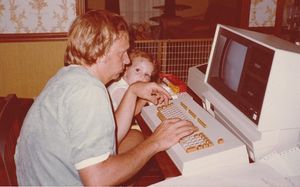
Like a lot of people, Seth Fewell’s career path was influenced by the jobs his parents held. In Seth’s case, those roles were teacher (his mother) and aerospace engineer (his father). In fact, some of his earliest memories involve learning about technology alongside his dad, who worked as a Senior Systems Engineer on different aspects of the NASA space program. “The first memories I have of technology are of my dad teaching me DOS,” he recalled. “I was always tinkering and fixing things; I guess that’s my father’s engineering blood as well. I built my first computer when I was in high school. Oh, and because of my dad’s job, I wanted to be an astronaut when I grew up, of course!” Instead of going into space, Seth managed to neatly combine his parents’ careers. After starting out as a music teacher, he leveraged his love of technology to land his current role as an Education Technology Specialist at a Houston-area school district. He’s also currently working on his doctorate in curriculum instruction, with a focus on education technology, at Texas A&M University. Seth’s graduate research and his job are both centered on helping teachers prepare young minds for the technology-driven world they’ll work in as adults. It’s a challenge that is made easier by his early access to the latest software tools through the Office Insider program. “In education, we always say, ‘You never really know something until you teach it to someone else.’ So, how are we supposed to reach all of these young minds?” he asked. “We have to know what we’re teaching—the product or content—really well before we can turn around and teach it to anybody. That’s one of the reasons I love the Office Insider program: because I get to learn about the latest innovations before I get to teach them to everybody else.” In a recent interview, Seth talked to us about his career path, the types of technology challenges educators face today, his favorite Office features and tools, and what superhero character he most relates to. Take a look at the full blog post here. Cheers, Nathan Office Insider Community Manager Become an Office Insider and gaining exclusive access to new features and help shape the future of Office. Join Now: Windows | Mac | iOS | Android692Views0likes0CommentsBehind the Scenes: Leveraging customer feedback for feature development with Excel Program Manager
As Office Insiders, many of you have no doubt taken the opportunity to submit feedback about your experience with an Office app—whether it was something you liked or something you felt could be improved. (We love to get both kinds of input!) But have you ever wondered exactly what happens to that feedback after you send it in? How do Microsoft program managers and engineers use your input to help refine and improve the Office products that you love and rely on? To get the “inside” scoop on how user feedback impacts Office, we spoke with Steve Kraynak, a Senior Program Manager on the Excel team (and frequent contributor to this blog). Take a look at the full blog post here. Cheers, Nathan Office Insider Community Manager Become an Office Insider and gaining exclusive access to new features and help shape the future of Office. Join Now: Windows | Mac | iOS | Android584Views0likes0CommentsOffice Insider Spotlight: Michel de Rooij
Ask computer consultant Michel de Rooij which fictional character he most identifies with, and he doesn’t name someone from the Marvel Cinematic Universe or other “superhero.” “I’d go with MacGyver,” he said, picking the title character from a popular 1980s TV show (and the recent reboot). “I like solving problems. I like helping people both professionally and outside of my work environment. That’s kind of my hobby. I love it.” And while Michel might not employ a Swiss Army knife or chewing gum in his day-to-day work, he enjoys coming up with creative tools and solutions to the challenges posed by large Exchange implementations and other infrastructure tasks. It’s one of the reasons he’s earned the Microsoft MVP award every year since 2013. “I’m a big fan of automation, so automating tasks or creating project or administrative tools using PowerShell is also what I love doing,” he said. Interviewed from his home in the Netherlands, Michel talked with us about his journey in technology, the challenges of the modern software release cycle, his favorite Office productivity feature, and why he’s been an Insider since the very beginning. Take a look at the full blog post here. Cheers, Nathan Office Insider Community Manager Become an Office Insider and gaining exclusive access to new features and help shape the future of Office. Join Now: Windows | Mac | iOS | Android429Views0likes0CommentsWomen in Tech: Office Insider Celebrates Women’s History Month
March is recognized as Women’s History Month in the United States, United Kingdom, and Australia, while March 8 th is International Women’s Day around the world. It’s a time for everyone to acknowledge and celebrate the many contributions that women have made—and continue to make—toward building a better world. During Women’s History Month, Microsoft is emphasizing the message that when those of all genders are not limited—when we encourage and reward authenticity—we all thrive. We felt that one of the best ways to honor this important occasion would be to feature the voices of some of the outstanding women in the Office Insider program. We wanted to take the opportunity to celebrate them, and also ask for their views on women in technology, female role models, and how their childhood ambitions influenced the lives they lead today. These women—Microsoft 365 technology experts and leaders in their professions—were kind enough to share their thoughts with us, which you can check out below. Happy Women’s History Month and International Women’s Day! Take a look at the full blog post here. Cheers, Nathan Office Insider Community Manager Become an Office Insider and gaining exclusive access to new features and help shape the future of Office. Join Now: Windows | Mac | iOS | Android694Views0likes0CommentsBehind the Scenes: Cross-app feature development with Office PM Juan Karmy
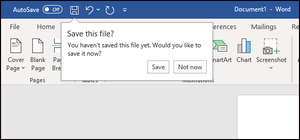
It’s an experience as old as the personal computer itself. You’re working away on an Extremely Important Project, really making progress, when—ARGH! The app or operating system suddenly freezes up… and you hadn’t saved your work yet. You lose everything. DISASTER! This nightmare scenario is something that Microsoft Program Manager Juan Karmy and the rest of his team set out to fix, once and for all, several years ago in Office. As an Office “Shared PM,” he’s in an ideal position to help develop a cross-app solution for this common calamity. “The job title basically means I work on features that are launched across the Word, PowerPoint, and Excel desktop client for Windows and Mac platforms,” Juan explained. It’s a position he moved into after about half a decade of working in a variety of tech roles both in his native Chile and at Microsoft, where he started as a developer on the Office for Mac team. How Juan and others on his team developed a solution—dubbed smart save reminders—to handle the frustrating experience described above is a tale that has many twists and turns, encompassing different user scenarios, in-app pop-up messages, machine learning, the Office Insider program, and more. It’s all covered in our latest Insider “Behind the Scenes” interview! How did you decide to tackle the “crash before saving” scenario in Office apps? Juan: We started by trying to better understand what we internally call the “crash recovery” space. We looked at feedback from users, what our competitors were doing in that area, and where the potential gaps were in our apps. We decided to tackle the issue from a couple of angles: reactive and preventative. On the reactive side, I spent an entire year digging into the data to figure out how many people crashed, how many saw our Document Recovery experience, and how many were indeed able to recover their data from that experience. On the preventative side, we came across dozens, if not hundreds, of feedback comments from customers who lost critical documents, such as research papers. They were downright angry. So my focus went to, how can we help these users avoid data loss? Because I could feel their pain. We wanted our products to have an intelligent way to understand when users might be working on something that’s worth saving, and then prompt them to do so. That’s how my team and I eventually came up with smart save reminders. Take a look at the full blog post here. Cheers, Nathan Office Insider Community Manager Become an Office Insider and gaining exclusive access to new features and help shape the future of Office. Join Now: Windows | Mac | iOS | Android641Views0likes0CommentsOffice Insider Spotlight: Emma Chieppor
When the COVID-19 pandemic struck the world in early 2020, it left many of us stuck at home, looking for things to do. Some people baked, others binge-watched TV shows, and many tried out new hobbies. And plenty of us spent way too much time on social media. And then there’s 25-year-old Emma Chieppor, a Pittsburgh actuary who turned her own love of social media into an influencer venture (Excel Dictionary) that has attracted more than 3 million followers in less than a year. (How is your pandemic hobby going?) For Emma—who got her start as a social influencer posting fashion photos to Instagram in college—it’s all about tapping into the fun and creativity of social platforms to teach people helpful technology skills. “I was no longer feeling fulfilled within the fashion influencing industry, and I wanted to help educate others—to truly make a difference in people’s lives,” Emma said. “I decided to use social media to teach people about technology in a fun way, to help them feel more confident at work. My goal is to get people to see Excel the way I do, as a really cool tool that can be used for anything.” We talked to Emma about the arc of her meteoric social media career, the secrets to her success, and how the Office Insider program has helped her assist millions of Excel users in growing their skills, one TikTok or Insta post at a time. Take a look at the full blog post here. Cheers, Nathan Office Insider Community Manager Become an Office Insider and gaining exclusive access to new features and help shape the future of Office. Join Now: Windows | Mac | iOS | Android1.3KViews0likes0CommentsBehind the Scenes: Empowering visual expression with Office Graphics PM Aimee Leong
Growing up in Australia, Aimee Leong was intrigued by deep questions. “I thought I wanted to be a theoretical physicist,” she said. “I just thought that questions around things like dark matter were super interesting.” But, like many millennials, her imagination was captured by the rise of creativity in personal technology. She had an eye for design, even in something as simple as a to-do list app. “There was an app called Wunderlist that had an amazing user experience,” she said. “The animation made you feel very celebrated. So, I started following blogs from some of the people who created this app. I found it fascinating, how technology could make your world more enjoyable and more beautiful.” Aimee quickly realized that what she really wanted to do in her career was help create those kinds of beautiful products and experiences. So, after graduating college, she joined Microsoft and moved into a Product Manager role on the Office Graphics team. “We are building things at the intersection of productivity, self-expression, and creativity, which is what I’m really passionate about,” she observed. We spoke with Aimee about her cutting-edge work on Office graphics, how responsible AI impacts that work, and the role that the Office Insiders program plays in releasing high-quality products at Microsoft. Take a look at the full blog post here. Cheers, Nathan Office Insider Community Manager Become an Office Insider and gaining exclusive access to new features and help shape the future of Office. Join Now: Windows | Mac | iOS | Android718Views0likes0CommentsOffice Insider Spotlight: Sandra Johnson
“Can you make it pretty?” Microsoft MVP and presentation consultant and designer Sandra Johnson gets a lot of “interesting” requests from her clients, but this one might the most frequent. (Another common one: “Can you train me to present like Steve Jobs?”) These types of professional challenges keep the affable Midwesterner on her toes, even after several decades of working in her field. Johnson, who got her start in Advertising in Minnesota’s Twin Cities, has enjoyed a front-row seat as digital technology has transformed the world of business communications. “When I started out, companies would ask me to do weird things, like convert an eight-track video to a .wmv to use in a PowerPoint presentation,” she remembered. “We also couldn’t embed videos in early version of PowerPoint, so there were a lot of workarounds and sending media in zip files, even sending files on disk through overnight mail to clients. It was crazy.” Sandra is also a founding director and former president of the Presentation Guild—a nonprofit organization dedicated to elevating the presentation industry and legitimizing it as a career path. Over the last three decades, she’s seen PowerPoint evolve to become the powerful software tool it is today — a program used by millions worldwide for work, school, or just for fun. Take a look at the full blog post here. Cheers, Nathan Office Insider Community Manager Become an Office Insider and gaining exclusive access to new features and help shape the future of Office. Join Now: Windows | Mac | iOS | Android547Views0likes0CommentsDictate in 25 new languages across Microsoft 365
Hey, Officer Insiders! Hadley Griffin, a Product Manager on the Natural User Experiences team wrote this blog post to share that we are bringing 25 new languages to the Office Dictation experience! Dictate in 25 new languages The Dictate feature enables you to save time and stay in the flow by using speech-to-text to quickly get your thoughts into your document. Support for additional languages is one of the most common requests we receive from Microsoft 365 users. We’ve heard you! The Dictate feature in Office is now available in the following 25 new languages: Arabic (Bahrain), ar-BH Arabic (Egypt), ar-EG Arabic (Saudi Arabia), ar-SA Bulgarian, bg-BG Chinese (Traditional, Hong Kong), zh-HK Croatian, hr-HR Czech, cs-CZ English (New Zealand), en-NZ Estonian, et-EE Greek, el-GR Gujarati (India), gu-IN Hebrew, he-IL Hungarian, hu-HU Irish, ga-IE Latvian, lv-LV Lithuanian, lt-LT Maltese, mt-MT Marathi (India), mr-IN Romanian, ro-RO Slovak, sk-SK Slovenian, sl-SI Tamil (India), ta –IN Telugu (India), te- IN Turkish, tr-TR Vietnamese, vi-VN Head over to the article to find out more about this great new list of languages as well as scenarios to try out! Cheers, Nathan Office Insider Community Manager Become an Office Insider and gaining exclusive access to new features and help shape the future of Office. Join Now: Windows | Mac | iOS | Android4.3KViews0likes1CommentRemote assistance with Quick Assist is changing
Hi Insiders! Russell Mosier and Bianca Taylor, from the Experiences + Devices team are excited to share an upcoming change to their remote assistance app, Quick Assist. Remote assistance with Quick Assist Quick Assist is an app in Windows 10 and Windows 11 that enables you to receive or provide assistance with your PC over a remote connection. The current built-in Quick Assist app is reaching end of service. To keep your remote assistance sessions secure, you will need to download the new Quick Assist from the Microsoft Store. How it works Select Start > Microsoft Store. In the Microsoft Store window, type Quick Assist in the Search box. Click Quick Assist in the list, and then click the Get button. Find out the rest here in the blog post! Cheers, Nathan Office Insider Community Manager Become an Office Insider and gaining exclusive access to new features and help shape the future of Office. Join Now: Windows | Mac | iOS | Android116KViews4likes143CommentsUse Read Aloud even when your device is locked
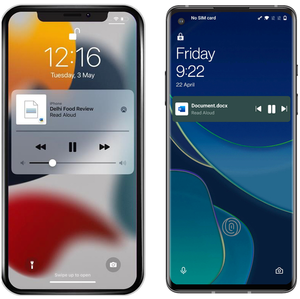
Hi, Office Insiders! My name is Sofia Thomas, and I’m a Product Manager on the Office Voice team. We’ve heard your feedback, and I’m excited to share with you that you can now continue listening to your documents on your Android phone or tablet, or on your iPad or iPhone, even while your screen is locked! Read Aloud in locked-screen mode Read Aloud takes advantage of the latest text-to-speech technology, enabling you to review your content out loud and catch any errors (also known as “proof-listening”). It also uses cutting-edge neural voices, developed by Azure Cognitive Services, which offer a more natural listening experience. Using this feature on your device allows you to step away from the screen and give your eyes a break while listening to documents (even if your device screen locks). Read Aloud in locked-screen mode is the perfect way to remain productive while on the go! How it works Ready to try Read Aloud in locked-screen mode? 1. Open a document in Word on your device. 2. Tap Review and then tap Read Aloud, or the Read Aloud icon on the More options menu. The app will begin reading the text at the beginning of the document. NOTE: In iOS, a Read Aloud pop-up suggestion will appear if you connect headphones to the device while a Word document is open. 3. Lock your device screen, and notice that Word continues to read your document. Find out the rest here in the blog post! Cheers, Nathan Office Insider Community Manager Become an Office Insider and gaining exclusive access to new features and help shape the future of Office. Join Now: Windows | Mac | iOS | Android4.8KViews1like2Comments







Recent Blog Articles
No content to show