Forum Widgets
Latest Discussions
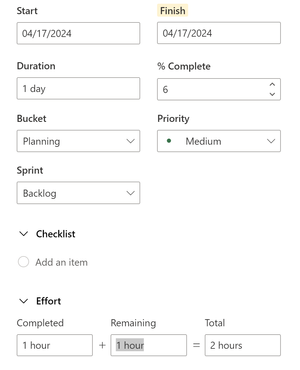
% Complete - doesn't seem to calculate properly, what am I missing?
I am fiddling with Project for the Web / Premium Planner in an attempt to make YouTube tutorial content. I'm creating tasks, trying to make some sample content, and setting the completed/remaining hours to be partially done to simulate an in-progress project. What I'm noticing is that the %Complete tries to auto-update, but seems to be calculating really oddly? Like it's coming out with 6% complete for 1 hr completed + 1 hr remaining = 2 hr total. Am I misinterpreting what it's trying to do or is it not functioning? When I try to manually set the %Complete to 50% to override, it changes out the hours to be very different and it still doesn't come out right.christinepaytonDec 10, 2025Iron Contributor653Views4likes3Comments
Planner Integration with Loop Tasks
Need some guidance - We are starting to use Planner to keep track of a large number of tasks. Currently planner is setup with: Approx 10 buckets (in kanban view), and a list of tasks below each. We are using this mainly just for tasks, so the Timeline view isn't needed. We want to connect tasks recorded in Teams meetings, and in Loop to our main Planner. Whats the best work around for this? When using Loop, and we create a task and we connect it to Planner, it will create a new Plan and put the tasks under that. To me, this is dysfunctional, because we want all tasks to be under the main Plan in Planner. I like to use the GRID view of the Plan, which enables me to make subtasks under the main tasks, but others prefer to use the kanban view. However you can't see the subtasks that are under the "main task" like in Grid view. There's lots of videos showing how these parts of Teams work together, but in reality, it doesn't really work that well when it scatters tasks created in different parts to different Planners. Any suggestions would be helpful, and thank you in advance for your help. JimjtpiazzaDec 09, 2025Copper Contributor288Views0likes4Comments
Bulk import of Tasks in the Premium Planner [not supported] - Any workarounds?
I am trying to simply bulk add tasks to a Planner Project. They have removed the Excel import capability, but you can export. If you cannot use to restore then much efficiency is lost. You can no longer import a .mpp file. Lastly, I just found out through many attempts that the Power Automate to add tasks to premium plan projects is also not supported. Power Automate cannot create records in the msdyn_projecttask table. The Dataverse plugin ProjectServiceCore explicitly blocks this. You’ll always get the error: "You cannot directly do 'Create' operation to 'msdyn_projecttask'. Try editing it through the Resource editing UI via Project." This restriction applies even if you're an admin and have full Dataverse access. This is very disappointing. This is a basic capability in numerous tools for fractions of the cost. I have been using MS Project since they were on 3.5" floppies, and this is almost a deal breaker. I lobbied for this product for my GCC thinking what better tool to leverage all the Microsoft tools we already use...Teams, Outlook, O365, etc. and to now have a fully integrated, more collaborative PM tool (Planner) sounded perfect. There are already many other limitations and now this one.SirWinstonDec 09, 2025Copper Contributor60Views1like2Comments
Show Checklist on Card in Premium Plans
We're demoing Project Plan 3 and trying out premium plans. I was disappointed to see that a premium plan does not offer an option to show checklists on the card. Is this in the development pipeline? Thank youmarco715Dec 05, 2025Copper Contributor1KViews10likes5Comments
Task History, exact date/time instead of relative?
Looking at Task History in premium plan tasks, all the changes are showing in relative periods (a month ago, several hours ago, etc.) instead of the actual date/time. Is there a way to change this? And was that a change itself? I thought it used to show me the actual date/time of a change, but maybe I'm remembering incorrectly.Ian BrucknerDec 04, 2025Brass Contributor56Views0likes1CommentDowngrade from Premium plan
We've been testing Planner Premium for a while and have decided to stop using Premium and go back to Basic plans. There are a number of problems with Premium plans and we find the Premium experience to be worse than Basic. And at a much higher cost. So we knew it was possible to downgrade our upgraded plans from Premium to Basic - otherwise we would never have upgraded our plans. But it turns out downgrading apparently means switching back the the Basic plan that has been saved somewhere since we upgraded to Premium. The result of downgrading is basically that we throw out all the updates that were done while it was a Premium plan. For context, we have some plans we use indefinitely to manage tasks in our teams - we don't create new plans for each new initiative, so we have a lot of updates and would lose a lot of information and a lot of new tasks if we just reverted back to the Basic plan. Can anyone suggest how we can downgrade our plans from Premium to Basic without losing a few months of updates?Jens_Bech_MadsenDec 03, 2025Brass Contributor1.6KViews4likes4Comments
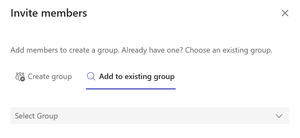
Adding existing groups to plan
I have advanced planner and have made a plan from another plan and am the owner. I am trying to attach an existing group (team) that is in our teams that I did not create, but am an owner. I do not see that team when I try to find in existing groups listMary_MusettiDec 02, 2025Copper Contributor70Views0likes3CommentsMultiple plan owners
In Plan details there is not the option to add multiple owners for same plan. This option is available in MS Teams. I have noticed that when you are not the owner of a plan, you cannot copy that plan. Our group has created a task plan template that we use to make multiple plans for each year and attach the plans to coordinating teams. For this template, we could really use multiple owners even though it is attached to a team with multiple ownersMary_MusettiDec 01, 2025Copper Contributor61Views0likes1CommentPlanner Comments Notifications Resolved
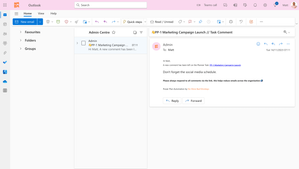
Just created what i believe is a highly effective method to ensure Planner Comment Notifications work seamlessly. We're all familiar with the challenge of comments getting overlooked, especially when staff members haven't previously engaged with a particular task. My new Power Automate solution addresses this issue by sending emails (or you can switch to Teams if preferred) to everyone assigned to a task whenever a comment is posted. The email includes the comment itself and a link to the corresponding task. To adhere to best practices, I created the automation in my user account but set it up to automatically send from an admin@ account. This step isn't mandatory but is recommended, especially if you anticipate commenting on numerous tasks yourself as the automation "owner". I've uploaded a brief 20-second video demonstrating the functionality. I'd appreciate likes and comments, and I'm more than willing to share the solution. This automation is part of a larger course/solution package I'm developing. Other upcoming features include automatic assignment of unique project codes (you can catch a glimpse of it in the video), auto-assignment of staff based on labels (for instance, if your yellow label is labeled Marketing, it automatically assigns everyone in marketing when used), and more. I'm eager to hear your thoughts on the comment notification solution; I believe it's one of the most visually appealing solutions available. If want to access the comment notification just @mention me in the comments below.MatthewJamesDavisDec 01, 2025Iron Contributor11KViews6likes42Comments


Resources
Tags
- planner623 Topics
- office 365156 Topics
- developer65 Topics
- User Adoption46 Topics
- roadmap45 Topics
- App41 Topics
- admin11 Topics
- mobile9 Topics
- power automate6 Topics
- Flow6 Topics