Forum Widgets
Latest Discussions
Preview exited, now GA: Out of Office Scheduling
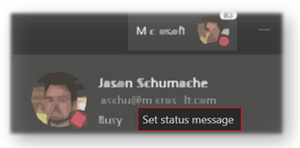
Description Set up a message to let others know you're on vacation or not available to reply. Your out of office status will also sync with your Outlook calendar, your presence and contact card information. Flighting status Rolling out this week on Desktop and Web. How to enable Two ways to access the Out of Office feature 1) Through "Profile" Click profile then Set status message Click Schedule out of office 2) Through "Settings" Click Settings General -> Out of Office -> Schedule Now, from within the Scheduler Include an Out of Office message Note – Text is required to be compatible with Outlook scheduling. Click Save Options Send replies outside my organization Include text to auto reply Send replies only during a time period Pick dates and times to begin and end the Out of office status message and presence state. Outlook You will be able to see your changes in Outlook as well as update them there. How to Disable Change the Turn on automatic reply setting in Teams radio button to off and save Change the Send automatic replies setting in Outlook to off and save Note: If you need information about enabling the public preview itself, see “Enable the public preview for Teams” below. Microsoft 365 workloads and dependencies Product, workload, or area Dependency (Yes/No) If yes, version requirements and other dependencies Exchange No Sharepoint, files No Skype for Business No Outlook add-in No Azure AD No OneDrive No Office No Supported clients and platforms Windows 10 macOS iOS Android Linux Chrome Firefox Safari Edge Internet Explorer Yes Yes - - Yes Yes Yes Yes Yes - Known issues None Known limitations As mentioned in the guide an Out of Office Message needs to be included for Teams to save the configuration and set your presence to Out of Office. Enable your Teams client for the public preview First, IT admins need to set an update policy that turns on Show preview features. Learn how at Public preview in Microsoft Teams - Microsoft Teams | Microsoft Docs. Users then choose to join the public preview individually. See Get early access to new Teams features - Office Support (microsoft.com) for instructions. Summary of public preview features For a history of features in the Office and Teams public previews, see Release Notes Current Channel (Preview) - Office release notes | Microsoft Docs. Send us your feedback Got feedback on features in the public preview or other areas of Teams? Let us know straight from Teams via Help > Give feedback. Thank you, Preview Team Jason Schumaker Quality & Customer Obsession, Microsoft TeamsKaushal-MehtaDec 17, 2025Microsoft7KViews4likes14CommentsNow in public preview: Automatic lowering of a user's Raised Hand after speaking
Description To reduce the number of stale raised hands in meetings, we now suggest users to lower their raised hand after we detect they spoke in the meeting. If users don't take any action on the suggestion notification, we'll automatically lower their hand. This should ensure smoother meeting facilitation for organizers and presenters. Flighting status Available to everyone in Public Preview channel. How to enable Users who raise their hand in a Teams meeting and speak in the meeting will see a notification informing them that their hand will automatically be lowered soon. They will be able to choose to keep their hand raised. If the user doesn't take action on the notification, their hand will automatically lower. This should ensure smoother meeting facilitation for organizers and presenters. Note 1: If you need information about enabling the public preview itself, see “Enable the public preview for Teams” below. Note 2: To be able to use this feature, user needs to be in Public Preview. Other meeting participants are not required to be in Public Preview. Supported clients and platforms Windows macOS iOS Android Linux Google Chrome Firefox Safari Microsoft Edge Yes Yes Known issues None Known limitations Users will not see the notification and their hand will not be automatically lowered if Noise suppression is turned off in their Teams devices settings. Please note that Noise suppression is automatically turned off when your device has high CPU usage in order to preserve resources. Enable your Teams client for the public preview First, IT admins need to set an update policy that turns on Show preview features. Learn how at Public preview in Microsoft Teams - Microsoft Teams | Microsoft Docs. Users then choose to join the public preview individually. Learn how at Get early access to new Teams features - Office Support (microsoft.com) Send us your feedback Got feedback on features in the public preview or other areas of Teams? Let us know straight from Teams via Help > Give feedback. This is on the bottom left of your client. Thank you, Preview Team Quality & Customer Obsession, Microsoft TeamsJan_SteberlNov 20, 2025Former Employee25KViews6likes40Comments
Hide Team options missing
Just tested the preview version of Teams since a lot of key users are struggling with the new interface. I noticed for myself that the "Hide Team" option is missing and that my Teams that were hidden are not hidden anymore. We are an organisation where users are a member of a lot of Teams and a key option for our organisation is to hide Teams that are less important so that your Teams where you are working in on a daily basis are always visible. Is this coming back or do you do this differently now?MartijnvtNov 06, 2025Copper Contributor1.6KViews9likes7Comments
Remote Access in Pro Portal not working with Public Preview R3.6
When I try to use Remote Access via the Pro Portal, I can connect to the MTR but the image is flashing. I cant seem to have a stable session with the MTR. The screen will go to black for around 5 seconds, then it shows what is on the screen for less then 1 second. I tried it on 2 MTR devices that I have in our labo but the issue remains. When I revert the option for Public Preview back to off, I am able to connect and use Remote Access via the Pro Portal without any issue. We are using MTRoW and have the latest updates.Jeremy-SSep 08, 2025Copper Contributor65Views0likes0CommentsNow in public preview: Pop out shared content into a separate window
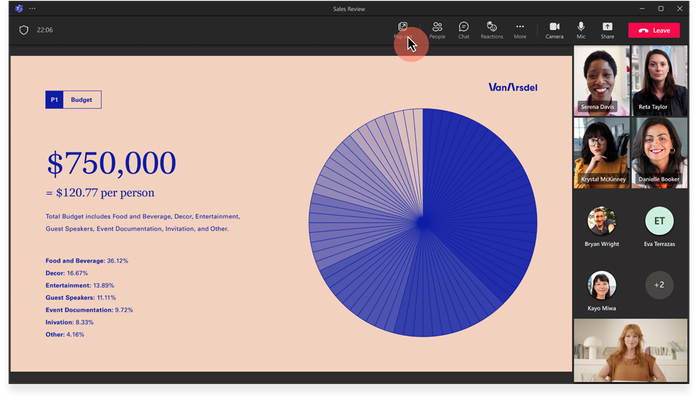
Description Microsoft Teams now supports the ability to pop out shared content (shared screen, PowerPoint Live and Whiteboard) into a separate window while in meetings. Flighting status Available to everyone in Public Preview channel. How to enable To pop out content from meeting stage and use more monitors/screens during meetings: Join a Teams meeting from a Teams desktop client (Windows or Mac) as an attendee or presenter . When content (shared screen, PowerPoint Live or Whiteboard) is shared by another presenter in the meeting, click the "Pop out" button in the meeting toolbar to pop out the content into a separate window. You can pop in the window with shared content by closing it (by pressing "X" button). When the presenter stops sharing content, you can also click on "Dismiss" button which appears below a message in the pop out window informing you that content sharing has ended. Note 1: If you need information about enabling the public preview itself, see “Enable the public preview for Teams” below. Note 2: To be able to use this feature, users need to be in Public Preview. Users not in Public Preview will not be able to pop out shared content into a separate window. Windows macOS iOS Android Linux Google Chrome Firefox Safari Microsoft Edge Internet Explorer Yes Yes Known issues None Known limitations Majority of modern devices with medium and high-end hardware will support popping out content into a shared window while in meetings. As Microsoft continues to fine tune the experience, there may be more support in the future for other types of devices with less performant hardware. Also, we will list the specific supported hardware configuration at GA. Enable your Teams client for the public preview First, IT admins need to set an update policy that turns on Show preview features. Learn how at Public preview in Microsoft Teams - Microsoft Teams | Microsoft Docs. Users then choose to join the public preview individually. Learn how at Get early access to new Teams features - Office Support (microsoft.com) Send us your feedback Got feedback on features in the public preview or other areas of Teams? Let us know straight from Teams via Help > Give feedback. This is on the bottom left of the your client. Thank you, Preview Team, Jan_Steberl Quality & Customer Obsession, Microsoft TeamsKaushal-MehtaSep 01, 2025Microsoft37KViews3likes7Comments
Issue with missing Teams in Chat section after 25227.201.3887.7121
After my upgrade to 25227.201.3887.7121 I can't access teams I am part of. If I restart the client, I see the teams under chat for few hours then they disappear again in a while. Sometimes the top menu flashes and disappears.NimajAug 26, 2025Copper Contributor218Views0likes0CommentsCall Transfer: Search not showing Global Contacts or Speed Dials
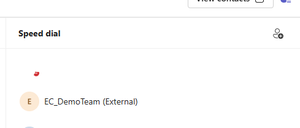
Anyone else experiencing an issue with the list of possible recipients for a call transfer? (Teams v 25153.1010.3727.5483) The search list for call transfer only shows tenant users, it doesn't include any of the global contacts, individual's contacts, or Speed Dials. Sample speed dial entry: Active call transfer window:Kittin306Jul 17, 2025Copper Contributor597Views1like7Comments
Want to enable and use Interpreter agent
According to this article: Discover new agents in Microsoft 365 innovation | Microsoft Community Hub Interpreter is now available in public preview. It links to the the following guide: https://support.microsoft.com/en-us/office/interpreter-in-microsoft-teams-meetings-c7efe2bb-535d-42ab-a5c4-d2d91619b46d I am in public preview on my Mac desktop Teams client. Version is 25107.xxxx which looks like it's a Citrix/VDI version. I pulled the download from the official MS page for a fresh install and the version is the same. Not sure if that makes any difference but that's the version. How do I enable Interpreter agent for my scheduled meeting?eolsenJul 15, 2025Copper Contributor485Views2likes1CommentThe ''library switcher'' in teams is missing after the newest update
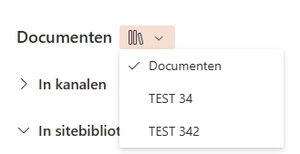
The ''library switcher'' in teams is missing after the newest update: current version 25153.1010.3727.5483. I did some troubleshooting, but I can't roll back the teams version to try. Nothing worked on this version atleast to get the library switcher back.KeepvogelJun 26, 2025Copper Contributor94Views0likes0Comments
Screen Sharing not working in latest version
Hi all, Anyone else, that has problem with screen sharing in the current preview version? My Teams Version: 25007.606.3361.4724 My Clientversion: 49/25010620407 If i share my screen (regardless if full monitor or single app), the other users only see, that I am trying to share something, but never get the content visible. The only users that can see my content shared, are using the preview version as well. I tested it with one normal user and one with preview in the same call. The latter one was able to see the screen, the other one not. I have found a workaround right now: If I am in a call with a normal user, I can share the screen, if we start recording for a few seconds and stop it then. As long as recording has run at least for a few seconds, everyone can see my shared screen. I faced that issue for the first time last week.StarblazingJun 18, 2025Copper Contributor941Views2likes3Comments




Resources
Tags
- preview134 Topics
- teams30 Topics
- microsoft teams19 Topics
- public preview15 Topics
- Shared Channels9 Topics
- New Teams8 Topics
- Shared Channel7 Topics
- New Teams client5 Topics
- BUG5 Topics
- Teams Preview5 Topics