Forum Discussion

sum by color when colors are set by conditional formatting
- Jan 19, 2017
Hi matt nipper,
since you mentioned that you "have done an exhaustive search online" i have come up with a solution for you, although it has two limitations A) it will only work, if your rules of conditional formatting is created using conditional formatting rules with formula aka (use a formula to determine which cells to format) and B) the UDF will only work if sum range is more than one cell another word, it will not sum a single cell, as well as the conditional formatted range is more than one cell.
the example file, you can download it from here. I could not upload it here, as it is a Excel Macro-enabled Workbook that contains the UDF
Function SumConditionColorCells(CellsRange As Range, ColorRng As Range)
Dim Bambo As Boolean
Dim dbw As String
Dim CFCELL As Range
Dim CF1 As Single
Dim CF2 As Double
Dim CF3 As Long
Bambo = False
For CF1 = 1 To CellsRange.FormatConditions.Count
If CellsRange.FormatConditions(CF1).Interior.ColorIndex = ColorRng.Interior.ColorIndex Then
Bambo = True
Exit For
End If
Next CF1
CF2 = 0
CF3 = 0
If Bambo = True Then
For Each CFCELL In CellsRange
dbw = CFCELL.FormatConditions(CF1).Formula1
dbw = Application.ConvertFormula(dbw, xlA1, xlR1C1)
dbw = Application.ConvertFormula(dbw, xlR1C1, xlA1, , ActiveCell.Resize(CellsRange.Rows.Count, CellsRange.Columns.Count).Cells(CF3 + 1))
If Evaluate(dbw) = True Then CF2 = CF2 + CFCELL.Value
CF3 = CF3 + 1
Next CFCELL
Else
SumConditionColorCells = "NO-COLOR"
Exit Function
End If
SumConditionColorCells = CF2
End Function
in the attached example file you can see that from A3:G16 cells are formatted using Conditional Formatting.
User Defined Function (UDF) is placed in cells J2 & J3 and cells I2 and I3 are the criteria color used as reference inside the UDF in J2 and J3.
I hope this helps you.
Edit: uploaded file and updated the code to the correct one.

Hi! I've also been getting the #Value error. I copied and pasted the Count version of the VBA. Screen shot attached let me know if you need more. I entered the RGB color codes so they are exact.
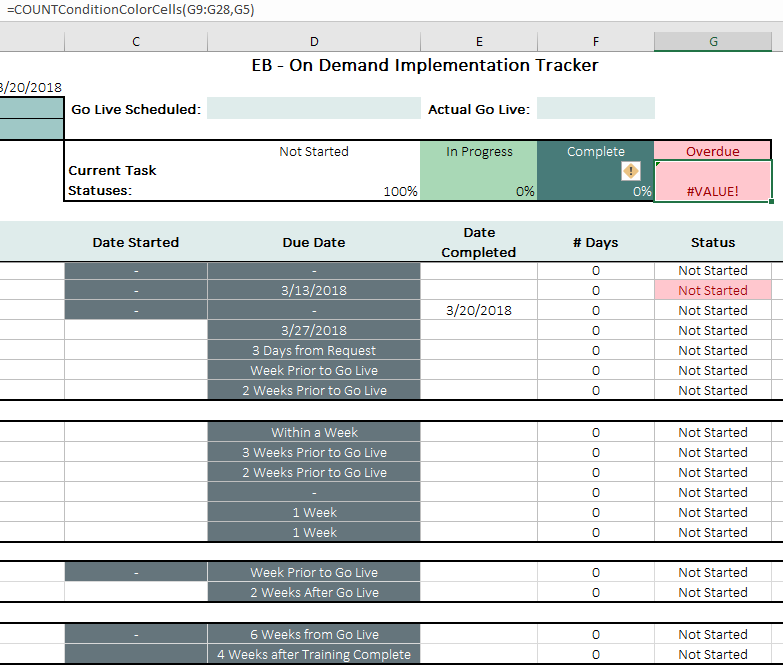

Sometimes this happens, if you have an external Add-in or there are some codes in the PERSONAL.XLSB workbook.
click on the cell that has #Value error and then press F2 to go to Edit mode and then enter again. if you see the VALUE error disappear that means that the error is caused by some external add-in or your personal.xlsb workbook that is in the start up folder.
If you can share a dummy example file, I can take a look at it.
- JamilMar 27, 2018Bronze ContributorHi Cara,
I looked the file you attached. there were many issues that probably caused that error.
A) The workbook had No UDF in it. hence NAME? Error
B) this UDF has two limitations 1- it will only work, if your rules of conditional formatting is created using conditional formatting rules with formula aka (use a formula to determine which cells to format) and I could see in the workbook you shared that there were two rules which was not determined by formula 2- Second the UDF will only work if sum range is more than one cell in another word, it will not sum a single cell or if Conditional formatting rule is applied in range that is a single cell. In your workbook there were multiple rules that applied in single cells.
As I suggested in my earlier posts, If the UDF works, then fine, if does not work then it is not the only and optimal solution. So, rather than Counting based on the outcome of the conditional formatting, you can use the same criteria as exists in the conditional formatting to Count the cells using COUNTIFS or SUMPRODUCT
I didn't examine in in depth your workbook as the data validation were linked to another workbook and for me it was showing a broken link. You could use the conditional formula to return values in column G and based on the values you could simply count the overdues with simply formula like this =COUNTIF(G9:G28,G5) - Cara PfaffMar 26, 2018Copper Contributor
Still getting the same error, thank you for taking a look, it's attached.