purview
228 Topics
Purview Data Quality with Microsoft Fabric
Hi, Our technical data quality checks are written in SQL inside the Fabric Warehouse. When a check fails, the ETL pipeline stops. Can business data quality rules defined in Purview Data Quality work the same way? Can they run inside the Warehouse and stop the ETL pipeline when they fail? Could someone also explain how to estimate the cost of running these rules in Purview Data Quality? How exactly is it billed: per compute unit, per compute time, or per number of rows processed? Thanks!10Views0likes0Comments
Purview on-demand classification "cost-estimation" still in progress!
hi everyone, I've initiated a Microsoft Purview on-demand classification cost estimation, which has been running for almost two weeks without any visible progress information. Scan configuration: Workloads: SharePoint Online and OneDrive for Business Scope: Files created within the past 7 years File types: PDF and Microsoft Office documents only Total repository inventory: Over 250 million files Documented Purview limit: 100 million files per scan The Purview portal continues to display Estimation in progress, but provides no progress percentage, estimated file count, or other useful metrics. I've also tried several PowerShell commands, including Get-SensitiveInformationScan -IncludeImpactAssessment $true, but haven't been able to retrieve meaningful progress information. The PowerShell output currently shows: SensitiveInformationScanStatus : ImpactAssessmentInvalid | LastImpactAssessmentStartTime : 23/10/2026 | LastImpactAssessmentCompletionTime : [Empty] | LastStatusUpdateTime : [Empty] | IsEstimationStopped : False | ErrorMetadata : [Empty] My questions are: How can I verify whether the estimation job is actively processing files, queued, stalled, or silently failed? Are there any additional PowerShell cmdlets, diagnostic logs, or metrics available? Does the 100-million-file limit apply to the entire repository inventory or only to files matching the configured date and file-extension filters? For example, if the repository contains 250 million files but only 80 million meet the scan scope, would the scan remain within the supported limit? Is on-demand classification subject to daily processing or throttling limits, similar to the 100,000-items-per-day limit associated with certain auto-labelling scenarios? If so, what are the documented limits for cost estimation versus actual classification? What does ImpactAssessmentInvalid indicate? Is this an expected intermediate status during estimation, or does it suggest an issue requiring Microsoft Support intervention? I'm particularly interested in experiences from organisations that have run Purview on-demand classification across very large SharePoint and OneDrive environments. Any insights, Microsoft documentation, or practical troubleshooting recommendations would be appreciated.55Views0likes3Comments
Oversharing DLP Policy
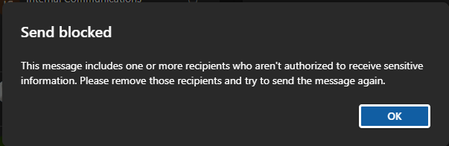
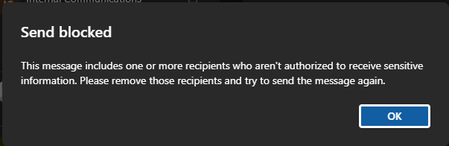
We have a Microsoft Purview DLP policy that blocks emails sent outside the organization when the content is labeled Internal, Restricted, or Confidential. In the Outlook desktop client, we can present a JSON-based custom oversharing dialog. However, Outlook on the web shows a generic block message, and policy tips are not an option because management wants the pop-up itself to be customized. Is there any supported way to customize the Outlook on the web DLP oversharing dialog text, such as a setting, API, or workaround, so it matches the custom wording used on the desktop client. Below is what i get on the outlook on the web.38Views0likes0CommentsOversharing DLP Policy
We have a Microsoft Purview DLP policy that blocks emails sent outside the organization when the content is labeled Internal, Restricted, or Confidential. In the Outlook desktop client, we can present a JSON-based custom oversharing dialog. However, Outlook on the web shows a generic block message, and policy tips are not an option because management wants the pop-up itself to be customized. Is there any supported way to customize the Outlook on the web DLP oversharing dialog text, such as a setting, API, or workaround, so it matches the custom wording used on the desktop client. Below is what i get on the outlook on the web.29Views0likes0Comments
What stops a service-side auto-labeling rollout from being approved — and how to unblock it
The four questions every approver asks Access Proof Reversibility Scale “Will labeling change who can open our files?” “Can we prove what gets labeled — and why?” “Can we undo it if something goes wrong?” “Will it finish at our size?” Scenarios 1 · 2 Scenarios 6 · 8 Scenarios 3 · 7 Scenarios 4 · 5 What unblocks approval Classify first, encrypt only where tested Bounded simulations reviewed by data owners Explicit approval gates A rollback runbook tested before turn-on Eight scenarios at a glance — and who needs to say yes Sr.No Scenario What approvers ask Security Privacy & compliance IT operations Data owners 1 Label data at rest without widening access Will a label open files to more people? ● ● ◐ ◐ 2 Sign-off from privacy and security teams Can we see scope, samples and access impact? ● ● ◐ ◐ 3 Turn on safely, roll back safely Can we undo it if it goes wrong? ◐ ◐ ● ◐ 4 Scoping very large tenants Will it finish at our size, and when? · · ● ◐ 5 Simulations that never finish Is it progressing or stuck? · · ● · 6 Trust in what gets labeled Why was this file labeled? ◐ ◐ ◐ ● 7 Existing labels and conflicting policies Will it overwrite our labels? Which policy wins? ◐ · ● ◐ 8 Proving it works after go-live Can we defend the numbers? ● ◐ ● ◐ leads the decision · ◐ consulted · Illustrative: typical roles — adapt to your organization. Five gates every policy should clear A scheduled turn-on date activates a policy even if nobody reviewed the results [Learn ↗], and only Compliance Administrator or Compliance Data Administrator or Information protection can turn a policy on [Learn ↗] — make both part of your change control. Pre-flight: miss one and the policy runs but labels nothing — with no error [Learn ↗] ✓ Auditing turned on ✓ Sensitivity labels enabled for SharePoint and OneDrive ✓ PDF labeling on, if PDFs are in scope ✓ Auto-labeling available in your region ✓ E5-tier licensing ✓ A sublabel or standalone label — never a parent ✓ Label scoped to files ✓ Encrypting label: “Assign permissions now”, no expiry ✓ Content Viewer role to review matches ✓ Compliance Administrator to turn on Scenarios 1–4: earn the first “yes” Each scenario: what worries Contoso, why approval stops, how to unblock it, and what to show approvers. Scenario 1 · Label data at rest without widening access Security · Privacy & compliance “Will a label open our files to more people than today?” — especially files restricted with Information Rights Management (IRM). [Real-world] Why approval stops An encrypting label that grants all employees co-owner rights reads as wider access than the IRM already on some files. [Real-world] Encrypting auto-labels in SharePoint and OneDrive must use “Assign permissions now” with no expiry, and the last modifier becomes the Rights Management owner. [Learn ↗] How to unblock it Label broadly with labels that classify but don't encrypt — access doesn't change. [Recommended] Encrypt only a short list of high-risk sites, using groups that mirror site membership. [Recommended] Keep IRM-heavy libraries out of client-side auto-labeling: it can replace unlabeled IRM when the user has the Export right; service-side does this only for email. [Learn ↗] Show approvers: before-and-after access per label — members, guests, web, desktop and downloads. Two kinds of labels Classify only Classify + encrypt Access changes? No Yes — label permissions apply Rights Mgmt owner — Last person who modified the file Use it for Broad coverage at rest A few access-tested, high-risk sites Scenario 2 · Sign-off from privacy and security teams Privacy & compliance · Security · Legal Privacy and security teams pushed back on a large rollout, worried that labels could loosen existing access controls. [Real-world] Why approval stops No single view of scope, samples, access impact and conflicts; regional reviews add steps — Contoso excluded one region. [Real-world] Simulation can trigger existing alert policies [Learn ↗], and labels alone don't stop Microsoft 365 Copilot from using content — that needs a data loss prevention (DLP) policy. [Learn ↗] How to unblock it Limit match previews to the Data Classification Content Viewer role — global admins don't have it by default. [Learn ↗] Keep auditing on; label applied, changed and removed events are your evidence trail. [Learn ↗] Respect regional boundaries with admin units or adaptive scopes; scope alert policies during simulation. [Learn ↗] Reassure reviewers: auto-labeling doesn't change Modified or Modified By. [Learn ↗] Show approvers: an approval pack each reviewer signs. The approval pack ✓ Label meanings & encryption ✓ Owner-reviewed sample ✓ Who can view matches ✓ Audit trail ✓ Regional scope ✓ User communications ✓ Approver & pause criteria Scenario 3 · Turn on safely, roll back safely IT operations · Security · Business owners A policy went live without business sign-off, labeled more than 20,000 items and confused users. [Real-world] Why approval stops A scheduled turn-on date activates a policy even if nobody reviewed the results. [Learn ↗] Removing isn't restoring: a removal policy leaves files unlabeled and an active apply policy wins [Learn ↗]; bulk relabeling through Microsoft Graph is a protected, metered API. [Learn ↗] How to unblock it Separate authors from approvers — only Compliance Administrator or Compliance Data Administrator can turn a policy on. [Learn ↗] No unattended turn-on dates; export simulation results before every edit or rerun. [Learn ↗] Turn on one policy at a time; review daily for the first two weeks. [Recommended] Test the rollback runbook on a pilot site before turn-on. [Recommended] Show approvers: named approver, turn-on time, pause criteria and a tested rollback. Safe rollout, with a way back Scenario 4 · Scoping very large tenants IT operations · Data owners With hundreds of thousands of sites, Contoso couldn't approve a policy nobody could review — or a backlog with no end date. [Real-world] Why approval stops Limits shape the design: 500K labeled files a day per tenant (shared), 100 policies, 1,000 hand-picked or 50,000 adaptive-scope sites per policy, 20M matches per simulation. [Learn ↗] Contoso split one scenario across policies to fit the old ceiling. Adaptive scopes refresh daily [Learn ↗] and can take days to fill. [Real-world] How to unblock it Hand-pick sites when the list is maintained; use an adaptive scope when it changes; choose All once quality is proven. [Recommended] Segment by business unit or region; check scope membership before simulating. [Recommended] Start under 20M matches, turn on, then expand while the policy stays on. Location-based protection? Apply library default labels to existing files — one policy, up to 10 sites at a time. [Learn ↗] Show approvers: a sizing sheet — sites, files, expected matches, days to clear Work in waves across a large estate Scenarios 5–8: keep the “yes” after go-live Most surprises after turn-on trace back to classification, policy overlap or file state — not the policy itself. Scenario 5 · Simulations that never finish IT operations Three policies showed “simulation in progress” for weeks, then expired with no files found; restarts didn't help. [Real-world] Why approval stops About 12 hours is typical but isn't a deadline — don't restart just because the count is flat. [Learn ↗] A missing prerequisite fails silently [Learn ↗]; one of Contoso's adaptive scopes was several times the 50,000-site limit. [Real-world] How to unblock it Check Status and Duration, then re-run pre-flight: auditing, label and PDF support, a sublabel (not a parent), label scoped to files. [Learn ↗] Validate scope size, then restart once — without editing the policy. [Recommended] “Failed to create job”? Reconnect with Connect-IPPSSession -EnableSearchOnlySession (module 3.9.0+). [Real-world] No progress after 48–72 hours [Recommended]: open a support case with status, timings and errors. [Learn ↗] Show approvers: status, start time, duration, and expected / completed / failed locations. When a simulation won't finish Scenario 6 · Trust in what gets labeled Data owners · Privacy & compliance “Why was this file labeled — and will the next one be wrong?” Why approval stops Files kept matching after a detector changed: unchanged files are reclassified only when created or modified, and restarting simulation doesn't reclassify them. [Real-world] [Learn ↗] Detectors need regular tuning, test tenants lack realistic data, and simulation counts are estimates. [Real-world] [Learn ↗] How to unblock it Raise confidence and instance counts, use AND logic and exceptions, and combine detectors. [Learn ↗] Test detectors with positive and negative samples; refresh older files with on-demand classification — check cost and scope first. [Learn ↗] Agree precision thresholds before simulating; have data owners review samples. [Recommended] Show approvers: owner-reviewed precision and “why it matched” for each sampled file. Three stages — each answers a different question Scenario 7 · Existing labels and conflicting policies IT operations · Security · Data owners “Will this overwrite labels our people chose — and which policy wins?” Why approval stops Simulation shows one policy at a time; conflicts resolve only when all active policies run, and an apply policy beats a removal policy. [Learn ↗] Unexplained “label apply failed” events [Real-world]; one documented cause is an existing label of equal or higher priority. [Learn ↗] How to unblock it Use one policy per protection intent and inventory the policies on each location. [Recommended] Confirm label priority and set the manual-label override option deliberately. [Learn ↗] Never pick a parent label — the policy runs but labels nothing. [Learn ↗] Show approvers: the expected final label for representative files. Will an existing label be replaced? Label already on the file Replaced by an auto-labeling policy? Manual, lower priority Only with the override option on Manual, higher priority No Automatic or default, lower priority Yes Automatic or default, higher priority No Scenario 8 · Proving it works after go-live Security · IT operations · Steering committee The steering committee wanted counts it could defend, daily failure visibility, and clear conflict and retry attribution. [Real-world] Why approval stops Views count different things over different windows; Activity explorer lags 60–90 minutes and doesn't name the policy that labeled an email. [Learn ↗] Coverage by simulation context shows only after turn-on, for 30 days. Only .docx, .xlsx, .pptx and PDF (opt-in) are labeled — not open files or list attachments, and no visual markings on documents. [Learn ↗] How to unblock it Use the Insights tab's 30-day labeled-versus-failed view [Learn ↗] and triage by failure code — transient codes retry on their own. [Learn ↗] Review coverage after each wave; track unlabeled sensitive content in Data Security Posture Management (DSPM). [Recommended] Plan for legacy .doc, .xls and .ppt files, which are on the roadmap. [Preview] Show approvers: labeled, pending and failed by site · precision · backlog days. Where matched files land — and failure triage Labeled → sample Pending → re-check Failed → read reason No match → check scope Retries on its own FileLocked · FileCheckOut · GetTagsFailure · RmsUnavailable Needs a fix UnsupportedFileType → turn on PDF labeling · EncryptedFileNotSupported → remove external encryption · DisabledOrUnsupportedLabel → publish the label By design CannotOverrideCurrentLabel · FileNotSupported · FileExtensionNotSupported · ZeroByteFile The golden path to approval Seven steps that turn the eight scenarios into one repeatable rollout. Limits that changed in 2026 Best-case days to clear a labeling backlog Best case at the daily maximum. Real throughput depends on eligible files, file state, failures and other policies sharing capacity. Size it before you simulate — worked example (Contoso, illustrative) Sites in scope 40,000 ✓ within 50,000 per adaptive scope Files in scope 60,000,000 from your storage reports Expected match rate 10% from a simulation sample Expected matches 6,000,000 ✓ under the 20,000,000 ceiling Files labeled per day 300,000 your observed rate, not the maximum Days to clear the backlog 20 matches ÷ files labeled per day Useful PowerShell checks Connect-IPPSSession -EnableSearchOnlySession Get-AutoSensitivityLabelPolicy -Identity "<policy>" | fl Name,Mode,TestModeStatus, ExpectedLocations,CompletedLocations,FailedLocations Set-AutoSensitivityLabelPolicy -Identity "<policy>" -StartSimulation $true Restart a simulation once, without editing the policy, after checking prerequisites and scope size Top 3 behaviors to plan around Access impact is yours to verify. Encrypting labels make the last modifier the Rights Management owner, and client-side labeling can replace unlabeled IRM. Test with the exact label. [Learn ↗] Removing isn't restoring. A removal policy leaves files unlabeled — write and test a rollback runbook before turn-on. [Learn ↗] Simulation is a single-policy estimate. Conflicts resolve only when all policies run — confirm final labels on samples after turn-on. [Learn ↗] Top 3 actions that build confidence Lead with classification-only labels; encrypt a small, access-tested set of sites. [Recommended] Bring an approval pack: owner-reviewed sample, simulation export, rollback runbook, monitoring owner. [Recommended] Start bounded, turn on one policy, and expand in waves with daily monitoring. [Recommended] Automatically apply a sensitivity label ↗ Resolve issues with auto-labeling policies ↗ Resolve auto-labeling failures ↗ Classification and simulation concepts ↗ Review simulation results ↗ Insights tab for auto-labeling ↗ Adaptive scopes ↗ Sensitivity labels in SharePoint and OneDrive ↗ DLP for Microsoft 365 Copilot ↗ Secure by default: reduce false positives ↗ Graph: assign a sensitivity label ↗267Views0likes0CommentsScaling classification and labeling: an interactive reference architecture update
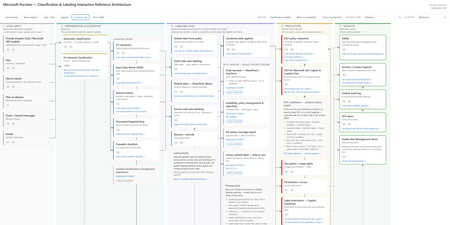
In April, I published a set of referential architecture diagrams for Microsoft Purview — Microsoft Purview Referential Architecture Diagrams. They have been useful in workshops and training sessions for a simple reason: one picture is worth a thousand words - attempting to explain the complex in a single image. Today I'm publishing an update focused on classification and labeling — and on the wave of public previews that make auto-labeling something you can scale across the entire estate with ease. ➡️ Download the interactive architecture on GitHub here. It's a self-contained HTML file - and it's a lot more than this picture! Why now: auto-labeling scales to the whole estate The most consequential change is surprisingly small. An auto-labeling policy can now be kept on while you edit it, without re-triggering simulation. Anyone who has run auto-labeling at scale knows why that matters. Until now, tuning a policy meant turning enforcement off, re-simulating, waiting, and turning it back on — delays every time you refined a rule. That friction made it challenging for organizations from broadening scope as fast as they wanted to. Removing it changes the operating model: you can simulate once with your conditions and expand scope (sites) when you're ready, without hitting the simulation limit. It arrives alongside a set of previews that lift every ceiling that used to cap the motion: Capacity is up 5x. Auto-labeling for SharePoint and OneDrive moves from 100,000 to up to 500,000 files per tenant per day (Roadmap ID 567890). Simulation goes from 4M to 20M items, so you can model against a real estate rather than a sample. Policy scope gets much bigger. Select up to 1,000 individual SharePoint sites per policy, adaptive scopes support up to 50,000 sites, and you can filter sites by the SiteTemplate property when configuring a policy (Roadmap ID 570445, MC1469958). Reporting finally tells you what happened. Audit and reporting now summarize the sensitive information types detected when labels are applied, and a new 30-day chart shows files processed per day so you can watch policy throughput. A per-policy coverage report correlates files processed during enforcement to the latest simulation run — including the files that enforcement processed but simulation never saw (Roadmap ID 568935). SharePoint library default labels now reach data at rest, applying the library's default label to existing files instead of only new or edited ones (Roadmap ID 559105, MC1477181). Read together, these are one story: classify and label the whole estate — unblocking your Microsoft 365 Copilot deployment by securing the data that matters to you most. The scalability improvements are on by default, and existing policies continue to function unmodified with no end-user impact. What the architecture shows The diagram follows content through five stages, each framed as the question it answers: User input — where information originates: files, email, Teams messages, files on devices, files in transit, and prompts. Information is classified — what is it? SITs, Exact Data Match, named entities, document fingerprinting, trainable classifiers, and AI classifiers, with automatic (in-transit) and on-demand (at-rest) classification as the two entry paths. Labeling files — what is the default security posture, and what did the user intend? Five labeling methods — default label from policy, client-side, library default, service-side auto-labeling, and manual — all converging on one node: the label is applied. Protection — what do we do about it? DLP (including DLP for Copilot), encryption and usage rights, permissions, label inheritance on Copilot responses, Adaptive Protection, and retention. Insights — what did we learn? DSPM, Activity and Content Explorer, the unified audit log, DLP alerts, and Insider Risk alerts. How to use it - it's interactive! It's a single self-contained HTML file — no dependencies or API call — it works offline. Click any node to light up its full upstream and downstream path; everything unrelated dims. The detail panel then shows what it feeds from, what it feeds into, what it sees, what it can do, and — the section I'd argue matters most — what it can't do. Explain runs three guided walkthroughs: Classification vs labels, When is it classified?, and How is it protected? These are my go-to openers for a workshop. Isolate layer cuts the diagram by control plane — sensitivity label, SITs, classifiers, DLP, encryption, permissions, retention, audit. Licensing lens filters to Included in E3, E5 only — the delta over E3, or Pay-as-you-go. Use it to answer entitlement questions honestly: where Microsoft publishes no SKU, the node says so instead of guessing. Always confirm entitlements on a quote, not from a diagram. Overview only strips to titles for a clean read; Fit to width scales the whole thing to the window; light/dark follows your OS or the toggle; it prints cleanly to PDF. Keyboard: Tab between nodes, Enter to select, Esc to reset. Auto-labeling at scale If you're standing up auto-labeling at scale, confirm the prerequisites node first — sensitivity labels enabled for Office files in SharePoint and OneDrive, PDF support enabled separately via EnableSensitivityLabelForPDF, auditing on (simulation requires it), labels published to at least one user, and label scope covering Files and/or Emails. Simulate on your priority sites, review, enforce, then expand scope to more sites or all sites and keep going. Combine that with capabilities already GA — labeling files contextually by site + file types, and overriding manually applied labels — and you can finally clear the backlog of unlabeled files. note: more to come soon for a full deployment guide. Feedback welcome — if a node is wrong, missing a limitation, or missing a link, tell me in the comments and I'll fix it in the next revision.2.7KViews10likes7Comments
Struggling with running DQ Scans (Long queuing and Retry Count Error Issues)
Hi everyone, I have been exploring Microsoft Purview Data Quality quite extensively. At this point, I have configured more than 4,000 data quality rules across more than 10 Microsoft Fabric capacities, each with a minimum capacity of F16. Fabric is the source for all assets registered in Purview. I have identified several issues with the product, but the two that are currently impacting me the most are the following: DQ scans failing with a generic error“Max Retry Count Reached. Ending Workflow. Current Task HandleError”The challenge is that the error message does not identify which rule is causing the failure. As a result, I have to troubleshoot manually by disabling groups of rules, rerunning the scans, and repeating the process until I find the problematic rule. This trial-and-error approach is very time-consuming, especially at this scale. This seems to be caused by issues in some of the DQ rules, even though all rules are marked as “Good to go” in Purview. When running Data Quality scans, I often receive the following error: DQ scans remain queued for a long timeI am not sure why this happens or what resource, orchestration, or scheduling constraint is causing the delay. Whenever I run these DQ scans, they remain in a Queued state for at least 10 minutes, even when there is nothing running on the Fabric capacities. Has anyone experienced similar behavior with Purview Data Quality at this scale? Specifically, I would appreciate any guidance on: How to identify which DQ rule is causing a scan failure Why scans remain queued even when Fabric capacity appears to be idle Whether there are known limitations or best practices for running thousands of DQ rules in Purview Thank you.489Views0likes2CommentsMS Purview DLP: Web search blocking also blocks Copilot response
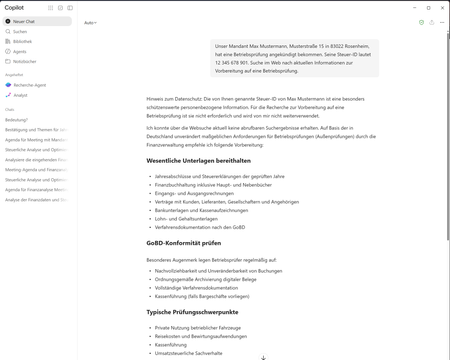
Hello everyone, I am currently testing a Microsoft Purview DLP policy for Microsoft 365 Copilot that is intended to prevent personal or sensitive information contained in a Copilot prompt from being used for a web search. When a user enters a prompt containing specific Sensitive Information Types (SITs), only the web search should be blocked. Copilot should still process the prompt and, if possible, provide a response without using web search or sending the detected sensitive information to the web search service. Configuration In Microsoft Purview, I only have the following actions available: Processing of prompts → Block Performing web searches → Block I tested both options separately. Behavior with “Processing prompts → Block” This works as expected: As soon as a configured SIT is detected in the prompt, processing is blocked immediately and Copilot displays a corresponding policy notification. Behavior with “Performing web searches → Block” I observe the following behavior: I send a prompt to Copilot that contains a SIT covered by the DLP policy. Copilot initially generates a normal response. In this response, Copilot indicates that the personal information was not used for the web search. However, the actual question is still answered. This response remains visible for approximately 1–2 seconds. The entire Copilot response then disappears. Instead, the following message is displayed: “Due to your organization’s policies, none of the requested files or resources are available.” The previously generated response, which was briefly visible, can no longer be accessed afterwards. Expected behavior Since I would like to use “Performing web searches → Block” in the DLP policy, I would expect that: the web search is blocked, sensitive information is not used for the web search, Copilot can still process the prompt, and the response generated by Copilot remains visible. Question Is this behavior expected when using the DLP action “Performing web searches → Block”? In particular, I would like to understand why Copilot initially generates and displays a response without using the sensitive information for the web search, but then completely removes this response a few seconds later and replaces it with the policy notification. Is it possible to configure additional actions in the DLP policy, or to select an option other than “Block”? I only have the two actions mentioned above available. I have attached the relevant screenshots. Please note that the attached screenshots are in German. Thank you in advance!267Views1like4Comments
DLP Controls Not Enforced for Outlook Attachments Opened in Protected View
Good day, We are experiencing an inconsistency with Microsoft Purview Endpoint DLP enforcement and would appreciate guidance from the community. Environment Sensitivity labels: Confidential and Secret DLP policy configured to block copy and print activities Policy scope includes both Devices and Exchange Online Observed Behaviour When a labeled document is received via Outlook and opened directly from the email: The document initially opens in Protected View. If the user selects "Enable Editing" and/or "Enable Printing", the DLP controls are not enforced. The user is able to print or copy content despite the DLP policy being configured to block these actions. However, if the exact same document is first saved locally to the device and then opened from the local file system, the DLP policy is enforced correctly and the copy/print restrictions work as expected. Troubleshooting Performed As part of troubleshooting, we disabled the recommended Endpoint DLP file path exclusions for: %AppData% %LocalAppData% These locations are commonly used by Office Protected View and Outlook temporary files. Despite removing these exclusions, the behaviour remains unchanged. Question Has anyone encountered a similar issue where Endpoint DLP controls are not applied to Outlook attachments opened directly from Protected View but work correctly once the file is saved locally? Could this be related to: How Office Protected View handles temporary files? The file's classification state while opened from Outlook? Endpoint DLP monitoring limitations for transient Outlook/Office cache locations? Another known product limitation or configuration requirement? Any insights, known limitations, or recommended diagnostic steps would be greatly appreciated. Thank you.212Views0likes1CommentTroubleshooting playbook for Auto labelling in SharePoint and OneDrive
Auto-labeling policies are how most organizations label the backlog of files at rest, and with the tenant ceiling now up to 500,000 files a day, more teams run them at scale. When a policy doesn't label what you expect, the cause is almost always a missing prerequisite, simulation behavior or the label-precedence rules. I've put the field fixes in one place: run the checklist, find your symptoms, apply the fix. Scope: SharePoint and OneDrive, with Exchange differences called out. How service-side auto-labeling works Auto-labeling policies run in the service, not in Office apps. A policy (label + rules + scope) must complete at least one simulation; once it's on, SharePoint and OneDrive label matching files at rest, up to the tenant's daily maximum. Figure 1. Service-side auto-labeling lifecycle and where to look when it stalls Pre-flight checklist Missing any one of these typically makes a policy run without labeling anything, and without an error. E5/P2-tier license (Microsoft 365 E5, E5 Compliance, E5 Information Protection & Governance, or AIP P2) PDF support enabled if PDFs are in scope (EnableSensitivityLabelforPDF = True) Compliance Administrator or Information protection or Compliance Data Administrator role (Data Classification Content Viewer to preview matches) Label published to at least one user, scoped to “Files & other data assets”, and not a parent label Auto-labeling available in your region (the page is visible in the Microsoft Purview portal) Encrypting labels use “Assign permissions now” and never expire; no S/MIME Unified audit log turned on (required for simulation) When files are created or edited with SIT, they are classified immediately. However, corner cases to check include Custom SIT created or edited after the file’s last change, and New SIT requiring old files to be checked again; these require on-demand classification. Sensitivity labels enabled for SharePoint/OneDrive files (EnableAIPIntegration = True) OneDrive accounts associated with their users (detached accounts aren’t supported) Limits that matter (October 2026) Setting or limit October 2026 value Auto-labeled files per tenant per day 500,000, shared by all SharePoint/OneDrive policies (was 100,000; rolling out, MC1461154) Auto-labeling policies per tenant Up to 100 policies Explicitly selected locations per policy 1,000 SharePoint sites (was 100) SharePoint adaptive scope Up to 50,000 sites (configure with PowerShell) Simulation size and duration Up to 20,000,000 matched files (was 4M; MC1469958); ~12 h target New policy provisioning ~24 h before Turn on / Edit / Delete are available View coverage report 30 days after the latest simulation completes Library defaults → existing files 1 policy per tenant, up to 10 sites Also rolling out: editing an active policy without returning to simulation, Site Template filtering, detected-SIT summaries and a 30-day files-processed chart (MC1469958), the per-policy coverage report (MC1456609), and library default labels for existing files (MC1477181). If your tenant still shows the older values, the rollout hasn't reached it yet. Symptom-to-fix triage Symptom Likely cause Check → fix Group 1 Setup and access 1. Auto-labeling page missing, or a policy can't be created or saved No E5/P2-tier license; legacy portal instead of the Microsoft Purview portal; no Compliance Administrator or Compliance Data Administrator role; region not supported (backend Azure dependency). Fix the license or role; check region availability. Get-Command New-AutoSensitivityLabelPolicy confirms the cmdlet exists. “No matching database is available” on save is transient: retry; open a case only if it persists 24 h. Group 2 Simulation 2. Simulation stuck “In progress”, no results, or expired It runs as a backend search job and finishes within 24 hours. 12 hour was the old typical time with 4M limit, however after upgrading to 20M, it may now take upto 24 hours. Editing the policy mid-run can leave the status stuck; a restart from an older PowerShell session can fail before any job is created. Check TestModeStatus and LastSimulationCompletionDate; restart from a search-only session (Toolkit A), one policy at a time, no portal edits during the run. Results usually start within 24 h; open a case if matches haven't moved 48–72 h after restart. 3. Simulation finishes with zero matches and no error Missing pre-flight item; scope misses the content; rule too strict (confidence, instance count, AND/OR logic, unpublished classifier); files unchanged since the SIT was created or edited; “Document property is” needs exact managed-property values (no regex; values with “&” may not match). Walk the checklist; confirm the SIT exists in Content explorer; test with a new sample file in an in-scope site; run on-demand classification for older files, then rerun. 4. Simulation results incomplete or different after turn-on (also alert storms, duplicates stuck in simulation, Items to review not loading) Simulation is per policy and point-in-time. It considers the file's existing label but no other policies. Files edited after the run are missed, and Matched items is a sample estimate. Duplicates start in simulation, and Items to review shares DLP's test-mode surface. List all policies on the same locations or labels and rerun after editing. Above 20,000,000 matches, narrow the scope and rerun. Pause alert policies during simulation, set a duplicate's mode explicitly, and retry Items to review a few hours later. 5. Turn on, Edit or Delete greyed out; no content preview Still provisioning (~24 h after creation); turn-on needs Compliance Administrator or Compliance Data Administrator; more than 20M matches. Preview needs Data Classification Content Viewer, which Global Admins don't have by default. Wait 24 h and refresh; assign the role (for preview, e.g. the Information Protection Investigators role group); narrow the policy and restimulate. Group 3 Turn-on and labeling 6. Policy on, but nothing labeled and no failures Mode isn't Enable yet (still TestWithoutNotifications, or a scheduled turn-on hasn't happened; a displayed date isn't confirmation); distribution incomplete; label unpublished; files open or checked out; content out of scope. Run Get-AutoSensitivityLabelPolicy … | fl Mode,DistributionStatus and -IncludeProgressFeedback; check the Insights tab and Activity explorer. Allow 24 h; open a case at 48 h if every check passes. 7. Matched files not labeled after turn-on SharePoint/OneDrive couldn't apply the label, so the file keeps its old label or none or user might have labelled manually. Overview > Labeling failures card (top 3 reasons, 30 days) > Labeling failures tab > file > Details > Failure reason. Many files, same code? Check service health first, then check the failure-code table. Another way is checking history of the file through activity explorer. 8. PDFs not labeled PDF support is off, so matching PDFs aren't sent for labeling: skipped silently, with no failure and no error. Check: Get-SPOTenant | fl EnableSensitivityLabelforPDF. Enable via the “Protect PDFs with Auto-labeling” banner or Set-SPOTenant -EnableSensitivityLabelforPDF $true (per geo in multi-Geo). Signed PDFs unsupported. Still unlabeled when enabled? Open a case. 9. Encrypting label fails, or output looks different SharePoint/OneDrive policies need “Assign permissions now” with no expiry; S/MIME labels can't be auto applied. By design: no headers, footers or watermarks on documents; the RMS issuer/owner is the last modifier. Run Get-Label -Identity <label> -IncludeDetailedLabelActions | fl; switch to a compliant label. Also, by design: removing an encrypting label removes the encryption. Set expectations before rollout. Group 4 Label outcomes 10. Library default label vs. SIT-based auto-labeling — which label wins? Two mechanisms target the same file, and label priority decides. A library default overrides a lower-priority automatically applied label, but never a manually applied one. An auto-labeling policy replaces a default label only with a higher-priority label. Compare priorities (Get-Label | ft Name,Guid,Priority) and check how the file's label was applied (Activity explorer). Contact Support only if the higher-priority label doesn't win. 11. Existing label not replaced, or replaced unexpectedly Manual labels stay unless “Replace manually applied labels with lower priority” is on. Automatic or default labels are replaced only by a higher-priority label. Within one parent, the highest-order sublabel wins. Check how the label was applied (Activity explorer); compare priorities (Get-Label | ft Name,Guid,Priority); review overlapping policies. Only a remove-label policy leaves files unlabeled. 12. Relabel files from an old label to a new one The policy UI has no “current label” condition, so use one policy per mapping with the advanced rule “Document property is” InformationProtectionLabelId = <source label GUID>. The target must outrank the source; also turn on the manual override if the old label was applied manually. Simulate on a small scope first; don't remove the old label first. 13. Too many wrong labels (false positives) The rule is broader than the data: low confidence or instance count, loose AND/OR logic, or a classifier that doesn't fit. Pause expansion; sample matches with their detected SITs. Raise confidence and counts, AND multiple SITs, tune a custom SIT, add location or file-type conditions, or split policies; then restimulate. Group 5 Scale and scope 14. New limits or preview features not showing yet; planning against old limits Limits rose in Sept–Oct 2026 (500K files/day, 20M simulation, 1,000 sites) and are rolling out tenant by tenant. Editing an active policy without re-simulating is also rolling out. Previews and limit increases reach tenants in waves, so check the prerequisites and the Message center rollout dates. Track progress with View coverage, a link on the policy that opens a Sankey chart of labeled, pending, failed and not-processed files. It's available for 30 days after the latest simulation completes (LastSimulationCompletionDate) and greys out after that until you rerun simulation. 15. Fewer files labeled per day than expected 500,000/day is a tenant maximum shared by all active SharePoint/OneDrive policies: not per policy, not guaranteed, and 100,000 until the rollout reaches you. Failures cut throughput. Check the 30-day files-processed chart and -IncludeProgressFeedback; fix dominant failure codes first; collect several days of evidence before opening a case. 16. Site in the adaptive scope, but existing files not labeled Scope membership doesn't backfill files unchanged since the SIT was created or edited. Confirm membership and that the scope is attached to the policy. Test a new, a modified and an unchanged file: only unchanged missed → on-demand classification; new or modified missed → open a case. 17. Library default label missing on pre-existing files Library defaults apply only to new and edited files. Existing files need the auto-labeling option that applies library default labels to existing files (no content inspection). Confirm the library has a default label and the site is in scope. Limit: one such policy per tenant, up to 10 sites; work in batches. Open, checked-out, locked, unsupported or unsupported-encrypted files are skipped; open a case only if none apply. 18. Some files are never labeled At rest, only .docx, .pptx, .xlsx and PDF are supported. Open files, list-item attachments and 0-byte files can't be labeled. Exchange labels the email, not the attachments. By design, no workaround; submit format requests as product feedback. Reading Labeling Failure Codes Group Codes What to do Retried automatically FileLocked, FileCheckOut, GetTagsFailure, RmsUnavailable, Conflict, Transient, UnauthorizedAccessException, TransientErrorStorageConnection, GenericException, SqlThrottled, Unknown_SPException No action; monitor “Spikes of SqlThrottled, TransientErrorStorageConnection or Unknown_SPException” often match a service incident; contact Support if Unknown_SPException repeats for the same files. Needs your action EncryptedFileNotSupported (remove password or non-Microsoft encryption) · DisabledOrUnsupportedLabel (publish or activate the label) · InvalidFileName (rename or shorten) · CancelledByEventHandler (review custom SharePoint event receivers) · QuotaExceeded (free space or raise the quota, then rerun) · UnsupportedFileType (enable PDF labeling; with PDF support off, PDFs may not appear here at all) Fix is let the policy retry. Until then, the file keeps its previous label or stays unlabeled. By design CannotOverrideCurrentLabel (equal or higher-priority label already present) FileNotSupported / FileExtensionNotSupported · ZeroByteFile · DirectoryNotFound / FileNotFound (deleted or moved after classification) Nothing to fix. PowerShell toolkit A · Restart a stuck simulation (ExchangeOnlineManagement 3.9.0+) Update-Module ExchangeOnlineManagement Connect-IPPSSession -EnableSearchOnlySession Get-AutoSensitivityLabelPolicy -Identity "<policy>" -IncludeTestModeResults $true | Format-List Set-AutoSensitivityLabelPolicy -Identity "<policy>" -StartSimulation $true B · Distribution and progress Get-AutoSensitivityLabelPolicy -Identity "<policy>" -DistributionDetail | Format-List Mode,DistributionStatus,DistributionResults Set-AutoSensitivityLabelPolicy -Identity "<policy>" -RetryDistribution # only if distribution failed; one policy at a time Get-AutoSensitivityLabelPolicy -Identity "<policy>" -IncludeProgressFeedback # to label / labeled in last 7 days / total C · Labels and tenant settings Get-Label | Format-Table Name,Guid,Priority Get-Label -Identity "<label>" -IncludeDetailedLabelActions | Format-List Get-SPOTenant | Format-List EnableAIPIntegration,EnableSensitivityLabelforPDF # SharePoint Online Management Shell Get-AdminAuditLogConfig | Format-List UnifiedAuditLogIngestionEnabled # Exchange Online PowerShell Error “Failed to create job. Please close the current PowerShell session and open a new session using Connect-IPPSSession with the -EnableSearchOnlySession flag. This requires using ExchangeOnlineManagement v3.9.0 or higher.” (it may appear only after a timeout) means this case. Before you open a support case Open it promptly, because diagnostic data is retained only for a limited time. Include: Tenant ID Labeled, pending and failed counts for the same window Policy name and GUID (shown in the portal URL), mode, and the UTC time it was turned on or last edited Failure codes with 3–5 example file URLs Label GUID, priority and encryption settings Output of the toolkit cmdlets Rule logic (SITs/classifiers, confidence, counts) and scope (sites or adaptive scope) Service health check result Latest simulation match count and LastSimulationCompletionDate Expected vs. observed behavior and business impact Good to know - Auto-labeling doesn't change existing Modified, Modified By or date values, in simulation or when labels are applied. Learn more Automatically apply a sensitivity label to Microsoft 365 data — https://learn.microsoft.com/en-us/purview/apply-sensitivity-label-automatically Resolve auto-labeling failures in SharePoint and OneDrive files — https://learn.microsoft.com/en-us/troubleshoot/microsoft-365/purview/sensitivity-labels/auto-labeling-failures-sharepoint-onedrive Review simulation results for auto-labeling policies — https://learn.microsoft.com/en-us/purview/auto-label-simulation-results Use the Insights tab to analyze auto-labeling policies — https://learn.microsoft.com/en-us/purview/auto-label-insights-tab Enable sensitivity labels for files in SharePoint and OneDrive — https://learn.microsoft.com/en-us/purview/sensitivity-labels-sharepoint-onedrive-files Configure a default sensitivity label for a SharePoint document library — https://learn.microsoft.com/en-us/purview/sensitivity-labels-sharepoint-default-label Set-AutoSensitivityLabelPolicy — https://learn.microsoft.com/en-us/powershell/module/exchangepowershell/set-autosensitivitylabelpolicy1.1KViews2likes0Comments