powershell
100 TopicsAnnouncing General Availability of Terraform Azure Verified Modules for Platform Landing Zone (ALZ)
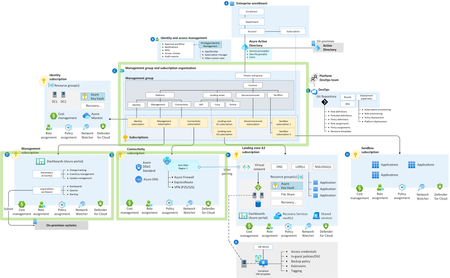
Azure Verified Modules ALZ ❤️ AVM. We are moving to a more modular approach to deploying your platform landing zones. In line with consistent feedback from you, we have now released a set of modules that together will deploy your platform landing zone architecture (ALZ). Azure Verified Modules for Platform Landing Zones (ALZ) is collection of Azure Verified Modules that are composed together to create your Platform Landing Zone. This replaces the existing CAF Enterprise Scale module that you may already be familiar with. The core Azure Verified Modules that are composed together are: Management Groups and Policy Pattern Module: avm-ptn-alz Management Resources Pattern Module: avm-ptn-management-alz Hub Virtual Networking Pattern Module: avm-ptn-hubnetworking Virtual Network Gateway Pattern Module: avm-ptn-vnetgateway Virtual WAN Networking Pattern Module: avm-ptn-virtualwan Private DNS Zone for Private Link Pattern Module: avm-ptn-network-private-link-private-dns-zones This means that you can now choose your own adventure by selecting only the modules that you need. It also means we can add new features faster and allows us the opportunity to do more rigorous testing of each module. To improve deployment reliability, we now use our own Terraform provider. The provider generates data for use by the module and does not directly deploy any resources. The move to a provider allows us to add many more features and checks to improve your deployment reliability. ALZ IaC Accelerator updates for Terraform The Azure Landing Zones IaC Accelerator is our recommended approach for deploying the Terraform Azure Verified Modules for Platform Landing Zone (ALZ). The Azure Verified Modules for Platform Landing Zone is now our default selection for the Terraform ALZ IaC Accelerator. This module will be the focus of our development and improvement efforts moving forward. The module implements best practices by default, including multi-region and availability zones for resiliency. The ALZ IaC Accelerator bootstrap continues to implement best practices, such as version control and Workload identity federation security. Along with supporting the Azure Verified Modules for Platform Landing Zone (ALZ) approach, we have also made many enhancements to the ALZ IaC Accelerator process. A summary of the improvements include: We now support HCL (HashiCorp Configuration language) tfvars file as the platform landing zone configuration file format We have introduced a Phase 0 to help you plan for your ALZ IaC Accelerator deployment We have introduced the concepts of Scenarios and Options to simplify the decisions you need to make Platform landing zone configuration file Before the introduction of the Azure Verified Modules for Platform Landing Zone (ALZ) starter module the platform landing zone configuration file was supplied in YAML format. Due to the lack of support for YAML in Terraform, we had to then convert this to JSON. Once converted to JSON the configuration file lost all it's ordering, formatting and comments. This made day 2 updates to the configuration very cumbersome. With the support for the tfvars file (in HashiCorp Configuration Language format), we are now able to pass the configuration file in its original format to the version control system repository. This makes for a much easier day 2 update process as the file retains it's ordering, comments and formatting as defined by you. Phase 0 Phase 0 is a new planning phase we have added to the documentation. This phase takes you through 3 sets of decisions you need to make about the ALZ IaC Accelerator deployment: Bootstrap decisions Platform Landing Zone Scenarios Platform Landing Zone Options In order to assist with this, we also provide a downloadable Excel checklist , which lists all the decisions so you can consider them up front prior to completing any configuration file updates. Phase 0 guides you through this process and provides explanations of the decisions. The Bootstrap decisions relate to the resources deployed to Azure and the configuration of your Version Control System required for the Continuous Delivery pipeline. These decisions are not new to the ALZ IaC Accelerator, but we now provide more structured guidance. Platform Landing Zone Scenarios The Scenarios are a new concept introduced for the Azure Verified Modules for Platform Landing Zone (ALZ) starter module. We aim to cover the most common Platform landing zone use cases we hear requested from partners and customers with the ALZ IaC Accelerator. These include: Multi-Region Hub and Spoke Virtual Network with Azure Firewall Multi-Region Virtual WAN with Azure Firewall Multi-Region Hub and Spoke Virtual Network with Network Virtual Appliance (NVA) Multi-Region Virtual WAN with Network Virtual Appliance (NVA) Management Groups, Policy and Management Resources Only Single-Region Hub and Spoke Virtual Network with Azure Firewall Single-Region Virtual WAN with Azure Firewall For each scenario we provide an example Platform landing zone configuration file that is ready to deploy immediately. We know that customers will want to modify some of the settings and that is where Options come in. NOTE: At the time this blog post was published, we support the 7 Scenarios listed above. We may update or add to these Scenarios based on feedback we hear from you, so keep an eye on our documentation. Platform Landing Zone Options The Options build on the Scenarios. For each Scenario, you can choose to customise it with one or more Options. Each Options includes detailed instructions of how to update the Platform landing zone configuration file or introduce library files to implement to the option. The Options are: Customise Resource Names Customize Management Group Names and IDs Turn off DDOS protection plan Turn off Bastion host Turn off Private DNS zones and Private DNS resolver Turn off Virtual Network Gateways Additional Regions IP Address Ranges Change a policy assignment enforcement mode Remove a policy assignment Turn off Azure Monitoring Agent Deploy Azure Monitoring Baseline Alerts (AMBA) Turn off Defender Plans Implement Zero Trust Networking NOTE: At the time this blog post was published, we support the 14 Options listed above. We may update or add to these Options based on feedback we hear from you, so keep an eye on our documentation. Azure Landing Zones Library Another new offering is the Azure Landing Zones Library. This is an evolution of the library concept in the caf-enterprise-scale module. Principally, the Library allows us to decouple the update cycle of the ALZ architecture, from the module and provider. We are separating the data from the deployment logic. This allows you to update the module to take advantage of a bug fix, without having to change the policies that are deployed. Something that wasn't easily possible before. Conversely, you are able to update to the latest policy refresh of Azure Landing Zones without updating the module itself. The Library has its own documentation site, which introduces the concepts. We plan to make the library the single source of truth for all Azure Landing Zones implementation options (e.g. Portal, Terraform and Bicep) in the future. Azure Landing Zones Documentation Site Furthermore, we have a new place to go for all technical documentation for Azure Verified Modules for Platform Landing Zones (ALZ). With the move to multiple modules, and the new accelerator all having multiple GitHub repositories, we felt the need to centralize the documentation to make it the one place to go to get technical details. We currently have documentation for the Accelerator and Terraform, with Bicep coming soon. The new vanity URL is: https://aka.ms/alz/tech-docs. Please let us know what you think! What about ALZ-Bicep? Finally, some of you may be wondering what the future for our Bicep implementation option (ALZ Bicep) for Azure Verified Modules for Platform Landing Zones (ALZ) may be with this evolution on the Terraform side. And we have good news to share! Work is underway to also build the next version of ALZ in Bicep, which will be known as “Bicep Azure Verified Modules for Platform Landing Zone (ALZ)”. This will also use the new Azure Landing Zones Library and be built from Azure Verified Modules (where appropriate). We are currently looking to complete this work before August 2025, if not a lot sooner than this; as we are making good progress as we speak! But for now, for Bicep you do not do anything and continue to use ALZ Bicep via the ALZ IaC Accelerator and we will provide more updates on the next version of Bicep ALZ in the coming months! Staying up-to-date We highly recommend joining, or watching back, our quarterly Azure Landing Zones Community Calls, to get all the latest and greatest from the ALZ team. Our next one is on the 29th January 2025 and you can find the link to sign up to attend or watch back previous ones at: aka.ms/ALZ/Community We look forward to seeing you all there soon!10KViews14likes0CommentsAzure Landing Zones Accelerators for Bicep and Terraform. Announcing General Availability!
Azure Landing Zones Accelerators are designed to simplify the process of onboarding your Infrastructure as Code into a robust CI / CD pipeline with Azure DevOps or GitHub. Learn more about what the Accelerator can do for you and why you should be using it.33KViews12likes5Comments
Install AzureAD and AzureADPreview module in PowerShell Function App
One wants to install AzureAD and AzureADPreview in his/her windows PowerShell function app. Modules are already input in requirements.psd1, managedDependency is also enabled in host.json. But when executing functions in Azure, error "Could not load file or assembly…" shows up. Analysis: The problem is rooted in the compatibility issue between PS7(PowerShell Core 7) and module AzureAD and AzureADPreview. As of now, the Functions runtime with PowerShell 7 is being rolled out globally. If one wants to check the powershell Core Version, he/she can simply goes to Function Portal --> Configuration --> General settings. AzureAD works out of the box with Powershell 7! People need to import AzureAD with the -UseWindowsPowershell switch. Import-Module AzureAD -UseWindowsPowerShell Below is the detailed step one can use in order to install AzureAD and AzureADPreview module in Azure Function App. Step 1: In requirements.psd1, input the two modules with their versions, wildcard is recommend to get the latest version of module; @{ # For latest supported version, go to 'https://www.powershellgallery.com/packages/Az'. # To use the Az module in your function app, please uncomment the line below. # 'Az' = '6.*' 'AzureADPreview' = '2.*' 'AzureAD' = '2.*' } Step 2: make sure “managedDependency” is set to true in host.json; { "version": "2.0", "logging": { "applicationInsights": { "samplingSettings": { "isEnabled": true, "excludedTypes": "Request" } } }, "extensionBundle": { "id": "Microsoft.Azure.Functions.ExtensionBundle", "version": "[1.*, 2.0.0)" }, "managedDependency": { "enabled": true } } Step 3: import module with below syntax: Import-Module AzureAD -UseWindowsPowerShell Import-Module AzureADPreview -UseWindowsPowerShell Results: Modules will be presented under C:\home\data\ManagedDependencies\xxxxxx.r. One can also invoke methods this module provides in his function code.36KViews6likes1CommentPowerShell ile Azure Baglanma (tr-TR)
PowerShell kullandığınız işletim sistemleriniz üzerinden Azure modullerini yüklemenizi gerçekleştirip Azure portalınıza bağlanıp Azure Cloud Shell konforunda işlemlerinizi gerçekleştirebilirsiniz. Azure PowerShell modülünün yüklenemsi için aşağıdaki komutu kopyala yapıştır yöntemi ile çalıştırabilirsiniz. if (Get-Module -Name AzureRM -ListAvailable) { Write-Warning -Message 'Az module not installed. Having both the AzureRM and Az modules installed at the same time is not supported.' } else { Install-Module -Name Az -AllowClobber -Scope CurrentUser } Modül yükleme işlemi sırasında gelen sorulara önce Y sonra A şeklinde yanıtlayarak devam edebilirsiniz. Komut örnek PowerShell çıktısı aşağıdaki gibidir. PS C:\Users\Administrator> if (Get-Module -Name AzureRM -ListAvailable) { Write-Warning -Message 'Az module not insta lled. Having both the AzureRM and Az modules installed at the same time is not supported.'} else { Install-Module -Na me Az -AllowClobber -Scope CurrentUser} NuGet provider is required to continue PowerShellGet requires NuGet provider version '2.8.5.201' or newer to interact with NuGet-based repositories. The NuGet provider must be available in 'C:\Program Files\PackageManagement\ProviderAssemblies' or 'C:\Users\Administrator\AppData\Local\PackageManagement\ProviderAssemblies'. You can also install the NuGet provider by running 'Install-PackageProvider -Name NuGet -MinimumVersion 2.8.5.201 -Force'. Do you want PowerShellGet to install and import the NuGet provider now? [Y] Yes [N] No [S] Suspend [?] Help (default is "Y"): y Untrusted repository You are installing the modules from an untrusted repository. If you trust this repository, change its InstallationPolicy value by running the Set-PSRepository cmdlet. Are you sure you want to install the modules from 'PSGallery'? [Y] Yes [A] Yes to All [N] No [L] No to All [S] Suspend [?] Help (default is "N"): a PS C:\Users\Administrator> PowerShell ile Azure bağlantısı icin Connect-AzAccount komutunu kullanrak işlemi gerçekleştirebilirsiniz. Connect-AzAccount Login penceresinden giriş yaparak işlemi sürdürünüz. Bağlantı süreciniz tamamlandığında aşağıdaki şekilde örnek komut çıktısını görebilirsiniz. PS C:\Users\Administrator> Connect-AzAccount Account SubscriptionName TenantId Environment ------- ---------------- -------- ----------- emreozanmemis@hotmail.com Microsoft Azure Sponsorship 5**********************1 AzureCloud PS C:\Users\Administrator> İşte şu an zamandan tasaruf etmenin anahtarı ile Azure Portalına giriş yaptınız. Azure işlem süreçlerinizi standartlaştırmak ve kurulum yapılandırma süreçlerinizi hızlandırmak için mevcut iş süreçlerinin PowerShell komutlarını hazırlayarak kendinize komut kütüphanesi oluşturmanızı öneririm. PowerShell ile Azure portalında güzel zaman geçirmeniz dileğiyle bir sonraki Azure PowerShell makalesinde görüşmek üzere...1.3KViews6likes0CommentsAzure Command-line Tools Ignite 2023 Announcement
The priority for Azure CLI and Azure PowerShell remains to provide our customers with the most complete, secure, and easy-to-use tools for managing Azure resources. At Microsoft Ignite 2023, we are announcing the following new capabilities delivering on our priorities: Extending our coverage and improving how we build commands. Improving the supportability of Azure CLI and Azure PowerShell Usability improvements5.5KViews5likes1CommentAzure Cloud Shell ile Windows Server 2019 VM olusturma (tr-TR)
Zamanın ötesinde yaşayan en önemlisi zamanın kıymetini bilen sistem yöneticilerinin yeni vazgeçilmezi olan Azure Cloud Shell sayesinde dakikalar içerisinde sadece bir kaç satır komut yada script ile en önemlisi aynı standartda sanal sunucu kurulumları gerçekleştirebilirsiniz. Azure Cloud Shell (PowerShell) ile derlemiş olduğum komutlar sayesinde önce kaynak grubu oluşturup akabinde sanal networkunuzu yapılandırabilirsiniz. Sanal sunucunzun temeli olacak kaynak grubu ve sanal networkunuz oldukça önemli bir kurulumdur. Doğru kurgulanan sanal networkunuz sayesinde ileride eklemek istediğiniz diğer Azure featureları için kolaylık sağlayacaktır. New-AzResourceGroup -Name PSAzureRG -Location westus $gatewaysubnet = New-AzVirtualNetworkSubnetConfig -Name GatewaySubnet -AddressPrefix "192.172.101.0/27" $virtualNetwork = New-AzVirtualNetwork -Name AzureBCVnet -ResourceGroupName PSAzureBootCampRG -Location westus -AddressPrefix "192.172.101.0/24" -Subnet $gatewaysubnet Add-AzVirtualNetworkSubnetConfig -Name AzureFirewallSubnet -VirtualNetwork $virtualNetwork -AddressPrefix "192.172.101.32/27" Add-AzVirtualNetworkSubnetConfig -Name DMZSubnet -VirtualNetwork $virtualNetwork -AddressPrefix "192.172.101.96/27" $virtualNetwork | Set-AzVirtualNetwork Oluşturdunuz sanal networkunuz sonrasu sanal sunucunuz için ihtiyacınız olacak public IP ve sunucunuzun diğer değişken detaylarını ikinci bölümde hazırladığım komutlar ile tamamlayabilirsiniz. #create VM $publicipvm = New-AzPublicIpAddress -ResourceGroupName "PSAzureRG" -name "VMIP" -location "westus" -AllocationMethod Static -Sku Standard $resourceGroup = "PSAzureRG" $location = "westus" $vmName = "ACS-w2019-vm" $cred = Get-Credential -Message "Enter a username and password for the virtual machine." New-AzResourceGroup -Name $resourceGroup -Location $location New-AzVM -ResourceGroupName $resourceGroup -Name $vmName -Location $location -ImageName "Win2019Datacenter" -Size "Standard_D2_v3" -VirtualNetworkName "AzureBCVnet" -SubnetName "DMZSubnet" -PublicIpAddressName $publicipvm -Credential $cred -OpenPorts 3389 İlk bölümde oluşturduğunuz kaynak grubunda ve sanal networkunda olan sanal sunucunuz için işletim sistemi opsiyonu olarak Windows Server 2019 Datacenter ve boyut olarak da D2_v3 seçiyorum. Oluşturduğum sanal network ve public IP yi sunucuma tanımlayıp 3389 portundan sunucuma RDP ile erişim sağlayıp işlemlerimi gerçekleştirmek için port izinimi veriyorum. İşte hepsi bu kadar komutu çalıştırıyorum ve 3-4 dakika içinde sanal sunucum hazır.2.3KViews5likes0Comments