onedrive
220 Topics
OneDrive integration in iOS App
I have an iOS application that has integration with Dropbox, Box, and iCloud and my users have requested support for OneDrive. I'm new to the Microsoft ecosystem entirely so it seems I need an App Registration and an Application (Client) ID etc. Having waded through everything needed to create this it seems that there is a requirement to be "Publisher Verified" in order for the app to allow users to actually use it? From Azure Portal Support - "Note: Starting November 9, 2020, end users are no longer able to grant consent to newly registered multi-tenant apps without verified publishers." But as far as I can see there is no way to get a verified publisher MPN ID without a "Work" Microsoft account (i.e. paid for) https://learn.microsoft.com/en-gb/entra/identity-platform/publisher-verification-overview " The app that's to be publisher verified must be registered by using a Microsoft Entra work or school account. Apps that are registered by using a Microsoft account can't be publisher verified. Is this genuinely the case? Is there no way to make a simple integration to automatically upload files to One Drive without whatever this whole "Entra ID" thing is?! This seems ridiculously overcomplicated when all the competing services have simple APIs.23Views0likes1Comment
Can you check file size locally without hydrating?
Possibly a newbie question... I'm porting a C++ app which previously worked with a locally-synced Dropbox to work with locally-synced OneDrive. But I've found that when the app tries to check the file size, file index, last access time, or other info which you can get from a Windows GetFileInformationByHandle call -- the CreateFileW call (needed to get the file handle) immediately triggers a file hydration. Is there any way to avoid this, and get a file handle to read information without triggering a download of the contents? For the record, here's the relevant code: HANDLE hff = CreateFileW(fn.c_str(), GENERIC_READ, FILE_SHARE_DELETE | FILE_SHARE_READ | FILE_SHARE_WRITE, NULL, OPEN_EXISTING, FILE_FLAG_BACKUP_SEMANTICS, NULL); // hydration has happened by this point if (hff == INVALID_HANDLE_VALUE) { errno = ERRNO_FROM_WIN32(GetLastError()); return -1; } BY_HANDLE_FILE_INFORMATION wfd; if (!GetFileInformationByHandle(hff, &wfd)) { errno = ERRNO_FROM_WIN32(GetLastError()); return -1; }Solved218Views0likes2CommentsMy OneDrive with for Developer that associate with MCT, has been force from 1TB to 10GB
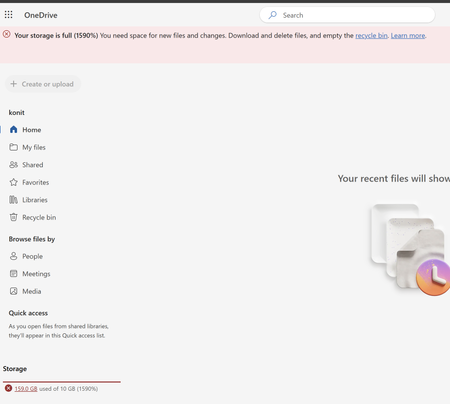
Hello Everyone, I have some issue with my OneDrive Developer, it has been force from current storage 1TB to 10GB without notify. it what happen or something wrong on my account.. thanks Soksamrong244Views0likes3Comments
URGENT: Tenant Linked & New Licenses Active, Need Manual Sync Triggered (Ticket #2606160040010375)
Hello Community Managers and Microsoft Moderators, I am writing to request an urgent escalation to a Data Protection and Billing Supervisor regarding our open case: TicketID#2606160040010375 for our nonprofit, R. Fathers M.A.D., Inc. Our legacy grant subscription lapsed on May 27, and we purchased our new active subscription on June 15—a lapse of exactly 19 days. Current Status: The Data Protection Team has successfully linked our accounts. Our new June 15 subscription is confirmed Active in our Billing dashboard. All new licenses have been successfully assigned to our active users. Frontline support ran an eDiscovery search that came back empty because the metadata indexing pointers were severed during the grant decommissioning. Because we acted within the initial 30-day window, our data sits well within the 90-day retention threshold. We have completed 100% of the front-end setup steps on our end. We need a Community Manager to internally flag TicketID#2606160040010375 so a Tier-3 engineer can manually trigger the backend data re-index. This will reconnect our intact SharePoint and OneDrive files to our newly mapped user profiles. Our nonprofit operations are completely halted until this sync is pushed. Thank you for your immediate help.338Views0likes2Comments
Unable to restore one drive personal vault file
Im trying to restore my onedrive file that I did not even deleted from personal vault I simply renamed it and somehow it got auto deleted now when Im trying to restore the file Im unable to restore it. You can in right panel it is "Waiting" indefinitely Please help I need these files urgently. ASAP.173Views0likes0CommentssharedWithMe returns only one item
A request from a standalone application to the https://learn.microsoft.com/en-us/graph/api/drive-sharedwithme endpoint returns only one item. Scopes used for authorization are: files.readwrite.all, group.readwrite.all, sites.readwrite.all, offline_access user.read When calling the same endpoint https://developer.microsoft.com/en-us/graph/graph-explorer, all shared items are returned. Result from application: { "@odata.context": "https://graph.microsoft.com/v1.0/$metadata#Collection(microsoft.graph.driveItem)", "value": [ { "createdDateTime": "2025-11-13T18:48:46Z", "id": "700DF30854FEF749!sd0cb731281c141acb1bf78fed133f933", "lastModifiedDateTime": "2025-11-13T18:48:46Z", "name": "saĝa-simio", "webUrl": "https://onedrive.live.com?cid=700df30854fef749&id=700DF30854FEF749!sd0cb731281c141acb1bf78fed133f933", "size": 0, "createdBy": { "user": { "email": "email address removed for privacy reasons", "id": "email address removed for privacy reasons", "displayName": "Saĝa Simio" } }, "lastModifiedBy": { "user": { "email": "email address removed for privacy reasons", "id": "email address removed for privacy reasons", "displayName": "Saĝa Simio" } }, "fileSystemInfo": { } Note that only one item is returned. Result from Graph Explorer: { "@odata.context": "https://graph.microsoft.com/v1.0/$metadata#Collection(microsoft.graph.driveItem)", "@microsoft.graph.tips": "Use $select to choose only the properties your app needs, as this can lead to performance improvements. For example: GET me/drive/microsoft.graph.sharedWithMe?$select=audio,bundle", "value": [ { "createdDateTime": "2025-11-13T18:48:46Z", "id": "700DF30854FEF749!sd0cb731281c141acb1bf78fed133f933", "lastModifiedDateTime": "2025-11-13T18:48:46Z", "name": "saĝa-simio", "webUrl": "https://onedrive.live.com?cid=700df30854fef749&id=700DF30854FEF749!sd0cb731281c141acb1bf78fed133f933", "size": 0, "createdBy": { "user": { "email": "email address removed for privacy reasons", "id": "email address removed for privacy reasons", "displayName": "Saĝa Simio" } }, "lastModifiedBy": { "user": { "email": "email address removed for privacy reasons", "id": "email address removed for privacy reasons", "displayName": "Saĝa Simio" } }, "fileSystemInfo": { "createdDateTime": "2025-11-13T18:48:46Z", "lastModifiedDateTime": "2025-11-13T18:48:46Z" }, "folder": { "childCount": 1, "view": {} }, "remoteItem": { "createdDateTime": "2025-11-13T18:48:46Z", "id": "700DF30854FEF749!sd0cb731281c141acb1bf78fed133f933", "lastModifiedDateTime": "2025-11-13T18:48:46Z", "name": "saĝa-simio", "size": 0, "createdBy": { "user": { "email": "email address removed for privacy reasons", "id": "email address removed for privacy reasons", "displayName": "Saĝa Simio" } }, "fileSystemInfo": { "createdDateTime": "2025-11-13T18:48:46Z", "lastModifiedDateTime": "2025-11-13T18:48:46Z" }, "folder": { "childCount": 1, "view": {} }, "lastModifiedBy": { "user": { "email": "email address removed for privacy reasons", "id": "email address removed for privacy reasons", "displayName": "Saĝa Simio" } }, "parentReference": { "driveType": "personal", "driveId": "700df30854fef749" }, "shared": { "scope": "users", "sharedDateTime": "2025-11-13T19:16:19Z", "owner": { "user": { "id": "700df30854fef749", "displayName": "Saĝa Simio" } }, "sharedBy": { "user": { "email": "email address removed for privacy reasons", "id": "email address removed for privacy reasons", "displayName": "Saĝa Simio" } } }, "sharepointIds": { "listId": "a5aff78d-98ee-4b34-b35b-f4fe365ebd74", "listItemId": "184", "listItemUniqueId": "d0cb7312-81c1-41ac-b1bf-78fed133f933", "siteId": "87dbe7ee-ae0c-4854-82e7-d56d982fef54", "siteUrl": "https://my.microsoftpersonalcontent.com/personal/700df30854fef749", "webId": "9d8b91c3-b0b9-45d1-83e4-17babde0d1dc" } } }, { "createdDateTime": "2025-11-13T18:24:59Z", "id": "D26CADA368C1131F!116", "lastModifiedDateTime": "2025-11-13T18:24:59Z", "name": "Beastie", "webUrl": "https://onedrive.live.com?cid=d26cada368c1131f&id=D26CADA368C1131F!116", "size": 0, "createdBy": { "user": { "email": "email address removed for privacy reasons", "id": "email address removed for privacy reasons", "displayName": "Faerie Graceful" } }, "lastModifiedBy": { "user": { "email": "email address removed for privacy reasons", "id": "email address removed for privacy reasons", "displayName": "Faerie Graceful" } }, "fileSystemInfo": { "createdDateTime": "2025-11-13T18:24:59Z", "lastModifiedDateTime": "2025-11-13T18:24:59Z" }, "folder": { "childCount": 1, "view": {} }, "remoteItem": { "createdDateTime": "2025-11-13T18:24:59Z", "id": "D26CADA368C1131F!116", "lastModifiedDateTime": "2025-11-13T18:24:59Z", "name": "Beastie", "size": 0, "createdBy": { "user": { "email": "email address removed for privacy reasons", "id": "email address removed for privacy reasons", "displayName": "Faerie Graceful" } }, "fileSystemInfo": { "createdDateTime": "2025-11-13T18:24:59Z", "lastModifiedDateTime": "2025-11-13T18:24:59Z" }, "folder": { "childCount": 1, "view": {} }, "lastModifiedBy": { "user": { "email": "email address removed for privacy reasons", "id": "email address removed for privacy reasons", "displayName": "Faerie Graceful" } }, "parentReference": { "driveType": "personal", "driveId": "d26cada368c1131f" }, "shared": { "scope": "users", "sharedDateTime": "2025-11-13T18:41:30Z", "owner": { "user": { "id": "d26cada368c1131f", "displayName": "Faerie Graceful" } }, "sharedBy": { "user": { "email": "email address removed for privacy reasons", "id": "email address removed for privacy reasons", "displayName": "Faerie Graceful" } } }, "sharepointIds": { "listId": "5d31fd1e-38af-4117-b637-c1a0f7d5ca95", "listItemId": "4", "listItemUniqueId": "68c1131f-ada3-206c-80d2-740000000000", "siteId": "74111012-f9e7-4940-ad60-5e53a21e2d3c", "siteUrl": "https://my.microsoftpersonalcontent.com/personal/d26cada368c1131f", "webId": "f1ea2ab8-b5ee-4c93-8ce2-6c12700c226a" } } } ] } Any tips or suggestions are welcome.593Views0likes5Comments
Can a mobile app programmatically trigger the OneDrive mobile app?
Hi, I am developing a native mobile application (Android and iOS) and I would like to clarify what is officially supported when interacting with OneDrive on mobile devices. Specifically, I would like to know: - Is there any supported way (Android Intent, iOS URL scheme, or similar) for a third-party mobile app to programmatically trigger the OneDrive mobile app to create folders or upload files? - Or is Microsoft Graph API the only supported approach to create folders and upload files to OneDrive / SharePoint from a mobile application? I am looking for an official clarification on the supported approach. Thank you.511Views0likes1Comment
Suggestion: URL scheme for onedrive synced locations
For a sharepoint site on the web, URLs are straightforward https:// ENTERPRISETENANT .sharepoint.com/sites/ SITENAME / LIBRARY Right now, if you need to coach someone through using a file in a way that requires syncing a folder, it's just a little too difficult. In the interest of making it more possible for coworkers to provide practical instructions to each other, we would really benefit from having a way to link files the implies use of an existing sync or onedrive shortcut, and which falls back to suggest creating a new one. Currently, we have to hope that our colleagues are using sharepoint site syncing the way that we hope they are, if we want to provide really specific context for things. e.g. If my relative path is %USERPROFILE%/My Enterprise Tenant name/SITENAME - Documents/project1 someone else's could be %USERPROFILE%/My Enterprise Tenant name/SITENAME - project1 OR %USERPROFILE%/OneDrive - My Enterprise Tenant name/Documents/project1 OR %USERPROFILE%/OneDrive - My Enterprise Tenant name/project1 Suppose we had new updates of OneDrive that set up a URL scheme that gets attached to an executable interpreter, and the interpreter takes what are otherwise the elements of an absolute https URL, but instead of opening a browser, it would compare it against the locally synced path (i.e. information from the "Accounts" settings). If there's a match, it could then link to a location on disk (probably via some kind of consent screen as an intermediate): -x-ms-onedrivesync://ENTERPRISETENANT.sharepoint.com/sites/SITENAME/LIBRARY/PATH/ If the URL is not represented among the onedrive folders that are synced, so far, then onedrive could propose that the user start syncing this folder, instead. I really prefer the idea of treating a "onedrive shortcut" and a "sync" folder the same, as long as it's for an equivalent location in the cloud. This got really confusing to explain to people, once the "shortcut" feature was introduced. Please? It would make things a lot easier. Does anything like this already exist? Is there a tool or a best practice that IT support at "work or school" organizations are already using to explain and talk about such things?496Views0likes1CommentLocal Onedrive files won't open when away from Wifi
Why can't I open a Onedrive file that is saved to my Surface harddrive when I am away from WiFi. I literally opened the file up while I was with WiFi, so when I travelled to the non-WiFi location, the file would be available, or updated, or not be corrupted, or not do whatever crazy thing it does when it can't connect. Sadly I forgot to plug it in so it had to restart and did an update. When I tried to re-open the file that is literally on my harddrive, it said "Excel cannot open the file because the file format or the file extension is not valid". This is ridiculous, and not the only time it has happened. Even if my Onedrive sync is up to date, at times when I am away from WiFi, when trying to open a file I get the same report. To be safe, I have made a practice to open the files I need to ensure that they will be available when I am away from WiFi. If the files are on my computer drive, why can't I open them?? Please give a better solution then me hoping it is going to work every time I go out.415Views0likes1Comment