microsoft graph
26 TopicsNew Profile Card Customization through Microsoft Graph Beta
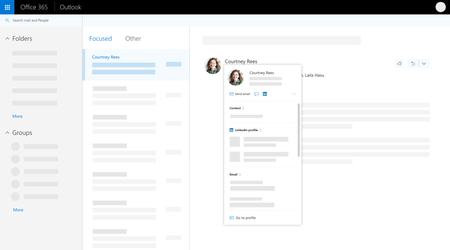
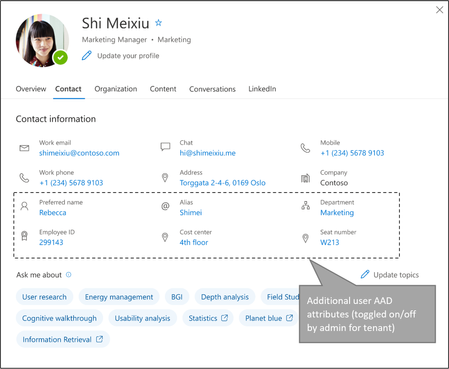
People are the heart and soul of your company, but finding the right people at the right time isn’t always easy. Sometimes you’re looking for more than just a name and face, maybe it’s a skill, location, or something else. In Office 365 when you select someone’s name or picture in Outlook or other Office apps and services, you can find information related to them on their profile card. To see a profile card in Outlook mobile, tap a person's picture or name. To see the profile card in other apps, hover or click the person's photo or name. To see your own profile card, select your own profile picture or name. The profile card is also sometimes referred to as a contact card or people card. Here's an example of the card in Outlook on the web: However, profile cards are limited in the amount of information they display. Perhaps you want to include custom properties related to your company or a person’s role to help people find the right person or expertise. Today we’re pleased to announce we’ll be adding the ability to add custom information to a person’s profile card through the Microsoft Graph Beta. This allows an administrator to customize people’s profile cards by adding properties according to your business needs. The new Beta experience will provide a simple way to supplement a person’s profile card via the Microsoft Graph. For example, as illustrated below, you may want to add a custom property to the profile card, such as a person’s Cost Center or Employee Id. Figure 1 Profile view where more contact info is displayed In this example, you can see the standard profile card before it has been expanded. Using new this new customization option, you’ll be able to easily display important information such as a person’s Cost Center or Employee Id as illustrated below in the expanded profile view. Figure 2 Profile with all contact info displayed in addition to custom attributes Wrapping Up This new Beta experience will become available in Spring 2020 – keep an eye out for availability by bookmarking this article or by following @OfficeDev and @MicrosoftSearch on Twitter. Roadmap Id 6150236KViews28likes21CommentsFind what you want, discover what you need with personalized intelligent search across Microsoft 365
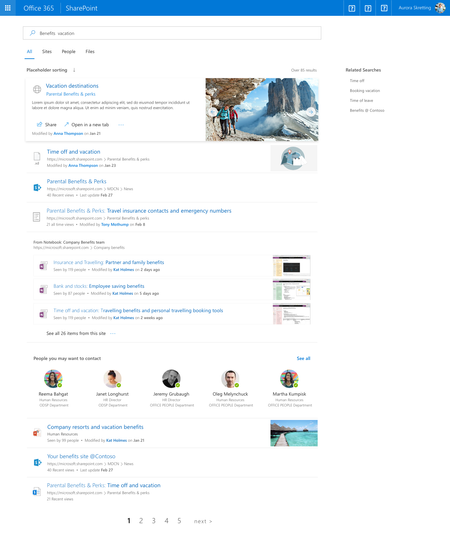
We're putting you at the center of everything - intelligent, personalized search across Microsoft 365 helps you be more productive and build on the work of others. From Windows to web, search meets you, wherever you are.139KViews23likes50CommentsWhat’s new for Microsoft Search – Ignite 2020 Edition
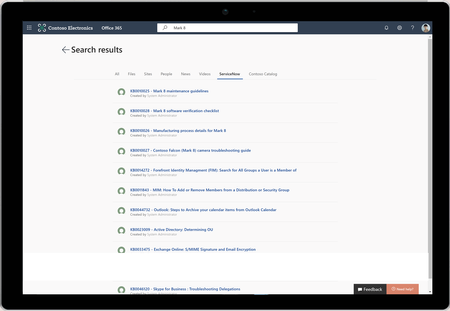
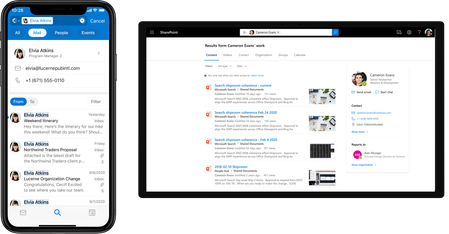
Posted at aka.ms/MicrosoftSearch/Ignite2020 Haven't had a chance to catch up or missed our sessions? Don’t worry, we’ll precap and recap all of the latest news and announcements for Microsoft Search here. Looking for our sessions? Visit https://aka.ms/MicrosoftSearch/Ignite2020/LearnMore. Click here to jump ahead. On the go? You can download this post as a .pdf at https://aka.ms/MicrosoftSearch/Ignite2020/DownloadBlog. NOTE Unless otherwise noted, features and capabilities will be available in H2 CY20. Have you ever misplaced something? Maybe it was your car keys, your favorite jewelry, or something else… The typical process you go through is probably something like this – you ask yourself the question, “where did I put my keys” and then walk backward from where you last went, which rooms you were last in, the last you did perhaps.. That process is synonymous with a traditional search experience, a query and continuous refining of the query until you find what you were looking for – while this process may work for you on one occasion, it’s not consistent enough to be valuable in the future, and what if the keys you’re looking for, aren’t the ones you misplaced, but those of a roommate, partner, or someone else? This is why search needs to evolve, to become more personal, more context aware, more precise, and more available, so wherever you are, whatever it is, you can find it the first time, with minimal effort, and precision. Microsoft Search is the evolution of search, smarter search to help you stay in touch with what’s important and trending around you in Microsoft 365 and your connected systems. Today we announced several new capabilities coming to Microsoft Search in the next few months to make search more intelligent, more productive, and more precise. New Search Features People-centric search Microsoft Search has always put people first and at the center of search… usually when you’re searching for information, you work from its edges to its center, in the same way we may build a puzzle. The strength of Microsoft Search is that it allows you to find that information from the center, the person, outward. It’s people who create and curate knowledge, and we believe that allowing you to anchor on that person, their knowledge, and solve the information puzzle working outward, delivers greater precision, and a more delightful experience – because sometimes the answer you’re looking for isn’t found through a document, it’s found through a person. People centric search allows you to scope and refine your searches, precisely, to an individual to allow you to harness your organizations collective knowledge. Find skills and expertise In the same way we allow you to find what you need through individual knowledge, we are expanding that experience to allow you to not only find information, but also insights and expertise. The ability to find skills and expertise lets you home in on the individual talent in your organization to find the experts that can best help you solve a problem or complete a task. For example, for a marketing campaign, you may want to know who in your company has expertise in social media or perhaps event production. With Microsoft Search, you’ll simply be able to ask, “who knows about social media” or “experts in event production”. Using our machine learning algorithms, Microsoft Search can identify expertise, not only based on self-attestation – or adding skills to your own profile, but also through content understanding, through reasoning over email and documents to identify areas of expertise a person may possess based on collaborative patterns and then suggest to that person to add those discoveries to their profile. This helps keep up to date the evolving nature of knowledge of the individuals in your organization. Power BI search Power BI is the Magic Quadrant Leader among analytics and business intelligence platforms and over 200,000 customers around the world use Power BI and bring 40 petabytes of data into Power BI every month and now we’re making it easier to find Power BI artifacts such as reports and dashboards, by expanding the ability to search across these artifacts in SharePoint and Office.com in addition to Bing. -Source https://powerbi.microsoft.com/en-us/blog/microsoft-named-a-leader-in-gartners-2020-magic-quadrant-for-analytics-and-bi-platforms/ Conversation search Everywhere we look and everywhere we work, we’ll find information – and sometimes this can be overwhelming when we’re trying to put it all into context. Now we’re making it easier to find what you need, across the apps and services you’re using, where you’re working by surfacing Teams, Yammer, and Outlook conversation results in SharePoint and Office.com through a new Conversations vertical to make it easier for you to search once, across all of your organizations information. Image search Leonardo da Vinci wrote that a poet would be "overcome by sleep and hunger before [being able to] describe with words what a painter is able to [depict] in an instant." Now in Microsoft Search across SharePoint and Office.com you’ll be able to precisely find what a painter is able to depict in an instant with new image search. Improved filter design and new filters New out of the box filters will make it easier to find what you need, whether a file, presentation, page, or something else in addition to precisely searching for the most up-to-date . And stay tuned for being able to use your own filters based on the refineable managed properties in the coming months. Topic search Finding information is awesome, organizing that information is even better. Topic answers will come later this calendar year as part of Project Cortex. Project Cortex topics uses AI to identify knowledge topics across teams and systems, and automatically organize related resources and experts to create topic pages--like Wikipedia pages for the enterprise, built by AI. Topics bring together people, content, and information and have a name, definition, description and connections to people, content (e.g. files and sites) and conversations. Topics are automatically mined from content and curated by end-users. Topics can also be created manually. Personal query history Search is something we use every day, a lot, and it’s hard to keep track of what you last searched for now you’ll no longer need to search for what you’ve searched for adding a new option to view and manage your personal query history. With personal query history, you'll see your recent queries as you begin typing in the search box to help you get back to insights and information you recently used or accessed so you'll no longer have to bookmark your queries or memorize the right query to get you back to where you were. Your personal query history can be managed through your Office 365 My Account settings and new My Account privacy controls allow you to delete your query history or download your query history for future reference. New and improved answers in Microsoft Search Acronym answers Did you know the world's longest acronym, according to the Guinness Book of World Records is NIIOMTPLABOPARMBETZHELBETRABSBOMONIMONKONOTDTEKHSTROMONT? Often, we come across unfamiliar acronyms at work. Sometimes, these terms could even mean specific to different teams, projects, or organizations. Finding the meaning of acronyms at work is now easier than ever using natural language queries across Microsoft 365 apps and services. For example, you can query ‘Define DNN’, ‘What is DNN’, ‘Meaning of DNN’ etc. to see all the definitions of DNN used within your organization. Definitions are both mined from the content you have access to and curated by your organizations, Microsoft 365 administrator. Acronyms answers are currently available in SharePoint and Office.com (in English) in addition to Bing.com (in English, Spanish, French, German, Portuguese, and Italian) and soon in Outlook web, Outlook mobile, Teams mobile, Office apps like Word, Excel and PowerPoint in English and additional languages. Calendar answers Wondering when is your next product meeting or your next meeting with a colleague while you are on-the- go? Forget scrolling through your phone’s calendar to find it. You can now use voice or type in the search box and find your meetings in your favorite Outlook mobile app! Want to forward a meeting to a colleague or reply to an invite with meeting notes? Forget navigating to calendar and browsing through it to find the meeting. You can now search for it right in your inbox without switching views on your large screen Outlook clients! We have been working to make it easy and natural for you to find your events. No more scrolling or browsing required! You can look for a meeting/event with its <title>–, <attendee name> or <time of the meeting>. You can RSVP to the meeting, send emails or join a Teams meeting right from the answer! The calendar answer is available for enterprise users on in the US market and is soon going to be available on Outlook on the web, Outlook for Windows and Outlook for Android with support for Microsoft Accounts and other markets. File answers Search through your piles of files in Outlook just the way you think! Our data suggests that a quarter of search sessions in Outlook end in users opening an attachment or a link in the email. You can now search for files using natural syntax containing file name, author of the file, sender of the email that contains a file or just the file type across attachments you’ve received in addition to files someone shared with you on a Teams chat or your files in OneDrive For Business and SharePoint. Files answers will initially be available on and Outlook on the web in the US market with fast follow in other Outlook clients and other markets. Making the most of Microsoft Search Microsoft Search provides a robust set of tools you can use to make search work better for your organization and now we’re expanding the options available to you and your organization. Are your employees finding what they need? Is search working for you? Over the next several weeks we will begin rolling out new administrative features to help you answer these questions with a new feedback loop and improved search analytics. Admin feedback One of the most common asks for Microsoft Search is to help keep its users engaged through understanding the value of results or a person’s individual search success rate. The new feedback feature in Microsoft Search allows your employees to securely provide feedback to you, the search administrator, on the quality of their search results, suggest answers, and be a partner in the lifecycle of search in your organization. Analytics Tenant Analytics give you the tools and insights to make search great for your company. A new Microsoft Search Insights dashboard will help admins keep employees productive with insights into what they're searching for. See top search queries run on Microsoft Search, along with an impression distribution over time for various answers. Making search uniquely yours Search works best when you can personalize it to suit your unique needs. Over the next several months, we will begin gradually allowing for greater customization of the search experience with Microsoft Search to include custom verticals and filters. You’ll be able to edit out-of-box verticals or create your own, change the way results look and add your own filters based on refinable managed properties. In addition, a layout designer will make it even more simple to create compelling views of connector content via Adaptive Cards. Search wherever you are working Last month we began making Microsoft Search available to more apps and services in Microsoft 365 to include contextual search in Microsoft Teams and now, Microsoft Search in Windows, Outlook, and more improvements in Teams and we’re building on that work to bring Microsoft Search to more Microsoft 365 apps and services. Microsoft Teams As your organization’s use of Teams grows, so does content stored in teams, giving you a rich breadth and history of messages, files, meeting content and other organization knowledge to draw on. Earlier this year we rolled out improved autosuggest results and the ability to get contextual search results in your channels or chats using CTRL + F as you enter your search terms and recently we enabled contextual search from mobile as well. The new full page immersive search results page experience in Teams will deliver on the vision to help you achieve more by finding content faster and more reliably. The experience is optimized for recognition and users will be presented with better relevance and context in the results. Filters are also easier to access allowing people to find exactly what they are looking for. We will also be bringing the power of Microsoft Search into Teams by introducing answers mined from your organization knowledge which will help users get their job done faster. Outlook Searching is the second most popular activity behind email, and over the next several months we’ll be bringing new search innovation to help you find and discover with more accuracy, in less time. We recognize the best search experiences are those that speak your language, can understand ambiguities, and deliver the most confident results where and when you need them. Outlook supports Microsoft Search that recognizes search queries using language you use every day to filter and narrow search results through either typing or speaking via a new microphone option in the search bar. Searching for something specific about a contact will provide an actionable result such as "John's phone number". Search for a specific contact will use Microsoft Search services to provide relevant and actionable results rather than keywords from information from your email and calendar. In addition, real-time updates in travel reminders, powered by Bing and more in the reminder card. Windows Microsoft Search is designed to meet you wherever your working, and now your desktop. Coming soon to Windows 10, when logged in with a Work Account you’ll be able to search across your local and organizational content right from the Windows search box. Microsoft Office Office is with you everywhere you go, on mobile, in the browser and on your desktop. Microsoft Search has been a part of Office.com for some time already for enterprise users, making it super simple to find apps, get back to files and access all the knowledge in the enterprise from in one place. Now the familiar Microsoft Search experience has also come to consumer Office.com. Now we’re bringing Microsoft Search to your favorite productivity apps you use every day in Microsoft 365. When you’re using Word, Excel or PowerPoint, the familiar Microsoft search box is at the top of the app, helping you be productive, and taking advantage of the knowledge of your organization and the web to help be more productive. How often have you had to dig through a document to find something because the document didn't use the exact words you had searched for? With the recent breakthroughs in deep learning techniques, you can now go beyond the common search term-based queries and get answers to your questions based on the document content, opening a whole new way of finding knowledge. For example, when you’re looking at a water quality report, you can easily answer questions like where does the city water originate from? How to reduce the amount of lead in water? By bringing the well-established web search technologies such as query and document understanding, and indexing, and adding deep learning based natural language models, we can now handle a much broader set of search queries beyond “exact match.” On mobile, the Office app let’s you find all your files and work on PowerPoint, Word and Excel without switching apps. When you’re on the go the app also lets you perform common tasks such as scanning QR codes, signing PDFs or transforming pictures into editable Word and Excel documents. Connecting your businesses' islands of information Not only is the amount of information growing at exponential rates, but it is increasingly distributed – from on-premises to cloud applications. Today we announced that Microsoft Graph connectors for Microsoft Search will be generally available later this year and the expansion of our robust ecosystem to include partners Box, Adobe, Cognizant, Go1, LumApps, Accenture, Raytion, Cognizant, and BA Insight. With Microsoft Graph connectors, you can connect disparate systems whether on-premises or in the cloud so you can find information, in context, where you’re working. Along with new Microsoft Graph connectors, we’re also working hard to make Microsoft Search more integrated across Microsoft products to include Microsoft Azure. Upcoming Microsoft Azure integration will create a ‘boundaryless’ cohesive and coherent search experience, Microsoft Search will be able to display query results from existing Azure Cognitive Search indices, such as those powering mobile, web, and custom line-of-business applications. A new way to take advantage of Microsoft Search Lastly, for customers who may not have an Office 365 subscription, we’re pleased to announce a new standalone Microsoft Search service so you can help your employees find information quickly and precisely. Microsoft Search brings the best of intelligent product search to your organization, now whether integrated with Microsoft 365 or used as our new standalone service you can connect to all your applications and data platforms. To learn more or nominate your organization for our private preview visit https://aka.ms/msftsearchstandalone. New and improved developer experiences In addition to our progress with Microsoft Graph connectors, we also released some new features and capabilities in the Microsoft Search API in the Microsoft Graph. We've heard your feedback that some key features for SharePoint developers were lagging behind. A new video will walk you thru the API surface, and you can jump here to see the September 2020 additions. Here's what we've added in our latest release : The following SharePoint types are now addressable by the API : List, ListItem, Sites, and Drives. You can scope queries in entityType property in the searchRequest, and the response will contain search results casted to the appropriate type. We've added support for custom Sort on any sortable property for SharePoint and OneDrive We've added support for aggregation (aka Refiners in the SharePoint world) to enable you to build user experience where users can filter results. We now fully support selectProperties so that you can trim down the requested properties, or get more managed properties from the search index For Graph Connectors, we support passing multiple connections in the request. Search results will be sorted by relevance. Note that we decided to do a few breaking changes in the API, and you will have to update your app before the end of 2020. In the meantime, we will support both schemas to enable you to transition smoothly. Ahead of us, we will be releasing the API in /1.0 before the end of 2020 so that you can use it in your applications in Production and be fully supported. We are still working on our plans for what is news in the Search API in Graph, but we have bold ambitions for the coming year. Keep up-to-date with the latest Microsoft Search innovation by bookmarking our roadmap at https://www.microsoft.com/en-us/microsoft-365/roadmap?rtc=1&filters=Microsoft%20Search.40KViews8likes14CommentsIntroducing new privacy controls with the Microsoft Graph
Privacy is a fundamental human right. “We are committed to providing products, information, and controls that let you choose how your data is collected and used.” Brad Smith, President & Chief Legal Officer In May (skip below to read the announcement) we announced our plans to provide more granular privacy controls with the Microsoft Graph. The hundreds of millions of users of Microsoft 365 cloud services form part of the core of Microsoft Graph. The users' data is carefully managed, protected, and with proper authorization, made available by Microsoft Graph services to drive productivity and creativity in businesses. As ubiquitous the user's data is in Microsoft Graph, data derived from the user's social interactions is particularly interesting. It provides intelligent insights that can answer questions such as the following: "Who should this user contact for information on this topic?" "Which documents are most interesting to this person?" For administrators who wish to enable granular control over where intelligent insights are available to their employees, these new controls provide you the ability to configure the visibility of Graph-derived insights, between users and other items in the Graph (such as documents or sites) across apps and services in Microsoft 365. Learn more about Graph-based insights at https://docs.microsoft.com/en-us/graph/social-intel-concept-overview?view=graph-rest-1.0#why-integrate-with-document-based-insights. Learn more about how to configure the new Microsoft Graph privacy controls at https://docs.microsoft.com/en-us/graph/insights-customize-item-insights-privacy?view=graph-rest-1.0. Announced in May 2020 The Microsoft Graph is the gateway to data and intelligence in Microsoft 365, providing a unified programmability model that you can use to access the tremendous amount of data in Microsoft 365, Windows 10, and Enterprise Mobility + Security. Over the next several weeks we're excited to introduce new innovation to help you achieve more with Microsoft Graph capabilities. In Microsoft 365 we’re committed to privacy and control – and we’re continuing to invest in those principals with new Microsoft Graph privacy controls of document-based insights. Across Microsoft 365 applications and services, intelligence is pervasive – whether deep learning or reasoning across activities and relationships – intelligence in Microsoft 365 is designed to help its users achieve more… At the center of Microsoft 365 is content, such as documents, email messages, conversations, and more. With the amount of data expected to double year over year, information overload is often a reality. This is where the Microsoft Graph shines. Time is something we can’t make more of, but we can make more with it. Document-, email-, calendar-, and user- based insights help save time and boost productivity, helping employees make more of their time. One of the first applications to deliver these rich insights was Office Delve, powered by the Office Graph – technology which calculated relationships between people and content from Exchange, OneDrive, SharePoint, and more. Along with the Office Graph and Delve, we also delivered shared set of privacy settings, which control both insights and Delve user experience. As the Office Graph continued to evolve, it has become a more independent, mature, and powerful service, and a part of every Microsoft 365 experience, eventually evolving to the Microsoft Graph. Given this evolution, we’ve disjoined the privacy story for two independent pieces, providing the flexibility to fine-tune item in the Graph and Delve. Today we’re pleased to announce a set of robust new privacy settings which provides you the ability to configure the visibility of Graph-derived insights, between users and other items in the Graph (such as documents or sites). This new setting will apply similar restrictions as the original Delve settings, but decoupled from Delve. This means that you can disable the Delve app through the existing controls, but allow other insights-based experiences such as Discover in OneDrive and Suggested Sites in SharePoint Home to still provide assistance. For organizations that need to disable item insights for all its users, we are introducing a new "isEnabledInOrganization" parameter, which allows you to disable item insights across the entirety of your organization; however, if you only need to disable item insights for a subset of employees, we’re introducing an additional "disabledForGroup" setting - an ID of one security or O365 Azure AD group. This new setting will allow security group administrators more flexible management options using the available tools in Azure Active Directory, disabling item insights for all members of select groups. Both parameters can be configured using new MSGraph methods. While delivering these new privacy settings we’ll respect both the existing Delve settings and these new item-insights settings, applying the strictest of them. This means that during transition phase a user is considered as opted out if either the user was opt out by Delve controls or item insights settings. As we continue to provide more granular privacy controls, we’ll also introduce new user level controls, to provide individuals control over the visibility of their own item insights, unless otherwise specified by other admin-facing settings such as “isEnabledInOrganization” or “disabledForGroup”. At the time of release, we will also support migration of pre-existing Delve settings into new user control. Bookmark this article to keep up to date on our commitment to privacy via the Microsoft Graph.25KViews8likes1CommentNew capabilities coming to the Microsoft Graph
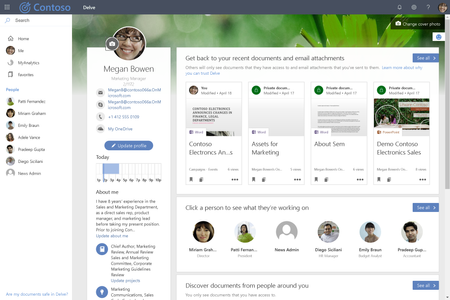
The Microsoft Graph is the gateway to data and intelligence in Microsoft 365, providing a unified programmability model that you can use to access the tremendous amount of data in Microsoft 365, Windows 10, and Enterprise Mobility + Security. Over the next several weeks we're excited to introduce new innovation to help you achieve more with Microsoft Graph capabilities. Updated privacy controls… In Microsoft 365 we’re committed to privacy and control – and we’re continuing to invest in those principals with new Microsoft Graph privacy controls of document-based insights. Across Microsoft 365 applications and services, intelligence is pervasive – whether deep learning or reasoning across activities and relationships – intelligence in Microsoft 365 is designed to help its users achieve more… At the center of Microsoft 365 is content, such as documents, email messages, conversations, and more. With the amount of data expected to double year over year, information overload is often a reality. This is where the Microsoft Graph shines. Time is something we can’t make more of, but we can make more with it. Document-, email-, calendar-, and user- based insights help save time and boost productivity, helping employees make more of their time. One of the first applications to deliver these rich insights was Office Delve, powered by the Office Graph – technology which calculated relationships between people and content from Exchange, OneDrive, SharePoint, and more. Along with the Office Graph and Delve, we also delivered shared set of privacy settings, which control both insights and Delve user experience. As the Office Graph continued to evolve, it has become a more independent, mature, and powerful service, and a part of every Microsoft 365 experience, eventually evolving to the Microsoft Graph. Given this evolution, we’ve disjoined the privacy story for two independent pieces, providing the flexibility to fine-tune item in the Graph and Delve. Today we’re pleased to announce a set of robust new privacy settings which provides you the ability to configure the generation and visibility of Graph-derived insights, between users and other items in the Graph (such as documents or sites). This new setting will apply similar restrictions as the original Delve settings, but decoupled from Delve. This means that you can disable the Delve app through the existing controls, but allow other insights-based experiences such as Discover in OneDrive and Suggested Sites in SharePoint Home to still provide assistance. For organizations that need to disable item insights for all its users, we are introducing a new "isEnabledInOrganization" parameter, which allows you to disable item insights across the entirety of your organization; however, if you only need to disable item insights for a subset of employees, we’re introducing an additional "disabledForGroup" setting - an ID of one security Azure Active Directory group. This new setting will allow security group administrators more flexible management options using the available tools in Azure Active Directory (nested, dynamic group, PowerShell scripts), disabling item insights for all members of select groups. Both parameters can be configured using new MSGraph methods. We’ll be introducing these new privacy settings over the next several months, and we’ll respect both Delve settings and the new item-insights settings. After this period ends pre-existing Delve settings will only affect the Delve app and new settings will only affect item insights in Graph. This new beta experience will become available Summer 2020 – keep an eye out for availability by reading following this article or announcements in the Microsoft 365 Message Center. Profile customization In early March 2020 we shared our vision for profile customization via the Microsoft Graph which will become available with the new privacy controls in Summer 2020. Profile card customization through the Microsoft Graph provides the ability to add custom information to a person’s profile card through the Microsoft Graph. This allows an administrator to customize people’s profile cards by adding properties according to your unique business needs. For example, as illustrated below, you may want to add a custom property to the profile card, such as a person’s Cost Center or Employee Id. To learn more about profile customization through the Microsoft Graph see also https://techcommunity.microsoft.com/t5/microsoft-search-blog/new-profile-card-customization-through-microsoft-graph-beta/ba-p/1216517. Let us know in the comments below if you have questions or feedback.16KViews6likes4Comments