login
155 Topics
Sign in to Azure DevOps
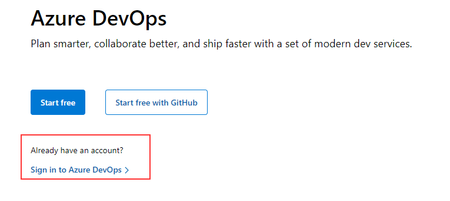
The https://dev.azure.com URL redirects to the landing page for the Azure DevOps product. I used to promote this as an URL to use to login to the product. Since this year the page is missing the "Already have an account? Sing in to Azure DevOps" link. As far as I can see there is no way to login to Azure DevOps trough this interface now. There is the usual "sing in" in the top right, which will redirect you to the azure portal (or at least for me it does). How are we supposed to login to Azure DevOps? Old login:Solved473KViews5likes16Comments
Unable to Log Into Teams on iPhone. Error: Sign-in Error
Hello, Has anyone been able to resolve the Sign-In Error issue? It appears to be an issue between the Microsoft Authenticator app and Teams. Our organization is using Conditional Access policies to require MFA via the Microsoft Authenticator App. After MFA completes and the phone returns to Teams, the error message is displayed. Azure AD Sign-In log displays MFA success. Steps to produce: 1. Open Teams 2. add account yourdomain.com 3. select work account 4. Flips to Microsoft Authenticator 5. Enter Password 6. Flips to Teams 7. Displays error: Sign-In Error Here is what I've tried: - deleted the account from Teams - restarted the phone - reinstalled teams - tried to delete cache from Teams settings in iOS General (never seems to clear) - removed email address from personal Microsoft accountSolved133KViews0likes11Comments
Disabled teams account can still log in
Hey i am noticing a behaviour that i can reproduce right now that is very disturbing to my users/managers. We are having to terminate people due to covid, but we want to offer the ability for them to come back one day, so the accounts are not being deleted, merely disabled. I have noticed that if a user is still logged into teams, even though their AD account is disabled, and office365 says "blocked" they can still get in and attend team meetings! i can even send an email calendar invite to a meeting and the user can join that meeting. Tested 1 hour after they were disabled in AD and blocked in office 365. obviously this is a huge problem!!! i have read other posts that an "active sync" connection may be left open for possibly days. Is this what is happening? it seems more specific to exchange though. ref: https://old.reddit.com/r/sysadmin/comments/8jlqmn/terminated_employee_sent_email_an_hour_after/ Is there a setting somewhere or a way to force disabled users to logout? i even changed the users password and they can still open teams and it just auto logs them in.Solved36KViews0likes7CommentsAzure AD joined computer with multiple users - remember usernames?
We have several shared Windows 10 PCs. They are all Azure AD joined, cloud-only, no hybrid/on-prem stuff. Our users login with their organizational accounts only. There are no old-school local users on the computers, nor do we want them. The sign in process on the computers requires that users have to re-enter their username (email) and password/PIN every time they change users (by clicking "Other User" on the Lock Screen) because only the last user is remembered. Is there a way to remember (or at least configure) a set of organiztional users on the PC's lock screen, so that they don't have to pick "Other User" every time someone wishes to login? This is a small business, and they do not use SCCM or Intune as of now, FWIW. Thank you, Bob34KViews1like11CommentsImpossible to sign in with different user account
I use this browser with two MS accounts. The techcommunity does not let me choose the user account to sign in with! I'm forced to open a private window to sign in and write this feedback. So when clicking Sign In, it thinks I want to sign in with my M365 company account, and asks me to accept certain permissions. However, I want to sign in with my personal MS account. So I click cancel and get redirected to the home page. So, in order to visit the site with my personal MS account, must either use a private windows, or clear every single cookie for every single Microsoft domain, which is also NOT what I want to do. This is simply unacceptable and driving me away from using the techcommunity at all! I made a video for you to show you how broken the sign in flow is: https://i.imgur.com/KnxnPKM.mp433KViews6likes17Comments
"Weitere Informationen erforderlich" bei Anmeldung
Ich habe einen Account, welcher frei bei MS registriert wurde. Wir nutzen aktuell MS Teams kostenfrei zum Test. Ich habe Teams installiert, mich eingeloggt und eine Organisation gegründet. Dorthin weitere Mitarbeiter eingeladen. Das alles klappte über Wochen perfekt. Habe nun auch OneNote dazugenommen, mich registriert und läuft auch. Seit heute kann ich mich nicht mehr in Teams anmelden. Nach Eingabe des Kennworts kommt "Weitere Informationen erforderlich". Ihre Organisation benötigt weitere Informationen zum Schutz Ihres Kontos. Wenn ich dort auf "weiter" klicke, dann lädt das Feld und es bewegt sich nichts. Weder am PC in Teams, noch im Browser, noch im privaten Browser und auch nicht am Tablett oder Handy. Egal wo, ich komm nicht an diesem Fenster vorbei. Was ich gestern am Tag vor dem Problem anders gemacht habe war, dass ich in einem Kanal in Teams "Trello" aktiviert hatte, mich dort dafür registrierte und danach kam eine Aufforderung für Azure Konto. Habe überall brav "weiter weiter weiter" geklickt und alles lief soweit. Seit heute klappt nun kein Teams mehr. Aber bei accounts.microsoft.com kann ich mich einloggen. Hat jemand eine Idee? Wo muss ich wie rein um das zu deaktivieren oder Daten eingeben zu können, damit das passt?21KViews0likes2CommentsRevolutionize Your Student Project App Authentication with a PowerApps Login App Sample
Meet Seth Addo, a Gold Microsoft Learn Student Ambassador and Computer Science student at the University of Cape Coast, Ghana. Seth has developed a fantastic PowerApps app sample for performing basic authentication in a Power Platform application. In this app, users can enter their login credentials, which are compared with a table containing usernames and passwords. If the entered credentials match, users are granted access to a protected area of the application. This approach can be extended with additional functionality like password reset and multi-factor authentication to enhance application security. Try the PowerApps Login app today for a simple and secure way to log into your applications.20KViews0likes0CommentsIntroducing Edge Master Password | New feature
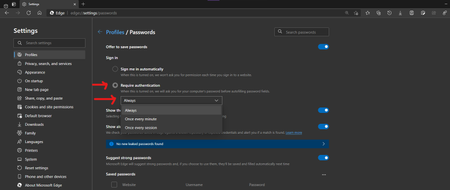
it's this feature: it's controlled feature rollout available in Edge canary, was added few versions ago. this helps your passwords stay safe, by requiring you to enter your Windows Pin/Password when you want to autofill your credentials on a web page. using the same strong authentication method Windows uses to secure your login screen, secure your disks pre-logon etc. next in line is this I'm already seeing some bits of it in Edge canary, but not fully implemented just yet.12KViews3likes2CommentsCan't add local user "Guest" account to login screen
I must be losing my mind. I have Azure AD joined Windows 10 machines (corporate ownership model), but I would like to add a persistent local guest user login to the login screen, and I can't seem to do it. I can add the user, but it doesn't appear as a choice on the login screen. Only "Other user..." appears (along with whoever last logged on). First I tried what I have done historically - via "lusrmgr.msc" and enabled the built-in Guest account. No password, can't change password, etc...AFAIK doing this would result in a new "Guest" login appearing on the login screen, but alas it does not. FWIW it doesn't work for the built-in administrator account either. I also tried another approach - using Windows 10 "Settings-->Accounts-->Other Users-->Add someone else to this PC" and added a local standard user without a MS Account or password, and while that adds the account (I see the profile created under the user folder, and the user has been added to the local users' group according to "lusrmgr.msc", and I then added this new user to the "guests" group and removed from "users", but it doesn't actually appear on the login screen like I thought it used to. I then tried using the Windows Config Designer app to create a "Shared Computer" provisioning package - and while this sort of worked (a new Guest account was added to the login screen) it seemed to wipe out other critical settings on the computer, like, for example, Windows Hello sign-in settings got wiped out for the computer owner. What am I missing? At first I thought it was perhaps a Windows version issue (Insider vs. release) or Intune policy conflict, but I have tried this now on other tenants with and without Intune that are cloud-only Azure AD joined devices and I can't get it to work anywhere. This used to be so simple. Anyone else able to do this? Thanks, Bob8.2KViews1like2CommentsMicrosoft Teams verification code does work
Hi, I'm trying to set up the free version of MS Teams on my desktop so I can join a meeting at 13:00 Eastern Australian Standard Time 11 June 2021 (tomorrow!). I sign in with my password then it asks for my phone number to send me a code. I enter my phone number and click next. I get a four digit number which I type into the verification box. It tells me the number is incorrect. I've tried this numerous times and all the numbers I have received fail to verify. They are all four digits. This is uncommon, other programs use six digit verification codes. Are the codes I'm receiving truncated? I need this fixed so I can attend my meeting.7.7KViews1like10Comments