flow
43 TopicsAnnouncing SharePoint page approvals
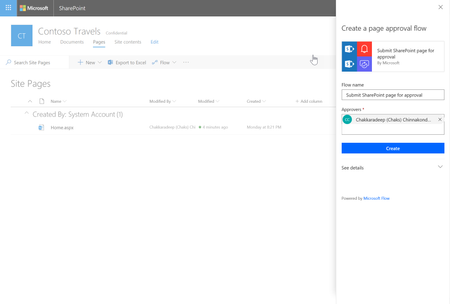
We are happy to announce that we will be releasing SharePoint page approvals to Targeted Release. We expect to start the rollout of this feature to all Targeted Release tenants by end of July 2018. Rollout status Current rollout status: July 31st, 2018 - Deployed to 10% of Targeted Release tenants August 3rd, 2018 - Deployed to 50% of Targeted Release tenants August 6th, 2018 - Deployed to 100% of Targeted Release tenants January 8th, 2019 - Deployed to all tenants in SharePoint Online Documentation: 1. Configure page approval 2. Page approval flow Known issues If the page is checked-out by another user and you (the author in this case) submit the page for approval, the page will not notify and proceed with the approval. The flow will run and send an email indicating to the author indicating an error occurred in publishing the page. If you have only major versions enabled for the Site Pages library, submit for approval will result in int he following error: Could not complete that action: The type of data at position 0 is different than the one expected. There an issue with the Flow service for the UK region. Any existing UK tenants created before March 2018 will work while it affects only new tenants created after March 2018. We expect to have this resolved by end of September if everything goes according to the plan. See this thread for more information. Good news is that these will be fixed soon are fixed! If you have any feedback, please make sure you discuss here! Configure page approval Site owners can configure page approval to add to the standard publishing process for a site. After adding page approval flow, new and updated pages will be not be published directly. Instead, only the completion of the approval flow will make changes visible to all readers of the site. A site owner can configure page approval flow from the Flow menu of a pages library. Submit page for approval Once the page approval is configured, authors will be able to submit page for approval. The publish button will be replaced by a submit for approval button. The page will be published once the page is approved. Rejecting a page will put that page back to draft status. Approve page Approvers will get an email regarding the page approval request. They can either approve the page directly in the email (in email clients that support actionable messages) or open the page from the email to review and approve the page in SharePoint. Customizing the page approval flow Since page approvals use Microsoft Flow behind the scenes, the page approval flow is available to site owners to modify and add any custom business process items in the flow. After creating the flow, the site owner can click on Flows -> See your flows in the pages library to find the page approval flow. For example, The default approval type is set to ‘anyone can approve’. Site owners can modify the flow and change the approval type to ‘everyone must approve’ if that is the requirement.50KViews16likes63CommentsPowerApps and Flow buttons are graduating out of preview!
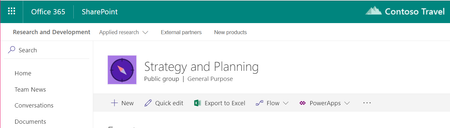
PowerApps and Flow are becoming a more integral part of SharePoint Online with the imminent release of Custom Forms with PowerApps and the Flow Launch Panel. Starting in November, these features will no longer be considered as preview features. If you have the Preview Features switch turned off in SharePoint administration center today, you were not seeing the Flow and PowerApps buttons in modern lists and libraries. Once this change goes into effect, the buttons will become available, regardless of the setting: Flow button in modern libraries, and both Flow and PowerApps buttons in modern lists. The change will start with our First Release tenants, and then move forward into the rest of the production in two waves. We hope to complete the change over the month of November. PowerApps and Flow are still working on completing their certification for government and sovereign cloud environments with stricter compliance requirements, and the buttons will continue to remain invisible for these environments, independent of the preview features switch setting.23KViews15likes45Comments
How to integrate SP2019 with MS flow and PowerApps
With SP 2019, is it possible to integrate MS flow and Power Apps? Below is my assumption, please suggest me if it is not true. SP2019 is onpremises server. To work with MS flow and Power Apps, users need to buy licenses separately as described here for https://flow.microsoft.com/en-us/pricing/, https://powerapps.microsoft.com/en-us/pricing/. Install on-premises gateways and connect to MS flow and PowerApps cloud then implement the solutions. Every user should have appropriate license to use them or view them.Solved20KViews0likes7Comments
Auto-populate a field in a SharePoint list based on values selected in two others
Hi there, I have a SharePoint list with 3 Columns: Urgency, Importance and Priority. I want to auto-populate the Priority column based on the values selected in Urgency and Importance, either using some sort of calculated field or via PowerAutomate. All three are currently set up as Choice columns. Is anyone able to explain (in VERY basic steps) how to achieve this please? I have tried various things both using Power Automate (but am a real novice with this) and in SharePoint but to no success. I have specified below the text that should be displayed in Priority depending on what has been selected in Urgency and Importance: IF Urgency is: And Importance is: Then Priority should be: High Low Medium Medium Low Low Low Low Low High Medium High Medium Medium Medium Low Medium Low High High High Medium High High Low High Medium I'd be very grateful for any advice. Many thanks, Damien18KViews0likes2Comments
Flow or Alert on View/Open of file in SharePoint Online
Situation: have a site that is for top management. They want a completely closed document storage area. Problem is system admin IT will always have the ability to access the documents if they desire. Is there a way to set a flow or an alert that can notify our top management group when someone views or opens a file in their library? I know we can alert/flow on change and download, but don't see that ability on just opening.13KViews0likes5Comments
Concatenating Multi-Choice Field
I have a modern Sharepoint list with Fields including: Speciality - Choice (Multiple selection allowed) SME - Person I'd like to concatenate them into a single line of text. I can't use the Calculated column I believe due to the multiple choice. I tried Flow but really struggling to get anything to work as I keep getting 'Apply to Each' and it won't let me extract the data. Anyone have any suggestions? Many Thanks12KViews0likes3Comments
Flow doesn't process multiple value in custom list
I created a basic Flow to generate an email when a new item is created on a Custom list. The flow works without problems until I add a Multiple Choice or Lookup to a multiple choice field. The error I receive when the flow runs is: InvalidTemplate. Unable to process template language expressions in action 'Send_Email' inputs at line '1' and column '2175': 'The template language expression 'triggerBody()?['Tasks']?['Value']' cannot be evaluated because property 'Value' cannot be selected. Array elements can only be selected using an integer index. Please see https://aka.ms/logicexpressions for usage details.'.9KViews0likes5CommentsColumn Formatting - now with Flow button support
One scenario that we demoed at Ignite last year was the ability to create Flow buttons using the SharePoint column formatter. The initial public release of the column formatter, however, did not include this functionality. We're proud to announce that all SharePoint Online users can now create their own Flow buttons inside column formats. This is useful when you want to put a business-critical Flow a single click or tap away for users when they're viewing a list or library. To learn how to accomplish this, check the Create a button to launch a Flow sample on our documentation page. Let us know any feedback or concerns you have about this functionality, or about column formatting in general.8.9KViews2likes5CommentsAccessing Microsoft Flow in SharePoint "Classic" Interface.
Our SharePoint online was in Modern Interface for some time and during that time a user created a workflow using the 'Microsoft Flow' functionality (Flow feature was accessed from within the SharePoint instead of accessing Flow from the SharePoint "tile"). Since then we are back to 'Classic Interface' in SharePoint and I am not able to see the "flow" created. I tried looking for it through SharePoint Designer etc but no luck. I have full control over the list and related sub-site. Will such workflows be visible to the user in the "https://flow.microsoft.com/en-us/" ? I am yet to check with user, but if its not visible to the user (who created the Flow), then is there a way to access the that flow in classic interface of SharePoint? We just want to delete that flow and create a new classic workflow using SharePoint Designer and not use 'Microsoft Flow' for the time being.Solved8.3KViews0likes3Comments
Conditional formatting - Button flow inserted in SharePoint list - how to insert a logic condition
Hi, I have added a column with flow button, in my list, using JSON. I am really a beginner in JSON. I need to add a condition like: If Status=Pending or Status=Approved with comments, then show "Send to Approval" button. The code is in the attachment. Any help is highly appreciated. Thank you!Solved7.9KViews0likes3Comments