files
1754 TopicsSharePoint ZIP service not working on document libraries with custom URLs.
!Hey guys! We have found an issue with the new SharePoint views for document libraries and the download function. Single files are working fine. But when you try to use the "download" button on a folder, the downloaded zips are giving us errors. We detected that it affects all document libraries that are or were created with a custom URL. Ex: The library is in SiteCollection/Lists/DOCUMENTLIBRARY instead of SiteCollection/DOCUMENTLIBRARY. This is affecting all of our old created libraries from years ago, and we can't create any new ones with a custom URL since it affects this functionality. I suspect it has something to do with the API SharePoint uses to zip the content (https://northeurope1-mediap.svc.ms/transform/zip), and that it isn't able to zip files from a library with a custom URL. There isn't much information about this issue (that I could find at least). ¿Does someone know more about this? ¡Thank you!1.8KViews0likes1CommentFailed to load current time zone
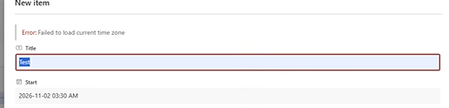
SharePoint List Fails to Save Items After Changing Site Time Zone to "Pacific Time (British Columbia)" British Columbia will move to permanent Daylight Saving Time effective November 1, 2026. As a result, clocks will no longer fall back by one hour and will remain on UTC-07:00 year-round. Microsoft has introduced the new time zone (UTC-07:00) Pacific Time (British Columbia) for this change. As part of this transition, we updated the site's Regional Settings from (UTC-08:00) Pacific Time (Canada/US) to (UTC-07:00) Pacific Time (British Columbia). We have SharePoint lists with Start Date & Time and End Date & Time columns configured as Date and Time fields in multiple sites. Following this change, one specific site is now experiencing an issue where both users and site administrators are unable to save list items. The following error is displayed: "Failed to load current time zone" Additional Details: The issue started immediately after changing the site's Regional Settings. Reverting the site back to Pacific Time (Canada/US) did not resolve the issue. Some other SharePoint sites were updated to the same Pacific Time (British Columbia) setting and continue to work correctly. The affected site contains a calendar view built on a custom SharePoint list. The Start Date and End Date columns are configured as Date/Time fields. Location: Victoria, British Columbia. Has anyone encountered this issue before? Are there any known dependencies related to Regional Settings, Date/Time columns, calendar views, or site time zone configuration that could cause this behavior on a single site while others continue to function normally? Any guidance would be appreciated.Solved417Views1like6Comments
SharePoint user adds random metadata to files
I have a SharePoint Library where we add procedures and documents. There is relevant metadata included (Owner, modified date, keywords, department, etc.), but for one individual contributor, every time she uploads it places oddly specific default values in these metadata fields. I have confirmed on the library settings that there are no column defaults (In this folder or the root folder) and the problem does not occur with any other user. We did have her clear cache and log out and back in, but she is still the only user with this problem. What are we missing?347Views0likes2Comments
Moving Files from a Shared Drive to a SharePoint site
Hi, I've seen the moving of files from a Shared Drive to a SharePoint site can be tricky, depending on the size of the files that are to be moved. What is the best and most effective way to move folder, files. I'm not sure yet of the number of folders and size of the files that will need to be moved? Can anyone provide an advise on this, please.. Regards Chris762Views1like5Comments
SharePoint file links are not working
Recently we have noticed that when you copy the link and share with others (even ourselves), the link fails to open. If we use the path link under details, that works 100% of the time. The only difference we see is there are more gibberish in the link path. Initially, we thought the PDF files were having issues but it can be any file type. Our thought is the issue is with the SharePoint site.1.1KViews0likes3Comments
Document Sets - Want Subfolders (not just files) to inherit metadata
Trying to get subfolders (the actual subfolder) in a document set to inherit metadata. We have files and files in subfolders inheriting correctly but currently subfolders in the set do not inherit data. We are using the metadata column for view filter between active/pending/completed job status. What happens is the subfolders don't show in the filtered view so you cant traverse the subfolder structure. Show flat structure is not suitable as its hundreds of files. The shared columns settings in library settings, says it syncs for all 'documents' in the set. This excludes folders. Have tried power automate, but it doesn't seem to work applying the metadata to a folder object. We need to able to change a document set from Active > Pending and all the metadata change. Any ideas on how we can get the subfolders in inherit (and update) the metadata of the document set. Thanks in advance.602Views1like4CommentsSharing with an external user who has changed their email
I have had an issue with trying to share a folder with somebody who changed their email from, for illustrative purposes only, mailto:email address removed for privacy reasons to mailto:email address removed for privacy reasons. because his company EW had merged with Elsewhere. I believe that the second email was an alias for the first as both his actual addresses will reach him. The issue was that when I went to share a folder with his new email it would default back to his original email every single time. Eventually our IT department deleted all trace of his original email from Sharepoint which then recognised and allowed me to share with his new email. My question is - how does Sharepoint know these two different emails are the same person? Is it randomly deciding there is enough similarity in the email addresses- which in my view would be very dangerous, or does it know that both domains are registered to the same organisation?602Views0likes2CommentsMGDC for SharePoint FAQ: How to List SharePoint Webs or Subsites?
1. Introduction SharePoint uses a known object hierarchy to store your files, including, in order: Site Collection (site, SPSite) Web (site, subsite, SPWeb) List (SPList, Document Library, SPDocumentLibrary) Folder (SPFolder) List Item (documents, files, SPListItem, SPFile) If you are not familiar with all those, you can read more about them at What is in the Permissions dataset? 2.What we have in MGDC for SharePoint The SharePoint Sites dataset in Microsoft Graph Data Connect offers a list of all sites (site collections) in your tenant. The SharePoint Files will give you details about each file (document). However, there are no MGDC datasets that will give you one object per SharePoint Web (subsite) or SharePoint List (library). There is a workaround, though. If you pay attention to the schema for the SharePoint Sites and SharePoint Files datasets in MGDC, you will find that Sites includes a few interesting details about the Root Web (the main web in the site collection) and the total number of webs (subsites) in each site. Also, the Files dataset includes details about the web (subsite) and the list (library) where the file lives. You could group on these columns to expose more information about webs and lists. 3. One Web These days, if you create a modern SharePoint site, you will get one web (called the Root Web) and no obvious mechanism to create subsites or additional webs. For any sites created in the last few years, you likely have no additional webs outside the Root Web. Your SharePoint might have existed for many years and your company could have sites using old templates with multiple subsites. If you’re trying to find out if that’s the case for your tenant, the information is available in MGDC, if you are willing to dig a little deeper. 4. Finding Old Subsites The main task here is to create a custom query to join the Sites and Files datasets. You would then group that in a particular way to enumerate each subsites (Webs). You might also tag the Webs that are a Root Web, so that you can identify subsites that are not at the top of the Site hierarchy. If you pulled the Sites and Files datasets into a SQL Server or a Lakehouse in Microsoft Fabric, this is what that query could look like: SELECT Webs.SiteId, Sites.RootWeb.Title AS SiteTitle, Sites.Url AS SiteUrl, Sites.WebCount, Webs.WebId, CASE WHEN Root.RootWeb.Id IS NOT NULL THEN 1 ELSE 0 END AS IsRootWeb, Webs.FileCount, Webs.TotalSize, Webs.TotalSizeWithVersions FROM ( SELECT SiteId, WebId, COUNT(*) AS FileCount, SUM(SizeInBytes) AS TotalSize, SUM(SizeInBytesWithVersions) AS TotalSizeWithVersions FROM Files GROUP BY SiteId, WebId ) AS Webs LEFT JOIN Sites AS Sites ON Webs.SiteId = Sites.Id LEFT JOIN Sites AS Root ON Webs.SiteId = Root.Id AND Webs.WebId = Root.RootWeb.Id 4. Empty Webs, Web properties This technique will get you a nice list of Webs, but there are a few problems. First, if a specific web has no files, we won’t see that web in the Files dataset and therefore the query will fail to list that particular web. You would still see that Web counted in the WebCount property of the Sites dataset, but there would be no listing of that web in the query proposed above, since it has no files. Another problem is that there is no way to find in MGDC the details properties of the Web, like the Title. You get some of those for the Root Web in the Sites dataset, but not for the other Webs. For that, you would have to query the Web object using another source like the Graph API or PowerShell. 5. Conclusion I hope this article helped you find details about enumerating SharePoint Webs using the Microsoft Graph Data Connect. For recent deployments of SharePoint Online, you should have only one web per site and the Sites dataset (with Root Web details) should give you plenty of details. However, this might come in handy if you want to manage some of the old subsites of a slightly older SharePoint deployment. Finally, if you’re looking for a challenge, I would suggest adapting the SQL code above to enumerate all the document libraries using the Files dataset. It can be done following a similar pattern…MGDC for SharePoint: Increased Changes in SizeInBytesWithVersions
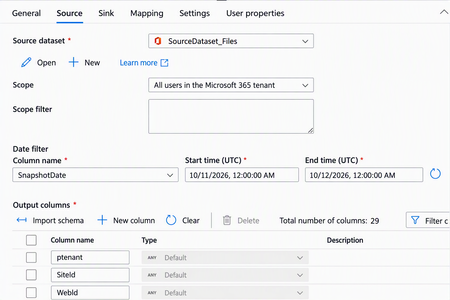
We noticed recently a change in behavior for the SizeInBytesWithVersions column in the SharePoint Files dataset exposed by Microsoft Graph Data Connect (MGDC). This column used to change only when there were changes to the file. It is now possible for this column to be changed when internal processes in the SharePoint infrastructure optimize the storage of file metadata, without a matching change in any other column exposed via the MGDC SharePoint Files dataset. This change is generally not a concern, but it could cause a larger number of SharePoint Files objects to show in MGDC as updated. This would in turn cause an increase in the size of deltas (a feature of MGDC where only changed objects are pulled) and a corresponding increase in cost for pulling SharePoint File deltas. If this becomes a concern, there is a simple workaround. In the copy task definition for the MGDC SharePoint Files dataset, in the Source tab, under the Output columns list, you can delete the SizeInBytesWithVersions column to filter it out of the results. This way, the deltas will see a corresponding reduction.MGDC for SharePoint: New Columns in September 2026
The MGDC for SharePoint team continues to improve the available datasets. This time around, we are introducing additional columns to some of our existing datasets. Here is a summary based on the different scenarios they support: Archive – Extends support for the SharePoint Archive feature. Includes a site property for size of archived files and a file property to indicate that the file is archived. E-signature – Supports the E-signature by adding a file to indicate there is a digital signature and the provider’s name. Filtering – The RootWebTemplateId was added to SharePoint Groups and SharePoint Permission dataset to facilitate filter by type of site, like it is currently available for Sites, Files and File Actions. Hub Site – Extends support for Hub Sites, introducing a column for ParentHubSiteId, to represent a hub site hierarchy. Restricted – Multiple columns indicating restricted flags in sites, including Restricted Access Control (RAC), Restricted Content Discovery (RCD) and Restricted Content Org-wide Search Policy. Retention – Support a set of file properties about Retention Labels, including label name, type, who applied it and when it was applied. Sharing – Extends the SharePoint Permissions properties to support the new sharing model. This includes information about the Main Link and Variants. Versions – Extends support for versions, including version storage metrics and version history policy. Here is a summary of all 26 columns in 4 datasets (Sites, Groups, Permissions and Files): Dataset Column Data type Description Sites ArchiveStorageUsed Number Total size of all archived storage in bytes Sites IsRestrictContentOrgWide SearchPolicyEnforcedOnSite Boolean Restricted Content Org-wide Search Policy Sites IsRestrictedAccess ControlPolicyEnabled Boolean Restricted Access Control Sites IsRestrictedContentDiscovery forCopilotAndAgentsEnabled Boolean Restricted Content Discovery Sites ParentHubSiteId String, GUID Parent hub site for this hub site Sites StorageMetrics, VersionCount Number Number of versions Sites StorageMetrics, VersionSize Number Total size of versions in bytes Sites StorageMetrics, VersionMetadataSize Number Total size of version metadata in bytes Sites VersionHistoryPolicy String Version history policy. Possible values: None, Automatic, Manual. If manual, uses “major version limit”. Sites MajorVersionLimit Number Limit for number of major versions Groups RootWebTemplateId Number Root web template id Groups Description String Description of the group Permissions RootWebTemplateId Number Root web template id Permissions SharingVariant String Sharing link variant. Possible values include: None, PasswordProtected, TrackLinkUsers, Embeddable, Ephemeral, RestrictToExistingRelationships, MainLink, NonDurableRedeem. Multiple values can be set at once. Permissions MainLinkAudience String Main link audience. Possible values include: Organization, Empty (people with existing access). Permissions MainLinkRole String Main link role. Possible values include View, Edit, others. Files RetentionLabel Object Retention label Files RetentionLabel, AppliedByEmail String Email of user who applied retention label Files RetentionLabel, AppliedByName String Name of user who applied retention label Files RetentionLabel, AppliedTime DateTme Time when retention label was applied Files RetentionLabel, Name String Name of retention label Files RetentionLabel, Type String Type of retention label. Possible values: Normal, Record or Regulatory Record Files HasDigitalSignature Boolean File has a digital signature Files DigitalSignatureProvider String Name of digital signature provider if digital Signature exist Files IsFileArchived Boolean File is Archived These changes are non-breaking, which means that your existing pipelines will continue to run. We also let this change sit for 21 days, so that delta datasets are also not impacted. Anyone starting fresh with MGDC for SharePoint will automatically get the new columns in their pipelines. If you have existing pipelines and want to use the new columns, you will need to update your MGDC application, get that update approved and then update your pipeline to pull the new schema. For more details about updating your pipelines to include new columns, or to see how these can be leveraged in specific scenarios, see these articles: Helpful blog on schema changes: MGDC for SharePoint FAQ: How to deal with schema changes Main MGDC for SharePoint article: https://aka.ms/SharePointData Updated schema for SharePoint datasets in MGDC: https://aka.ms/SharePointDatasets