exchange
323 Topics15 productivity features in the new Outlook for Windows
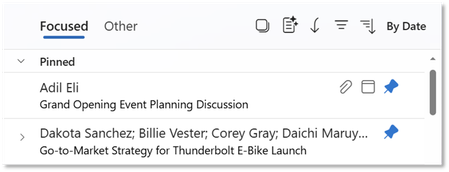
Hello, Outlook community. I’m Vicki Milton, a Principal Product Manager on the Outlook team. Over the last year, we’ve added important capabilities across areas such as offline support, shared mailboxes, and PST files. Alongside those milestones, we've continued to deliver smaller improvements that help people work more efficiently throughout the day. This article highlights 15 productivity features in the new Outlook for Windows that can help you stay organized, reduce routine effort, and keep important work moving. Mail features Email remains central to how many people manage communications, priorities, and follow-up. Outlook includes familiar tools for composing and organizing messages, along with newer capabilities that can help reduce friction and make inbox management more efficient. Pin a mail: Keep important messages easy to find. The Pin feature keeps a selected email at the top of your inbox so it remains visible as new messages arrive. This can be useful for items you need to reference often or do not want to lose track of, such as travel details, approvals, or active requests. By keeping priority messages in view, Pin can reduce time spent searching and help you stay focused on current work. Snooze a mail: Return messages when they are relevant again. Snooze lets you temporarily remove an email from your inbox and have it reappear at a time you choose. This can help keep your inbox focused on messages you can act on now while ensuring follow-up items come back when they are timely. It is particularly useful for requests that depend on additional information, scheduled tasks, or work you plan to handle during dedicated focus time. Add multiple categories at the same time: Organize messages with fewer steps. If you use categories to manage incoming mail, Outlook makes it possible to apply more than one category in a single action. This can help when you need to capture multiple types of context, such as project, priority, or follow-up status, without reopening menus repeatedly. It is especially useful when processing a large number of messages. Sweep: Reduce repetitive inbox cleanup. Sweep lets you create automatic actions for messages from a specific sender. For example, you can delete promotional mail after a set period, keep only the latest message in a thread, or move recurring updates to a folder. This can help reduce manual cleanup and keep your inbox more focused on items that need attention. Schedule Send: Write on your schedule and deliver at the right time. Schedule Send lets you prepare messages when it is convenient for you and send them later at a time that works better for the recipient. This can improve visibility, support more intentional communication, and reduce the need to rely on reminders or leave messages in Drafts. Simplified folder sharing: Share folders more simply. Sharing a mail folder has traditionally required extra permission steps, especially for nested folders. Now, when you share a folder, Outlook can automatically apply the visibility permissions needed for its parent folders. This can reduce setup effort, help avoid access issues for recipients, and make folder sharing easier to complete with confidence. Calendar and meeting features For many people, the workday is shaped by meetings, schedule changes, and the need to stay aligned on what comes next. Outlook includes calendar and meeting capabilities that can help simplify planning, reduce coordination overhead, and make follow-up easier. Follow a meeting: Stay informed without attending live. The Follow RSVP option lets you indicate that you will not attend a meeting but still want access to the recap. This can be helpful when schedules overlap or when a meeting is useful to monitor without joining in real time. It can help you stay connected to outcomes and shared materials while keeping your calendar more manageable. Save calendar views: Return to the calendar setup you need more quickly. Saved Views let you store specific calendar combinations and switch back to them without rebuilding the same view each time. This can save time for people who move frequently between personal, team, and project schedules. It also can make it easier to review the right set of calendars for different planning tasks. Improved meeting tracking: Work with meeting responses more efficiently. Outlook includes tools that make it easier for organizers to review and manage meeting responses. You can sort attendee lists, search for names in the Tracking view, and copy or download response details when needed. These capabilities can be especially useful for larger meetings where attendance information needs to be reviewed quickly. Meeting recap: Find follow-up materials in one place. After a Teams meeting, the calendar event in Outlook can surface a Meeting recap with links to the recording, transcript, and shared files. This can make it easier to review what was discussed, confirm details, or catch up afterward. By keeping these materials together, Meeting recap can reduce the time it takes to get oriented after a meeting. Filtered views: Reduce visual clutter in your calendar. Filters let you hide meetings you are not attending and limit the distraction of declined or informational events. This can make it easier to scan your schedule, identify conflicts, and focus on the meetings that need your attention. For people with full calendars, it can help make planning more straightforward. Change a recurring event: Update future meetings while preserving earlier ones. When plans change, Outlook lets you edit the current event and all following events in a recurring series. This can make it easier to adjust details such as time, location, or agenda going forward without changing the record of past meetings. It can simplify updates for organizers and reduce disruption for attendees. Personalization and settings Settings can play a practical role in day-to-day productivity. A few adjustments can make it easier to focus, move between accounts and calendars, and work in a way that fits your preferences. Here are several settings-related features that can help make Outlook feel more streamlined and manageable. Rename your email accounts: Make the right inbox easier to recognize. If you use multiple accounts in Outlook, you can assign each one a custom name. This can help you tell accounts apart more quickly, reduce the chance of sending from the wrong inbox, and make navigation simpler as you move between accounts during the day. Modern themes: Choose a look that supports comfort and clarity. Outlook includes theme and color options that let you tailor the experience to your preferences. Visual settings can influence readability and comfort, especially for people who spend much of the day in email and calendar. Options such as Dark Mode and color customization can help make the interface feel easier to use over time. Keyboard shortcuts: Keep familiar ways of working. In Outlook, you can choose the shortcut style you prefer in Settings. This can help you maintain existing habits, reduce adjustment time, and complete common tasks with fewer steps. For people moving from classic Outlook or Outlook on the web, shortcut flexibility can make the transition more consistent. These features reflect a broader effort to help people work more efficiently in the new Outlook for Windows. Whether you are managing a high volume of email, coordinating a full calendar, or tailoring the experience to match your workflow, these updates are designed to reduce effort and improve day-to-day productivity. For more information and step-by-step guidance, see the Microsoft Support articles and the Learning Path.8.4KViews2likes9Comments
Classic Outlook "EMAIL FORWARDING IS ON" bar: how to keep forwarding and remove the bar
Since around August 2026, classic Outlook (Microsoft 365) has shown a brown bar across the message list: "EMAIL FORWARDING IS ON — You are forwarding your email to …" with a Manage Rules button. There's no setting or registry key to dismiss it. The usual advice is to turn the forwarding off, which doesn't help if the forwarding is deliberate. This behavior disappeared for a while but has recently returned. I have several Inbox rules that forward mail from specific senders to a family member. They have to run server-side, because some must work while my PC is off, and I need to keep my own copy. Here's what I tried: - Change the rules to "on this computer only": bar stays - Change the rules from Forward to Redirect: bar stays - Disable the forwarding rules: bar goes, but so does the forwarding - Replace the Inbox rules with an Exchange mail flow (transport) rule: !!! bar goes, forwarding still works !!! The bar appears for any Inbox rule that forwards or redirects mail. A mail flow rule runs in Exchange Online before the message reaches my mailbox, and the bar trigger apparently doesn't look at it. Requirement: you need Exchange admin rights on your Microsoft 365 tenant. That's typically the case for small-business or custom-domain subscriptions where you're the admin. Home and Outlook.com accounts don't have mail flow rules. Steps (Exchange Online PowerShell) 1. Connect: Connect-ExchangeOnline -UserPrincipalName <your-address> 2. List your forwarding rules and their conditions: Get-InboxRule | ? {$_.ForwardTo -or $_.RedirectTo -or $_.ForwardAsAttachmentTo} | fl Name,Enabled,From,FromAddressContainsWords,SubjectContainsWords,RedirectTo,ForwardTo 3. Create one mail flow rule that covers them. Here the conditions are by sender, using regex patterns, and all patterns in the list are OR'd: New-TransportRule -Name 'Copy to Family' ` -SentTo '<your-address>' -FromAddressMatchesPatterns '@sender1\.com$','^alerts@sender2\.com$' ` -BlindCopyTo '<recipient-address>' -SentTo limits the rule to mail addressed to you. -BlindCopyTo delivers a copy that shows the original sender, like a redirect, and you keep the original. The Exchange admin center also has a GUI for this, under Mail flow → Rules. 4. Check the rule order: Get-TransportRule | ft Name,Priority,State,StopRuleProcessing If an existing rule above yours has StopRuleProcessing = True, yours will never run. A common example is a "bypass spam filtering" rule with no conditions. New rules are added at the bottom, so move yours up: Set-TransportRule 'Copy to Family' -Priority 0 5. Wait up to 30 minutes. A new or changed mail flow rule doesn't take effect right away. Then test by adding a temporary sender pattern, such as a personal address you can send from, and check the trace: Get-MessageTraceV2 -RecipientAddress '<recipient-address>' -StartDate (Get-Date).AddHours(-1) -EndDate (Get-Date) | ft Received,SenderAddress,Subject,Status -EndDate is required whenever you use -StartDate. Times are shown in UTC. Remove the test pattern afterwards with Set-TransportRule … -FromAddressMatchesPatterns …. 6. In classic Outlook, go to File → Manage Rules & Alerts, untick the old forwarding/redirect rules, click Apply, and restart Outlook. After the above, the bar was gone, the forwarding kept working, and my other rules, including "run a script" rules, were not affected. Tips - Before you change anything, back up your rules: Manage Rules & Alerts → Options → Export Rules. - Edit the Inbox rules in classic Outlook rather than Outlook on the web or PowerShell. Editing them elsewhere can remove client-only rules. - From now on, add or remove senders on the mail flow rule. Any new forwarding or redirect Inbox rule brings the bar back.127Views0likes0Comments
New Outlook - PST file cannot reopen and PST search not working
Hi, Issue 1 – One PST file cannot be reopened I have two PST files, PST A and PST B. PST A can currently be opened and browsed normally in New Outlook. PST B was previously opened in New Outlook and I was able to browse the folders and emails. However, after I closed/removed PST B from New Outlook, I am now unable to open/add the same PST file again. The PST file can still be opened using Classic Outlook. If the PST format is unsupported or too old for New Outlook, why was New Outlook able to open and browse it previously before I closed it? Could this be related to the PST format (ANSI vs Unicode), PST corruption, or a limitation/bug in New Outlook? Issue 2 – Unable to search emails stored in PST For PST A, I can open the PST and manually browse and read the emails in New Outlook. However, when I use Search, emails stored inside the PST do not appear in the search results. This is referring to searching for the email/message itself, not searching for attachments. The same PST can be searched using Classic Outlook. My understanding is that New Outlook now supports searching emails stored in PST files. Is PST search fully supported, or are there still limitations compared with Classic Outlook? I would appreciate any advice on how to troubleshoot both issues, especially whether there is a way to verify PST compatibility with New Outlook.394Views0likes2Comments
MS Outlook 2024 LTSC automatically gets closed and later not getting open
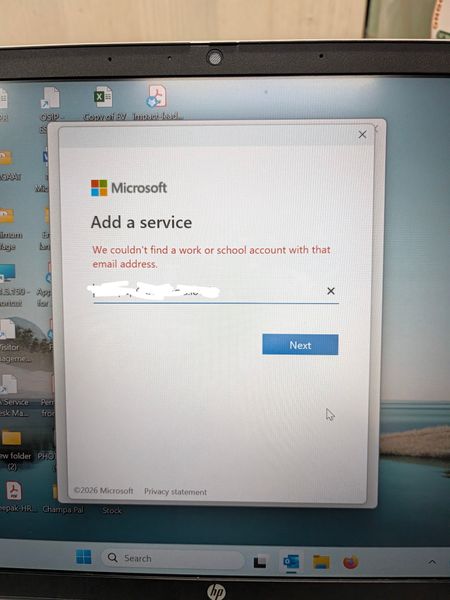
In Outlook 2024 LTSC, the application suddenly stops and closed automatically. Later troubleshooting, it is observed that it doesn't even open in safe mode. Tried to create a new profile where it is not able to search the user from exchange and automatically redirect to Microsoft 365 login page whereas our mail server works in exchange mode. Even after reinstalling the MS office 2024, it is not able to search the user and redirects to Microsoft 365 login page. What is the issue and resolution.469Views0likes2Comments
Intermittent “We can’t retrieve the calendar events right now” error in Outlook team calendars
We are receiving an increasing number of reports from users who are unable to view colleagues’ calendars in Outlook. The following error is displayed: “We can’t retrieve the calendar events right now. Wait a few minutes and try again.” The issue appears to be intermittent and inconsistent across Outlook clients: Some calendars work in Outlook on the web but not in New Outlook or Classic Outlook. Other calendars fail in OWA as well. A calendar may work temporarily and then fail again after restarting Outlook or switching between New and Classic Outlook. Some users first experienced the issue yesterday, while others have experienced it for more than a week. One affected user is a manager with nine direct reports. Outlook automatically displays these users under “Team: [Manager name]”. However, the number of visible team members changes after restarting Outlook or switching clients. For example, the group may contain all nine members at one point and only three at another. The Manager attribute and reporting structure have been verified in Active Directory/Entra ID and are correct for all team members. Our Service Desk has already tested the following without resolving the issue: -Outlook on the web, New Outlook and Classic Outlook -Removing and adding the affected calendars again -Adding calendars manually using the users’ primary SMTP addresses -Resetting the Outlook navigation pane -Resetting Outlook views -Creating a new Outlook profile -Verifying the users’ Manager attributes and reporting structure Because the issue also occurs intermittently in OWA and the membership of the automatically generated Manager’s Team Calendar changes, this does not appear to be limited to the local Outlook profile. Has anyone else experienced this recently? Could this be a known Exchange Online issue involving the automatically generated Manager’s Team Calendar, shared-calendar synchronization or mailbox-side calendar navigation data? Are there any additional diagnostics or supported methods for rebuilding the Manager’s Team Calendar configuration in Exchange Online?1.2KViews4likes3Comments
can't verify my outlook account while logging in on IOS mail app
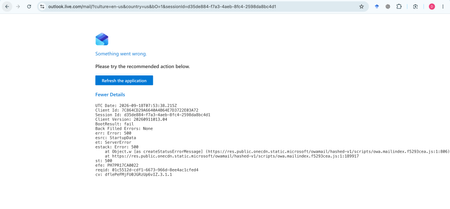
My Outlook.com mailbox cannot be opened on Outlook Web, macOS Mail, or iPhone Mail. Other accounts work normally. Outlook Web shows: HTTP 500, BootResult: fail, esrc: StartupData, et: ServerError. Please check the mailbox provisioning/backend status for my account.383Views0likes1Comment
Forgotten email password request being seen coming from a different email account
When at http://account.microsoft.com/ to reset a forgotten password for a Microsoft Exchange account with a registered domain email account the code being sent is being seen as a forgotten password reset request for my http://hotmail.com/ email address. Why is that and how can I have my forgotten password request be seen coming from my domain email account?434Views1like6CommentsEmail sent from Shared Mailbox gets stuck in Outbox
Hello, I am working with a client who has a primary and shared mailbox in Outlook. They are using the newest version of classic Outlook desktop app and they have full permissions to the shared mailbox, including "send as" permissions. They can send email from their primary mailbox without issue. However, when they send email as the shared mailbox, it gets stuck in the Outbox and never sends. I have tried the following: 1. Removing the profiles re-adding 2. Deleting the Outlook data files 3. Reducing cache to as low as 3 months 4. Turning off cache but when I do the shared mailbox gets an error that it cannot connect to the Exchange server 5. Turning on auto-archive to shrink the data files 6. Switching to "New Outlook". This does seem to work but the company uses a plug-in for a program called "Mail Manager" and they don't fully support New Outlook yet Sometimes these solutions will fix the issue for a few days to a week but then it begins happening again. This issue does not happen when they are using the mobile or web clients. To me this sounds like a corrupted data file but I can't pinpoint what exactly is causing the corruption. Any suggestions? Thanks, Mike20KViews0likes6CommentsTeams Meeting Add-in Not Appearing in Outlook
The computer was rebuilt from scratch and reinstalled with a clean operating system. After the installation, all required Microsoft applications (Outlook, Teams, etc.) were installed and the user successfully signed in. However, the Teams Meeting add-in is not appearing in Outlook as expected. Within the Outlook Calendar/Appointment window, only the Skype Meeting option is visible, while the Teams Meeting option is completely missing. Checks Performed: New Microsoft Teams is installed and functioning properly. Outlook and Teams are both signed in with the user account. Outlook COM Add-ins have been checked. Disabled Items have been checked. Teams Meeting Add-in for Microsoft Office has been verified. Outlook updates have been checked. Microsoft Teams has been reinstalled. Outlook profile has been verified. Exchange mailbox is active and functioning correctly. Despite all the above checks, the Teams Meeting option is still not displayed in the Outlook Calendar/Appointment window, and only the Skype Meeting integration is available. Expected Behavior: The Teams Meeting button should be available within the Outlook Calendar/Appointment window, allowing users to create Teams meetings and automatically generate Teams meeting invitations. Request: Please why the Teams Meeting Add-in is not being loaded into Outlook and provide assistance in restoring the Teams Meeting functionality within the Outlook Calendar/Appointment interface. Attachments: Screenshot showing the current issue (Teams Meeting button missing) Screenshot showing the expected behavior (Teams Meeting button visible)7.2KViews7likes15Comments