copilot chat
5 TopicsStudy and Learn Agent: Now in 48 Languages, images improvements, ready when you open Copilot
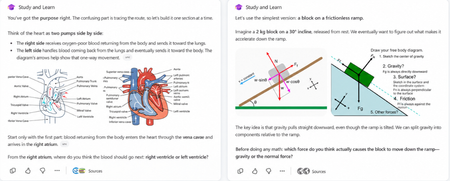
When we brought Study and Learn Agent to general availability, the promise was simple: the student does the thinking. Study and Learn asks before it tells. It pushes you to try. It makes learning interactive and quizzes you on what you missed. It lives at aka.ms/studyandlearn inside your Microsoft Education tenant. It coaches learners across any subject; explaining concepts, walking through problems step by step, supporting writing without doing the writing, and generating flashcards, quizzes, matching, and fill-in-the-blank activities from a learner's own materials. The design principle underneath all of it: preserve the productive effort that makes learning stick. The learner does the thinking. The agent coaches the thinking. 👥 Who can use it Study and Learn is available and pinned by default for every adult learner in a Microsoft Education tenant. No setup required — it's right there in the left navigation of Microsoft 365 Copilot. For K-12 students aged 13–17, there's one step first: Copilot Chat has to be enabled. Until it is, students in your tenant can't reach the agent. The good news is that it's a simple set of steps tutorial shows the exact enablement steps for IT admins. Watch the enablement walkthrough. 🎥 Full video tutorial If you want the full tour, Mike Tholfsen made an end-to-end tutorial that walks through every feature, start to finish. It's the fastest way to see the agent in action: Watch it here: ✨ Copilot Chat now opens with Study and Learn pre-selected For K-12 students who already have Copilot Chat enabled, Study and Learn is now pre-selected the moment they open Copilot Chat. The coach is right there, ready - no hunting through a menu, no wondering which agent to pick. Copilot Chat opens by default in the learning mode. A student who wants to work with something else can dismiss it in a tap. IT admins stay in control. The setting lives in the Education settings panel in the Microsoft 365 admin center. It's ON by default for K-12 and OFF by default for higher education, where admins can turn it on when they're ready. 🌍 Now available in 48 languages At GA, Study and Learn was optimized for English (US). Now it speaks the way your learners do. The agent is available in 48 languages beyond English. Set your browser or operating system to a supported locale and visit aka.ms/studyandlearn. The user experience and conversation are set in your language. The learning activities - flashcards, quizzes, matching, fill-in-the-blank - appear in your chosen app language. Additional language support is rolling out now and will be available to all users in the coming days. And you're not locked in. A learner can switch languages mid-conversation for a genuinely multilingual study session. Learning a new language and want the vocabulary words in the new language but the explanations in your native language? No problem. Want to switch languages to practice the vocabulary with Study and Learn, no problem, you can do that too. The coaching language follows you. For a student learning in their second language, or a family where the kitchen-table language isn't the classroom language this is the difference between a tool that talks at them and one that meets them where they are. 🖼️ Images that show, instead of just tell Some things are easier to see than to describe. A cell's structure. The layers of the atmosphere. Where the femur meets the hip. Study and Learn conversations can now include a carousel of relevant, web-safe images sourced through search, woven right into the flow of the agent's response. Each image supports the next step in a learner's understanding, a visual nudge toward the answer they're working out for themselves, without shortcutting the effort that gets them there. This is especially powerful for visual subjects like biology, geography, and chemistry, where a single well-placed image does what a paragraph can't. This experience will get better over time. It is rolling out now and will be available to all users in the coming days. You can always share feedback here. 💬 A prompt pack to help learners get started Here’s a prompt pack - a set of ready-to-use prompts that show learners exactly how to put the agent to work, organized around the moments they actually face: Understand a difficult topic — “Use these materials to find the most important ideas and help me understand them.”, “Explain [topic] step by step, then check my understanding.” Practice what you know — “Create a matching activity for the key terms in this chapter.”, “Make a fill-in-the-blanks activity from these materials.” Improve my work — “Review what I missed and explain the ideas I need to practice.”, “Help me understand why my answer was incorrect, then let me try again Work on an assignment — “Help me brainstorm ideas for this assignment.”, “Review my draft and help me find one area to strengthen.”, “Help me check whether my evidence supports my main point.” Get ready for a test — “Use these materials to identify the topics I should focus on.”, “Give me a five-minute review of these concepts I’m still struggling with.” Every prompt keeps the learner in the driver's seat — the agent helps them think and practice, never hands over the answer. Share the pack at the start of a unit and watch how it changes the way students engage. 📋 Coming soon: educators can assign the agent from Teams Everything so far puts the coach in the learner's hands. This next one puts it in the educator's. Rolling out soon, educators will be able to assign the use of Study and Learn Agent directly from a Teams assignment. Instead of a blanket "you can use this," you'll be able to point learners to the agent for a specific assignment built right into the assignment they're already opening. The through-line Every one of these (the languages, the pre-select, the prompt pack, the images, the assignments) meet the learner where they are. In their language. The moment they open Copilot. With the words to get started and the visuals to see it clearly. Pointed there, when it counts, by the educator who knows them. Open Microsoft 365 Copilot. Look in the left navigation. Then watch Mike's full tutorial and try it on the thing you're studying next. Educators can also access the full professional development course on Study and Learn complete with suggestions on introducing the agent to students. Try Study and Learn Agent · Microsoft Education license required. K-12 student access (ages 13–17) requires IT to enable Copilot Chat. Resources: Try Study and Learn in your tenant: https://aka.ms/studyandlearn Full tutorial on Study and Learn: https://aka.ms/studyandlearnvideo Professional development for educators: https://aka.ms/studyandlearnmodule Enable Copilot Chat: https://aka.ms/enablecopilotchatvideo Support documentation: https://aka.ms/studyandlearndocumentation Anoo Padte is Principal Product Manager for AI in Education at Microsoft.1.5KViews2likes0CommentsCopilot now included with Word, Excel, PowerPoint, Outlook & OneNote | Microsoft 365 & Office 365
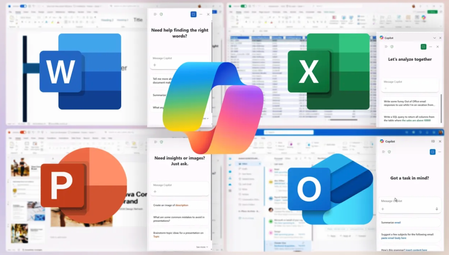
Summarize long email threads, generate bullet-point executive summaries, create charts, and update presentations — all without leaving your familiar apps. Copilot understands your context, remembers your preferences, and helps you reuse content seamlessly across Microsoft 365. IT admins stay in control while you boost productivity. Enterprise-grade protections, Microsoft Purview, and the Copilot Control System ensure your data stays secure. Jeremy Chapman, Microsoft 365 Director, shares how with premium features like intelligent data retrieval, meeting facilitation, and specialized agents, you can automate routine tasks, generate insights, and stay in the flow without leaving your apps. Create executive summaries instantly. Copilot Chat understands your Word document context and writes for you. Check it out. Turn raw data into clear visuals. Copilot Chat knows the columns, calculations, & design you need in Excel. See it in action. Build presentations fast. Bring summaries, charts, and visuals from other apps directly into PowerPoint slides with Microsoft 365 Copilot Chat. Watch here. QUICK LINKS: 00:00 — Microsoft 365 Copilot Chat within Microsoft 365 apps 00:45 — Copilot Chat in Outlook 01:29 — Copilot Chat in Word 02:15 — Copilot Chat in Excel 02:59 — Copilot Chat in Power Point 04:58 — Security and Admin Experience 05:38 — Premium experience 06:44 — Wrap up Unfamiliar with Microsoft Mechanics? As Microsoft’s official video series for IT, you can watch and share valuable content and demos of current and upcoming tech from the people who build it at Microsoft. Subscribe to our YouTube: https://www.youtube.com/c/MicrosoftMechanicsSeries Talk with other IT Pros, join us on the Microsoft Tech Community: https://techcommunity.microsoft.com/t5/microsoft-mechanics-blog/bg-p/MicrosoftMechanicsBlog Watch or listen from anywhere, subscribe to our podcast: https://microsoftmechanics.libsyn.com/podcast Keep getting this insider knowledge, join us on social: Follow us on Twitter: https://twitter.com/MSFTMechanics Share knowledge on LinkedIn: https://www.linkedin.com/company/microsoft-mechanics/ Enjoy us on Instagram: https://www.instagram.com/msftmechanics/ Loosen up with us on TikTok: https://www.tiktok.com/@msftmechanics Video Transcript: -If you’re currently using Microsoft 365 or Office 365 at work or at school, now for the first time, you’ll be able to experience Copilot right within the context of your work inside of Word, Excel, PowerPoint, Outlook, and OneNote, all at no extra cost, and you don’t need a Copilot add-on license. Importantly, you can use it with OpenAI’s GPT-5 model, the same AI that powers ChatGPT, without copying, pasting, or uploading your files outside of your protected work apps. And today I’ll walk you through how you can leverage these in-app experiences along with the controls available for IT. -Everything I’ll show you today, by the way, works in both the desktop and web apps. I’m going to start with Copilot in Outlook. As you can see, I have a full inbox after being away for a few days. And now, instead of working through this long email thread to figure out what it’s all about and what I need to take action on, I can just ask Copilot, “Please draft a recap of this email thread for me to share it with my launch team.” And Copilot analyzes the open thread and it generates a reply with a clear summary of major updates since I’ve been away. And it looks like the heart rate detection feature has been enhanced and is launching ahead of schedule. As a result, the leadership meeting has been moved up. And I can see that my action item is to update our slides to reflect the new feature and the revised positioning ahead of my presentation. I’m going to start in Word to begin generating the updates that I’ll need for my presentation. -So here, I’ve got a technical specifications document open for ZavaCore Fiber, I need to add to it for our meeting. Instead of switching apps or uploading files, I just open up Copilot Chat on the right side pane and it understands the context of my open document. I can let Copilot know that I prefer generated content to be concise, and Copilot will take this into account as it generates content. Now I can ask Copilot, “Write an executive summary in a bulleted list,” and Copilot authors the summary. I just need to click on this copy icon to copy it, then I can paste it under the Executive Summary heading in my document, and now my technical spec is complete. -So that was Word, now let’s move on to Excel to create a data visualization that I’ll incorporate also into my presentation. So here I’ve got a spreadsheet that’s full of satisfaction and performance metrics for our new product. On Copilot Chat, I can ask, “Generate a bar chart showing the overall satisfaction scores across regions. Use different colors for each bar.” And I didn’t need to tell Copilot which columns to use or which ones to calculate the insights from in the spreadsheet, it knows what to do. And there’s my bar chart with satisfaction scores across North, South, East, West, and Central regions. It’s exactly what I asked for, without having to leave Excel. So now that I have what I need to update my presentation, I’m going to move over to Copilot Chat in PowerPoint. -This is my deck for ZavaCore Smart Fiber, and I want to make a few updates to it based on the email thread from before and what we just did in Word and Excel. And I want to go back to those Copilot chats, so this time in the Copilot pane, I’ll open up the ellipse menu. And from here, I can view all my recent Copilot chats. Well, I’m going to choose the one from a moment ago, “Please remember that I prefer generated content in Copilot Chat to be concise.” And down within that chat session, you can see I have my bullet list of executive summary. And now I’m going to copy that and put that in the New Features Overview. And I’ll keep going, I’ll return back to the previous chat, this time the one from Excel with a bar chart that was based on our open Excel file because I want to add that to my PowerPoint as well. Well, I’ll grab that chart and I’ll place it on the left side of the slide, and now it’s looking how I want it to. I’m going to move on to slide 5 because I want to generate a new image for the slide, so I’ll go back into Copilot and I’ll select New Chat. Now I’ll ask Copilot to, “Create a high-tech image of an ECG sensor.” And that takes a moment or so to generate, but there’s my new image. Once it’s finished, I can add that to my slide. -Now I want to make sure that my presentation includes answers to the questions that we think that our audience will have. We’ve prepared a few documents with that information recently. So from Copilot Chat, I’ll just start writing, “Suggest some Q&As for this presentation,” and I’ll reference the documents I want. To do that, I just need to type the forward slash, and that then shows me all my recent documents. I’m going to choose our Spec doc, and then I’ll send my prompt, and Copilot then generates a nice list of questions and answers, and I’m ready for my presentation. -And if you’re in IT and want to ensure that your company data stays protected with the policies and controls that you’ve already put in place, the good news is, is that Copilot Chat has enterprise-grade protections like the add-on Microsoft 365 Copilot license. You can manage everything that you just saw in the apps using the Copilot Control System, including enforceable data loss prevention and information protection policies from Microsoft Purview. And Copilot Chat is pinned by default, so it becomes discoverable throughout the different app experiences. And you can also view Copilot usage in the Microsoft 365 admin center, as well as deeper insights in the Copilot Dashboard. Being able to use Copilot directly from your apps as you work not only saves you time but also keeps you in your flow. And with the premium experience available with the Microsoft 365 Copilot license, your productivity gets even better, and you can use Copilot inside a broader set of Microsoft 365 apps. -So a few of the standout capabilities include intelligent work data retrieval, where it pulls from the files in your OneDrive, your shared documents, emails, meetings, conversations, and more automatically without you needing to reference them. In other words, it works with all the work data that you have permissions to access in the Microsoft Graph and reasons over it to generate responses. And second is meeting facilitation. So if you’re using Microsoft Teams, Microsoft 365 Copilot works during meetings to facilitate discussions or catch you up on what you might have missed, take detailed notes with action items, and more. And third is specialized agents, where you can create and use agents with your data in Microsoft 365 and get access to pre-built agents from Microsoft with advanced reasoning. -The new included experiences that I showed today are a great way for everyone to start using Copilot Chat directly in Microsoft 365 apps. Try it today by clicking the Copilot button in the app ribbon to get started. Subscribe to Microsoft Mechanics for the latest AI tech, and thanks so much for watching.3.4KViews0likes0CommentsMastering Agent Governance in Microsoft 365
The "Mastering Agent Governance in Microsoft 365" series is based on the Administering and Governing Agents whitepaper published by Microsoft and designed to educate IT leaders, compliance officers, and decision-makers about the importance of governance for AI agents in Microsoft 365, particularly in highly regulated industries like Healthcare and Life Sciences (HLS). The six-episode series cover the growing role of agents, the risks of unmanaged agents, and the strategic importance of governance frameworks. Empowering innovation while protecting patient data and ensuring compliance In the age of AI-powered productivity, agents—automated digital assistants built with tools like Microsoft 365 Copilot, SharePoint, and Copilot Studio—are transforming how work gets done. From streamlining clinical documentation to automating regulatory reporting, agents are becoming indispensable in Healthcare and Life Sciences (HLS). But with great power comes great responsibility. Why Governance Can’t Be an Afterthought In highly regulated industries like HLS, where data sensitivity and compliance are paramount, the rise of autonomous agents introduces new risks: Unauthorized data access could expose protected health information (PHI). Unmonitored agent behavior could lead to regulatory violations. Lack of lifecycle controls could result in outdated or insecure agents operating in production environments. Agent governance isn’t just an IT concern—it’s a business imperative. It ensures that innovation doesn’t outpace compliance, and that every agent deployed aligns with organizational policies, security standards, and regulatory frameworks like HIPAA, GDPR, and FDA 21 CFR Part 11. Understanding the Agent Landscape Microsoft 365 supports a spectrum of agent creators: End Users using SharePoint or Copilot templates to automate simple tasks. Makers building more complex agents in Copilot Studio. Developers crafting sophisticated, enterprise-grade agents with Azure AI and Teams Toolkit. Each persona requires a different level of oversight. For example, a clinical researcher using SharePoint to build a data retrieval agent may need minimal governance, while a developer building a patient-facing chatbot must adhere to strict data protection and validation protocols. Governance in Action Microsoft provides a layered governance model: Tool Controls: Define what agent creators can do within tools like Copilot Studio and SharePoint. Content Controls: Ensure agents only access data they’re authorized to use, leveraging Microsoft Purview for sensitivity labeling and DLP. Agent Management: Monitor usage, enforce lifecycle policies, and block non-compliant agents via the Microsoft 365 Admin Center. This framework allows organizations to empower innovation while maintaining control—critical in environments where patient safety and regulatory compliance are non-negotiable. The Business Case for Governance For HLS organizations, agent governance delivers tangible benefits: Reduced compliance risk through proactive policy enforcement. Improved operational efficiency by enabling safe automation. Greater trust from patients, regulators, and internal stakeholders. In short, governance is the foundation that allows agents to scale safely and sustainably.2.9KViews2likes3Comments95% Efficiency creating Contract Renewal J&A with M365 Copilot
Episode 1: “The COR Files – Automating the Annual Grind” In the world of federal procurement, Contracting Officer’s Representatives (CORs) are the unsung heroes. Managing contracts, ensuring they contracts are executed effectively and in compliance with the FAR. Among their many responsibilities, every contract requires full and open competition unless "the agency head determines that it is not in the public interest" (FAR 6.302-7); or maybe it's due to use of brand name (FAR 11.104). No matter the reason, when an exception is required the COR will prepare a Justification and Approval (J&A) document showing salient physical, functional, or performance characteristics of the solution. During a recent Prompt Design engagement at the Microsoft Innovation Hub, Washington DC, a COR walked us through the process they have to do for each of the 800 contracts their office manages. Each year, as many as 800 contracts go through a J&A. Depending on familiarity with the contract this can take 4-5 hours of research, organization, documentation, and even creating a presentation. We have over 100 people who, as a tertiary responsibility, must create these or risk a contract being lost and the organization has to start from zero in bidding the solution again. However, in 30 minutes of brainstorming and testing, their Prompt Design team developed the following M365 Copilot prompt. The COR then used Copilot in PowerPoint to automatically generate a slide deck from the output, applied the agency PowerPoint template, and they were done. The result? What normally took half a day was completed in under 30 minutes. Under 5 minutes to create the salient characteristics and the PowerPoint slides, the remaining time reviewing the content and validating its accuracy. “As a Contracting Officer's Representative, I want to develop salient characteristics about [NAME OF TECH] to write a justification and approval using my OneDrive folders [REFERENCE FOLDER NAME OF TECHNOLOGY DOCUMENTATION]. Reference old procurement documents [REFERENCE FOLDER NAME OF SAMPLE PROCUREMENT DOCUMENTS] to help understand the expected format.” When scaled across an agency managing 800 IT contracts, the COR estimates a potential savings of as much as 3,600 hours annually and more than 95% efficiency gained. What ways has your agency successfully used M365 Copilot to gain efficiencies in the annual grind? Copilot+Alt+Gov COPILOT+ALT+GOV is a series dedicated to sharing government use cases for generative AI from real government employees. In the spirit of reproducing these results in as many agencies as possible, we will work to share as much information about the process, the use cases, and the impact of these use cases. If you have a use case YOU want to share, reach out to and me, we'd love to work with you on it! Learn more at aka.ms/copilotgov464Views3likes0Comments