class
4 Topics
Class Materials short cut and doc library not being created in my Edu tenant
Hi, I have a m365 Edu dev tenant, my account is a global admin and has the Microsoft 365 A5 for faculty license, when I create a 'class' template Teams the Class materials shortcut in the general channel is missing. When I check site settings on the connected SharePoint site the Class Materials document library is also missing? this happens in both classic and new mode. I work on two other M365 EDU tenants and everything is fine and class materials appear as a shortcut in the general channel and appears as a doc library in the associated SharePoint site. I know there is a workaround when the shortcut to class materials is missing and that you can use the ''add cloud storage'' option under files to activate the shortcut ...but that is dependant on the Class Materials doc library being there in the first place. When I compare settings etc between the tenant where the issue exists and the two where everything works I can't spot any discernible differences???939Views0likes3Comments
Instantiating a class inherited from Forms
I created a user input GUI PS script based on the example in the MS doc https://docs.microsoft.com/en-us/powershell/scripting/samples/creating-a-custom-input-box?view=powershell-7.2, which worked fine. I then created a class that inherits from Forms, based on the same setup / config in a module. My issue is that when I instantiate my custom user input class what is displayed appears to be the base Forms class without any of the components I configured. If I include the $forms.showDialog inside the class constructor, my class displays correctly. My goals is to end up with a set of modularized PS scripts where a primary PS script instantiates the user input class, and runs the required logic from the primary, calling other classes / scripts as needed. I greatly appreciate any guidance that points me in the right direction. User input class, created in moduel (psm1) using namespace System.Windows.Forms using namespace System.Drawing [void] [System.Reflection.Assembly]::LoadWithPartialName("System.Drawing") [void] [System.Reflection.Assembly]::LoadWithPartialName("System.Windows.Forms") Class InputWindow:Form{ #InputWindow() { $form = [Form]::new() $form.Size = [Size]::new(400, 415) $form.MaximizeBox = $false $form.StartPosition = "CenterScreen" $form.FormBorderStyle = [System.Windows.Forms.FormBorderStyle]::FixedSingle # prevents screen sizing $form.Topmost = $true $form.text = "Profile Removal" #Label $toolStrpLabel = [System.Windows.Forms.ToolStripStatusLabel]::new() $toolStrpLabel.Size = [Size]::new(10,12) $toolStrpLabel.text ="Current Status" #StatusStrip $statusStrip = [System.Windows.Forms.StatusStrip]::new() $statusStrip.Size = [System.Drawing.size]::new(10, 12) $statusStrip.Dock = [System.Windows.Forms.DockStyle]::Bottom $statusStrip.SizingGrip = $false $statusStrip.Text = "Test" $statusStrip.Items.AddRange($toolStrpLabel) $form.Controls.Add($statusStrip) #Buttons $cancelButton = [System.Windows.Forms.Button]::new() $cancelButton.Margin = 5 $cancelButton.Anchor = 'right,bottom' $cancelButton.Location = [System.Drawing.Point]::new(190, 300 ) $cancelButton.Size = [System.Drawing.Size]::new(75,23) $cancelButton.Text = '&Cancel' $cancelButton.DialogResult = [System.Windows.Forms.DialogResult]::Cancel $form.CancelButton = $cancelButton $form.AcceptButton = $cancelButton #Sets the default active button $form.Controls.Add($cancelButton) $okButton = [System.Windows.Forms.Button]::new() $okButton.Margin = 5 $okButton.Anchor = 'right, bottom' $okButton.Location = [System.Drawing.Point]::new(275,300) $okButton.Size = [System.Drawing.Size]::new(75,23) $okButton.Text = '&OK' $okButton.DialogResult = [System.Windows.Forms.DialogResult]::OK $form.Controls.Add($okButton) #Message Banner $msgBanner = [System.Windows.Forms.Label]::new() $msgBanner.Location = [System.Drawing.Point]::new(10,20) $msgBanner.Size = [System.Drawing.Size]::new(300,20) $msgBanner.Text = 'Enter your MID information below:' $form.Controls.Add($msgBanner) #MID Label $midLabel = [System.Windows.Forms.Label]::new() $midLabel.Location = [System.Drawing.Point]::new(50,50) $midLabel.Size = [System.Drawing.Size]::new(35,15) $midLabel.Text = 'MID:' $form.Controls.Add($midLabel) #MID input box $midBox = [System.Windows.Forms.TextBox]::new() $midBox.Location = [System.Drawing.Point]::new(85,46) $midBox.Size = [System.Drawing.Size]::new(70,20) $midBox.Enabled = $true $midBox.TextAlign = "Left" $form.Controls.Add($midBox) #Password label $pswdLabel = [System.Windows.Forms.Label]::new() $pswdLabel.Location = [System.Drawing.Point]::new(190,50) $pswdLabel.Size = [System.Drawing.Size]::new(72,15) $pswdLabel.Text = 'Password:' $form.Controls.Add($pswdLabel) #Password input box $pswdBox = [System.Windows.Forms.TextBox]::new() $pswdBox.Location = [System.Drawing.Point]::new(260,46) $pswdBox.Size = [System.Drawing.Size]::new(70,20) $pswdBox.Enabled = $true $pswdBox.TextAlign = "Left" $form.Controls.Add($pswdBox) $form.Add_Shown({$midBox.Select()}) } # END of Constructor # } #END of Class InputWindow Function Get-InputWindow () { [InputWindow]::new() } Export-ModuleMember -Function Get-InputWindow1.6KViews0likes1Comment
Scheduled meetings unknown
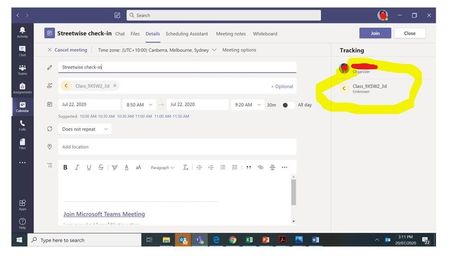
Hi I am trying to help other teachers at my school with this problem however I can't get this to work. The teacher has tried to schedule a meeting for her class however when it is time to attend the meeting no one appears, no populations. However when the teacher goes to her teams class she can start a meeting and everyone appears.1.1KViews0likes0Comments
Change a group into a class
I've created a sharepoint page for my students. Only when I finished I realized that I had created a group and that it was added in teams! But that was not what I wanted. In teams I wanted they could be added in a Class group. Now I cannot change group type and my students cannot have 2 groups (it will confuse them a lot). What can I do?4.6KViews0likes2Comments