azure
84 TopicsPetabyte scale and cost flexibility for Linux workloads with Azure Files NFS
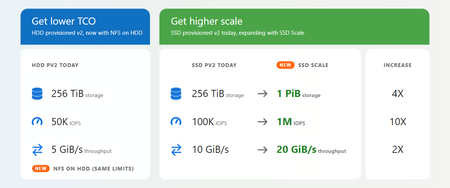
Organizations are increasingly looking to migrate on-premises NFS file storage to the cloud to reduce infrastructure costs, simplify operations, and unlock new opportunities for innovation. However, Linux workloads have diverse storage requirements. Some prioritize cost efficiency, while others demand significantly greater scale and performance, making it challenging to find a cloud file storage solution that meets both needs. At Microsoft Ignite, we're expanding the capabilities of our existing Azure Files HDD and SSD tiers to address both challenges. NFS support on Azure Files HDD provides a more cost-effective path for migrating traditional Linux workloads, helping customers reduce total cost of ownership (TCO). At the same time, scale performance on Azure Files SSD raises the limits of a single NFS share to 1 PiB of capacity, 1 million IOPS, and 20 GiB/s of throughput, enabling larger, more demanding workloads. Together, these enhancements expand the range of on-premises workloads customers can migrate to Azure Files, from traditional enterprise applications to high-performance computing (HPC), scientific computing, and AI/ML. Beyond migration, Azure Files also provides a foundation for unlocking the value of enterprise data through AI-powered experiences and scalable shared storage for AI applications and agents. NFS SSD scale performance: Unlock larger, more demanding workloads Scale and performance have historically been barriers to migrating large, data-intensive workloads from on-premises environments to the cloud. Applications such as HPC, genomics, engineering simulations, and AI/ML often process massive datasets across hundreds or thousands of compute processes simultaneously. Traditional file-share limits can require organizations to partition datasets across multiple file systems, increasing operational complexity and limiting application scalability. With scale performance on Azure Files SSD, we're significantly increasing the capabilities of a single NFS share: Up to 1 PiB of capacity to accommodate massive datasets without splitting data across multiple shares. Up to 1 million IOPS to support highly parallel, I/O-intensive workloads. Up to 20 GiB/s of throughput to accelerate data-intensive processing across distributed compute environments. To get started, complete the scale performance SSD signup survey. High-performance computing: Support larger datasets and parallel processing HPC workloads such as genomics, seismic processing, and scientific computing often involve massive datasets accessed concurrently by hundreds or thousands of compute processes. For example, geoscientists rely on large seismic datasets to understand the Earth's subsurface. Before these datasets can be interpreted, they often undergo intensive processing across hundreds of virtual machines reading and writing data in parallel, making storage throughput critical. With greater capacity, IOPS, and throughput on a single share, Azure Files SSD can support larger datasets and greater processing parallelism. This can help reduce storage bottlenecks in seismic processing, enabling geoscientists to move quickly from raw data to 3D interpretation, where they analyze geological structures, seismic slices, and well data to identify potential carbon storage formations. By enabling larger datasets and greater parallelism without the complexity of managing multiple file shares, Azure Files SSD helps organizations migrate and run a broader range of HPC and data-intensive workloads in Azure. NFS HDD: Reduce TCO and simplify on-premises file migration Not every Linux workload requires the performance of SSD storage. Many traditional enterprise applications rely on NFS file shares for large datasets, application data, and general-purpose storage, where cost efficiency is often more important than high performance. With the introduction of NFS support on Azure Files HDD, we're providing customers with a lower-cost storage option for migrating these workloads to Azure. Organizations can retain familiar NFS access for existing Linux applications while avoiding the additional expense of SSD performance they don't need. By combining cost-effective HDD storage with a fully managed file service, Azure Files helps customers reduce infrastructure costs, simplify storage operations, and optimize TCO when migrating existing NFS workloads to the cloud. To get started, complete the NFS HDD signup survey. AI-ready: Unlock the value of enterprise file data Organizations have accumulated years of valuable data across on-premises file servers and NAS environments, including business documents, research datasets, engineering files, and application data. Bringing this data to Azure provides a foundation for building AI-powered applications and unlock that benefits from that data. Azure Files supports this journey in two ways. Connect enterprise data to AI-powered experiences: Through the Azure File Share Microsoft 365 and Logic Apps connector, organizations can integrate file-based data into AI solutions built with Microsoft Foundry and Microsoft 365 Copilot. These integrations enable enterprises to unlock the value of their existing data by making it discoverable, searchable, and accessible to AI-powered applications and agents. Scaling shared NFS storage for AI applications and agents: Applications running on Azure Kubernetes Service (AKS) already use Azure Files NFS as shared storage. AI applications can store and process shared datasets, while agents can use persistent file storage to retain their working data between runs. With SSD scale performance, a single SSD-backed NFS share can hold more data and handle more reads and writes in parallel as these workloads grow. Get started with Azure Files NFS NFS shares with scale performance on SSD and NFS HDD are available in both the classic and new file share experiences. Both capabilities are supported exclusively with the NFS protocol on the Provisioned v2 billing model. Scale performance is available on SSD, while NFS HDD extends NFS support to the HDD tier. To get started, complete the corresponding surveys to request access, and the Azure Files team will contact you with next steps. For questions, contact azurefiles@microsoft.com. References Scale performance SSD - signup survey NFS HDD - signup survey Learning documentation65Views0likes0Comments
Blob Storage Turbo Tier: High performance with object storage scale and economics
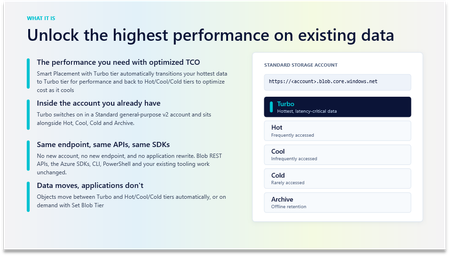
At Microsoft Ignite, we are introducing the preview of Turbo tier for Azure Blob Storage, built for AI and other data-intensive workloads that increasingly put storage on the critical path of compute. Training pipelines need to continuously feed data to GPUs. Inference services need fast access to models and application data as they start and scale. Analytics and HPC pipelines need high throughput across large datasets. Meeting those performance demands can require customers to choose between SSD-backed performance at high TCO and the scale and economics of HDD-backed object storage or incur operational overhead across separate storage systems to get both. Customers no longer need to choose between high-performance storage and cost-efficient, scalable object storage. Turbo tier removes that tradeoff by combining higher performance for performance-demanding data with cost optimization for the rest, within one Blob Storage account. Applications continue using the same account, namespace, and Blob APIs. Turbo tier combines these product capabilities: Higher throughput, transactions/second, and lower latency. Turbo tier accelerates demanding I/O patterns, including highly concurrent reads and large transfers. One Blob Storage account and namespace across performance tiers. Use Turbo alongside Hot, Cool, and Cold tiers without managing a separate high-performance storage account or moving objects between storage accounts. Automated placement across tiers. Smart placement helps place performance-sensitive data in SSD-based Turbo tier as access patterns change, while less-active data can tier down to HDD-based Hot, Cool and Cold tiers. Same API surface. Continue using the same Blob APIs, SDKs, and tooling your applications use today as eligible data moves between performance tiers. The result is a different approach to object storage performance: bring high performance to the subset of data inside your Blob Storage account that requires it rather than moving an entire dataset into a separate SSD storage architecture. One storage account, multiple performance tiers. Traditionally, cloud object storage has required customers to choose upfront between performance-optimized storage and cost-optimized storage. That choice becomes limiting as application needs and access patterns change. Azure Blob Storage Turbo tier removes that friction. Customers can apply higher performance to the data that needs it while retaining cost-efficient storage for the rest, all within one account, namespace, and Blob API surface. Your storage architecture stays familiar. The performance class of your data can change as workload demands change. An AI training pipeline might repeatedly access a subset of images or model data across many epochs. Analytics pipelines may repeatedly process recent partitions of a much larger data lake. Inference applications can require fast access to active models and application data. In each case, only part of the overall dataset may need SSD-backed performance at any given time. Turbo tier brings SSD-backed performance directly into a standard Azure Storage account. Applications continue to address blobs through the same account endpoints and namespace as data changes tiers. Existing Blob APIs remain the application interface. Turbo is an access tier within the storage account, rather than a cache or a separately managed high-performance storage account. Smart placement: Performance follows workload demand Smart placement removes the burden of continuously identifying, promoting, and cooling individual objects as access patterns change. Instead, you configure the size of your high-performance working set while Smart placement manages eligible data movement between Turbo and HDD-backed tiers. You configure a Turbo capacity target directly on your storage account through the Azure Portal, Azure CLI, Azure PowerShell, or the management plane REST APIs. The capacity target helps govern how Smart placement manages your high-performance working set. With Turbo tier, the data lifecycle becomes: Land fast. When configured for Turbo tier, new data in your storage account will land directly in Turbo so performance-sensitive processing starts against SSD-backed storage. Cool as demand changes. When Turbo performance is no longer needed, Smart placement moves eligible data back to HDD-backed access tiers, helping maintain the configured Turbo working set and reducing SSD-backed capacity spend. Accelerate when workloads demand it. As workload access patterns change, Smart placement promotes eligible data from HDD-backed access tiers into Turbo tier. If you know exactly which data requires Turbo, you can skip smart placement and directly orchestrate movement through explicit Blob tiering operations. Performance across the I/O patterns of demanding workloads Modern AI and data workloads stress storage in different ways, sometimes within the same pipeline. Small, concurrent reads. Training workers, inference services, and analytics systems can generate large numbers of concurrent requests. Low latency and high transaction rates help keep storage from becoming the pacing layer. Large transfers. Model loading, dataset movement, and checkpointing depend on sustained bandwidth, making storage throughput critical to how quickly data reaches compute. Bursty demand. Worker startup, model loading, and checkpoints can rapidly increase storage demand, requiring storage performance to scale with concurrency. We tested a synthetic 4 KiB random-read workload against the same dataset, using 72 Standard D96s v6 worker VMs for Standard Blob with HDD-backed tiers and 256 for Turbo tier. The Standard Blob configuration used fewer workers to stay within the HDD-backed storage account limits. In this benchmark, Turbo tier delivered 16.8× the transaction rate, reaching 10.1 million transactions per second compared with 601,000 for Standard Blob. Results are specific to this test configuration. Performance varies by workload, object size, concurrency, network conditions, and account configuration. Read bandwidth is another critical dimension of storage performance. During checkpoint recovery, large GPU clusters must reload model weights ranging from several GiB to tens of TiB. High read throughput helps reduce GPU idle time after a job interruption. It also helps reduce data-loading delays in analytics workloads and when scaling out inference endpoints. In this separate read-bandwidth benchmark, Turbo tier sustained more than 20 Tbps: Where Turbo tier fits: Turning storage performance into workload performance Higher storage performance can help reduce data-loading delays and checkpoint pauses when storage is a bottleneck. The benchmarks above measure storage performance, not end-to-end workload speedups. Turbo tier is designed for workloads in which storage latency, throughput, or transaction rates directly affect application performance and compute efficiency. AI training and fine-tuning. Feed large training clusters with active datasets while supporting high-bandwidth checkpoint and intermediate-state writes. AI inference. Provide fast access to models and other latency-sensitive application data as inference services start, scale, and serve requests. Analytics and HPC pipelines. Accelerate repeated processing against the active portion of large datasets and data lakes. High throughput reads, writes, and checkpoints. Sustain large output and checkpoint reads and writes so compute resources can return to productive work sooner. Across these scenarios, the objective is the same: apply higher storage performance where it creates workload value without requiring every object in your dataset to carry the cost of SSD-backed storage. Align storage spend and workload economics with performance demand The benchmarks above demonstrate storage performance. Turbo also changes the economics of high-performance Blob Storage: You pay for SSD-backed capacity only for the data that needs it, rather than for the entire dataset. In the customer workloads we have analyzed across diverse use cases, only a fraction of the overall dataset typically requires the highest level of performance. As an illustration, consider a 1 PiB dataset with an approximately 20% active, high-performance working set. Rounded to whole TiB, the example places: 205 TiB of active data in Turbo tier 819 TiB of remaining data in Hot tier Data placement Illustrative monthly capacity cost (in USD) 1 PiB all-SSD baseline $115,343 20% Turbo tier + 80% Hot tier $37,500 Illustrative capacity-cost reduction 67% * The example is based on East US 2 and assumes a full month at the stated placement. The illustrated savings apply to capacity costs in this scenario and do not represent total workload-cost savings or a pricing or savings guarantee. In this illustrative scenario, the mixed Turbo and Hot configuration results in approximately 67% lower capacity cost than the all-SSD configuration used for this comparison (1 PiB x $0.11 per GiB = $115,343). This example highlights the core economic model behind Turbo: align SSD capacity spend with the part of the dataset where performance creates value, while continuing to use cost-efficient HDD-backed access tiers for the rest. The capacity comparison captures only one part of the economic value. At the workload level, Turbo may also reduce costs associated with idle compute, delayed processing, data movement, and operating separate storage architectures. (Actual workload TCO depends on each application’s compute, transaction, networking, and operational profile.) High performance where it matters, Blob economics for the rest. AI and data systems increasingly need high storage performance for data actively feeding compute, while retaining much larger datasets economically over time. Turbo tier brings those requirements together in Azure Blob Storage. SSD-backed performance accelerates performance-demanding data, Smart placement adapts placement to changing access patterns and workload needs, and Blob Storage tiering keeps less performance-sensitive data on cost-efficient HDD-backed access tiers. For supported configurations, Turbo runs within an eligible Standard Storage account, using the same namespace and Blob APIs your applications already use. During the preview, eligibility is limited to GPv2 accounts that use locally redundant storage (LRS) in selected regions, subject to regional capacity. Request access to the Turbo tier preview today and evaluate Turbo tier with your own workload to see how much of your data needs SSD-backed performance.138Views1like0CommentsAzure NetApp Files: The Data Backbone for NVIDIA AI Model Training, Inference, and Microsoft Foundry
Azure NetApp Files provides a unified data foundation for enterprise AI, connecting data mobility, model training, inference, and agentic workflows. This article explores how caching, replication, high-throughput storage, low-latency checkpointing, and rapid dataset cloning help bring data closer to GPU compute and support efficient experimentation. It also examines persistent storage for containerized inference on Azure Kubernetes Service and integration with NVIDIA’s AI stack, Microsoft Foundry, and Microsoft Fabric. Two reference use cases illustrate its role in supporting domain-specific model training and modernizing AI inference while reducing infrastructure complexity.318Views0likes0Comments
Discover and assess on-premises Network Attached Storage (NAS) shares using Azure Migrate
Network-attached storage (NAS) holds much of an enterprise’s data; home directories, project shares, media libraries, application data, and analytics datasets, often spanning tens or hundreds of terabytes across protocols and administrative boundaries. Moving this estate to Azure starts not with copying data, but with understanding what you have, where each share should go, and what it will cost. Building on the file share assessment capability we announced in May, today we’re announcing the public preview of NAS share discovery and assessment in Azure Migrate. It connects directly to Dell PowerScale/Isilon and NetApp ONTAP clusters, inventories every SMB, NFS, and S3 share, and assesses each against Azure Files, Azure Blob Storage, and Azure NetApp Files—providing readiness, right-sized configurations, cost estimates, and migration tooling guidance. Your NAS assets now join servers, applications, and databases in the same Azure Migrate project, inventory, and business case. Why does this matter NAS planning has historically been done with spreadsheets, vendor-specific tools, and a lot of manual reconciliation. Storage ends up being assessed separately from the servers and applications that depend on it, which makes it hard to sequence a migration or defend a budget. This capability is designed to help you: Replace manual inventory with automated discoveries across Dell and NetApp platforms, so you can go from "we think we have a few thousand shares" to a verified, per-share inventory. Effectively plan your NAS shares alongside everything else. NAS clusters and their shares appear in the same Azure Migrate inventory as your VMware, Hyper-V, and physical servers, databases, and web apps. Make your informed decision before you migrate. Each share gets a readiness verdict, a recommended Azure service and SKU, and a monthly cost estimate. What's available in public preview Add Dell or NetApp NAS clusters: Discover Dell PowerScale / Isilon (OneFS) and NetApp ONTAP AFF / FAS clusters, and inventory every SMB, NFS, and S3 shares they host — including shares exposed through more than one protocol. Explore and review on-prem shares and workloads: Review cluster and share details in the portal: model, nodes, total and used capacity, protocol versions, volume, and estimated size. Group and filter shares by tag — by business unit, cost center, or application — so related workloads can be planned together. Suitable Azure storage targets: Assess each share against Azure Files, Azure Blob Storage, and Azure NetApp Files, with control over target region, sizing criteria, comfort factor, redundancy, media type, access frequency, and workload type. Alternative migration paths: Compare various migration paths side by side — a recommended mixed path that sends each share to its best-fit service, alongside single-service alternatives — with readiness, monthly cost, and estimated emissions for each. Business case: Build a business case for a NAS-only estate or for a mixed estate of VMs and NAS, comparing a modernization approach against lift-and-shift. End-to-end experience The experience follows the same guided workflow you already know from Azure Migrate. 1. Enable the feature Install the latest Azure Migrate appliance or turn on auto-update, so your existing appliance picks up the new capability. Unlike file shares hosted on Windows and Linux servers, NAS clusters need to be added explicitly: in the appliance configuration manager, add a credential of source type NAS Server, then add a discovery source of type NAS Server with your cluster's FQDN and port. The account needs read-only permission at cluster level — Azure Migrate only reads metadata and never writes to your storage. 2. Discover your NAS estate Create an Azure Migrate project, deploy the appliance on VMware, Hyper-V, or a physical server, and point it at your clusters. The appliance connects to each cluster's management endpoint and collects system and share metadata, vendor, product and model, operating system version, cluster nodes, total and used capacity, share and bucket paths, protocols and protocol versions; followed by performance signals such as IOPS and throughput. Discovered clusters and their shares appear as first-class inventory objects, listed alongside the Windows and Linux file servers the appliance already finds. Filter by type, search, tag, and export the inventory at whatever scale your estate demands. Discovery runs a daily cycle and updates existing items as new metadata arrives, so the picture improves over time rather than being a one-shot snapshot. 3. Create an assessment Select the shares you care about — individually, by tag, or a whole cluster at a time — and create an assessment. The share is the unit of assessment, so every SMB, NFS, or S3 share receives its own verdict rather than inheriting one from its host. Assessment settings let you shape the recommendation to your environment: choose the target Azure region, pick as-is or performance-based sizing, set a comfort factor for headroom, and configure redundancy, Azure Files media preferences, and Azure Blob access frequency. A workload type setting from general purpose file shares through to AI/ML and mission-critical, helps Azure Migrate recommend an appropriate performance level. Azure NetApp Files is added to the evaluation automatically when the source share is detected on NetApp NAS. Settings can be changed, and the assessment recalculated at any time. 4. Review results and build the business case Results are organized as migration paths. The recommended path routes each share to its best-fit Azure service and is shown next to single-service alternatives, so you can compare readiness and cost on the same basis. Key insights include: Readiness for every share — Ready, Ready with conditions, or Not ready — with the warnings that need attention before you move. A recommended Azure configuration per share. For example, a multi-protocol NetApp volume is recommended for Azure NetApp Files, while a general-purpose SMB share is recommended for Azure Files with a specific media type and redundancy. Provisioned size, IOPS, and throughput behind the recommendation, plus the reasoning Azure Migrate used to select the SKU and access tier. Monthly cost estimates per share and per path, an on-premises versus Azure TCO comparison, and estimated carbon savings. Next, you can generate a wave plan to sequence the migration or build a business case that helps you with cost modernizing Azure storage services. Assessment results showing the recommended path, source-to-target mappings, estimated Azure TCO, and carbon savings. Note: All screenshots in this post are from a sample environment. Cluster and share names, capacity values, readiness distributions, cost and TCO estimates, and emissions figures are illustrative and shown for reference and indicative purposes only. They are not a price quote. Your own results depend on your discovered environment, the assessment settings you choose, your target Azure region, and the pricing and offers that apply to your subscription. Prepare for migration with the right tool Assessment tells you where each share should go; Azure Migrate then points you at the tool to get it there. Azure Storage Mover is the recommended path for moving shares to Azure Files and Azure Blob Storage. For ONTAP volumes heading to Azure NetApp Files, the Azure NetApp Files migration assistant is recommended, and Azure File Sync remains the option for active sync and hybrid scenarios with Windows file servers. To learn more about our recommendations for unstructured data migration, visit https://aka.ms/migratemydata. Get started Update your Azure Migrate appliance, add your first NAS cluster, and let a discovery cycle run. Within a few hours you'll start to see a per-share picture of your NAS estate; you can then create an assessment to view the right target service to migrate to Azure. Learn more in our documentation. Connect and discover your NAS appliance Review discovered NAS resources Create a fileshare assessment of NAS shares Review NAS File share assessment recommendations Write to us at azurestoragemigrations@microsoft.com with questions or feedback, or to suggest additional NAS systems you’d like this capability to support. We look forward to hearing from you!301Views1like1Comment
Enhanced data protection for Azure Files
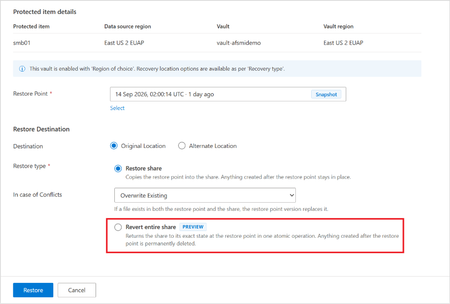
Organizations rely on Azure Files for business-critical workloads such as VDI, SAP, and general-purpose file shares that hold their enterprise data. For these workloads, backup and disaster recovery are day-one requirements. Customers need a simple, scalable way to recover from an accidental change to production data, a regional disruption or a ransomware attack, both within a region and across regions. Today, we’re announcing new capabilities, in Public Preview, that expand business continuity and disaster recovery (BCDR) capabilities for Azure Files. They help customers recover from operational issues, strengthen regional resilience and protect critical file data from cyber threats: Vaulted backup for NFS shares: Protect NFS file shares with isolated recovery points through Azure Backup for protected, trusted recovery from cyber incidents. Revert snapshot: Roll an existing file share back to a known-good point in time, in place, without changing the endpoint or mount path for fast. This gives you fast recovery from operational issues. Azure Files-to-Azure Files copy and sync with Storage Mover: Use Azure Storage Mover to maintain a secondary copy of your SMB file share data in the Azure region of your choice, with scheduled incremental transfers to keep it current for disaster recovery. Together, these capabilities let customers build Azure Files resiliency in layers: roll back quickly, maintain secondary copies and recover from protected backups. Vaulted backup for Azure Files NFS shares Cyber recovery introduces another dimension to resiliency: When ransomware or another security incident compromises the production environment, organizations need protected recovery points and may need to validate recovered data before reconnecting it to production. Azure Files already supports vaulted backup for SMB shares. With this preview, that protection extends to NFS shares. Vaulted backup for Azure Files NFS shares adds an additional protection layer through Azure Backup. Recovery points are maintained separately from the production file share and managed through backup policies designed to support long-term retention, immutability, and cyber recovery objectives. Vaulted backup helps customers protect critical file data when: Recovery points need protection separate from production: Maintain protected recovery points separately from the production file share, adding another layer of protection for critical file data. Backup strategies require immutability: Support immutable backup strategies as part of the broader approach to protecting recovery points and meeting cyber recovery objectives. Data must be retained long term: Manage recovery points through backup policies designed to support long-term retention and meet the organization’s retention requirements. Ransomware resilience is a priority: Strengthen resilience with protected recovery points for recovery when ransomware or another security incident compromises the production environment. To participate in the Vaulted backup for NFS shares preview, sign up here. Roll back quickly with Revert snapshot Operational mistakes are among the most common reasons applications need data recovery. A deployment can modify the wrong files, a configuration rollout can affect an entire namespace, or an administrator can accidentally overwrite critical content. Azure Files Revert Snapshot initially provides in-place recovery for data and applications hosted on SMB file shares, with NFS support coming next. Customers can select a point-in-time snapshot and restore the existing file share to that state while applications continue using the same file share, endpoint, and mount path. Common scenarios include: Failed application deployments: Roll back after a deployment modifies the wrong files. Incorrect configuration changes: Restore the share after a configuration rollout affects the namespace. Accidental mass modifications: Return to a point-in-time snapshot after unintended changes or overwrites. Development and test environment resets: Reset the file share to a selected snapshot. Azure Backup offers an integrated experience in the Azure portal restore blade to revert snapshots it manages. To participate in the Revert Snapshot preview, sign up here. Azure Files-to-Azure Files copy and sync with Storage Mover From disaster readiness and regional expansion to workload relocation and storage consolidation, customers need a simple, scalable way to copy and sync file data across storage accounts and Azure regions. Common use cases include Virtual Desktop Infrastructure (VDI) users maintaining secondary copies of FSLogix profiles and user data to support regional continuity, SAP and enterprise applications moving application data during regional expansion, organizations consolidating distributed content to simplify administration, and AI workflows placing datasets closer to AI and analytics compute to support distributed development and processing. Azure Files-to-Azure Files copy and synchronization with Azure Storage Mover gives customers a fully managed Azure service to copy data between SMB file shares across storage accounts, regions, and subscriptions (within the same tenant). They can also schedule incremental transfers to keep destination shares up to date. Customers can: Maintain secondary copies for business-critical workloads to an Azure region of choice. Schedule incremental synchronization of application data, user profiles, and shared content to another Azure region, helping organizations strengthen business-continuity and recovery planning. Copy or migrate file share data between regions: Copy data for regional expansion, datacenter transitions, or workload relocation. Consolidate file shares: Bring data together across storage accounts and regions to simplify management. Operate at scale with less overhead: Centrally schedule, monitor, and audit transfers instead of maintaining scripts or copy infrastructure. Azure Storage Mover reduces operational overhead with centralized scheduling, monitoring, auditing, metadata preservation, and orchestration for recurring file transfers. Figure: Storage Mover (West Central US) copies File share 1 in East US to File share 2 in West Central US. Preview support for Azure Files to Azure Files data copy is now available for SMB shares, with NFS support coming soon. To participate in the preview program, sign up here. Together, these capabilities help customers protect critical file data, recover quickly from operational issues and strengthen continuity across regions. Vaulted backup for NFS shares, Revert Snapshot and Azure Files copy and synchronization with Storage Mover provide complementary layers for a more resilient BCDR strategy. Learn more About Azure Files backup - Azure Backup | Microsoft Learn Use Azure Files Share Snapshots | Microsoft Learn Get started with Azure Files-to-Azure Files data copy in Azure Storage Mover (preview) | Microsoft Learn For questions or feedback, please reach out to the team at azurefiles@microsoft.com.352Views1like1CommentAzure Storage Discovery now offers advanced capacity insights
Azure Storage Discovery is introducing advanced capacity insights to help customers gain deeper visibility into their data estate, identify inactive or inefficiently stored data, understand storage composition and retention considerations, and pinpoint resources for further investigation and optimization.864Views0likes1Comment
TLS 1.0 and 1.1 support will be removed for new & existing Azure storage accounts starting Feb 2026
Update on October 13, 2026: Starting on October 14, 2026, changes will start rolling out to block existing storage accounts from downgrading their minimum TLS version to 1.0 or 1.1. Update in September 2025: This post was edited to reflect the retirement date change from November 1, 2025 to February 3, 2026. To meet evolving technology and regulatory needs and align with security best practices, we are removing support for Transport Layer Security (TLS) 1.0 and 1.1 for both existing and new storage accounts in all clouds. TLS 1.2 will be the minimum supported TLS version for Azure Storage starting February 3, 2026. Azure Storage currently supports TLS 1.0 and 1.1 (for backward compatibility) and TLS 1.2 on public HTTPS endpoints. TLS 1.2 is more secure and faster than older TLS versions. TLS 1.0 and 1.1 do not support modern cryptographic algorithms and cipher suites. Many of the Azure storage customers are already using TLS 1.2 and we are sharing this guidance to expedite the transition for customers currently on TLS 1.0 and 1.1. Customers must secure their infrastructure by using TLS 1.2+ with Azure Storage by February 2, 2026. The older TLS versions (1.0 and 1.1) are being deprecated and removed to meet evolving standards (FedRAMP, NIST), and provide improved security for our customers. This change will impact both existing and new storage accounts using TLS 1.0 and 1.1. To avoid disruptions to your applications connecting to Azure Storage, you must migrate to TLS 1.2 and remove dependencies on TLS version 1.0 and 1.1, by February 2, 2026. Learn more about how to migrate to TLS1.2. As best practice, we also recommend using Azure policy to enforce a minimum TLS version. Learn more here about how to enforce a minimum TLS version for all incoming requests. If you already use Azure Policy to enforce TLS version, minimum supported version after this change rolls out will be TLS 1.2. Help and Support If you have questions, get answers from community experts in Microsoft Q&A. If you have a support plan and you need technical help, create a support request: For Issue type, select Technical. For Subscription, select your subscription. For Service, select My services. For Service type, select Blob Storage. For Resource, select the Azure resource you are creating a support request for. For Summary, type a description of your issue. For Problem type, select Connectivity For Problem subtype, select Issues using TLS.125KViews3likes5CommentsMore EDA Job Sets per Volume: Azure NetApp Files Raises the Performance Bar
Azure NetApp Files raises the performance ceiling for cloud-based electronic design automation (EDA) with a new independently published SPECstorage® Solution 2020 EDA_BLENDED result for a single large volume in breakthrough mode: 5,340 job sets, 2.4 million operations per second, 38,776 MB/s peak throughput, and 0.54 ms overall response time. Delivering 1.85 times the job sets, operations, and throughput of the previous single-volume result while preserving sub-millisecond latency through most load points, the result enables more concurrent simulations, shorter regression cycles, and better utilization of compute and tool licenses without dataset sharding. Combined with proven linear scale-out and generally available Azure NetApp Files cache volumes that provide on-demand access to on-premises data, it gives EDA teams a practical foundation for high-performance cloud deployment and bursting.367Views0likes0CommentsBoost performance with NFS nconnect on Azure NetApp Files datastores for Azure VMware Solution
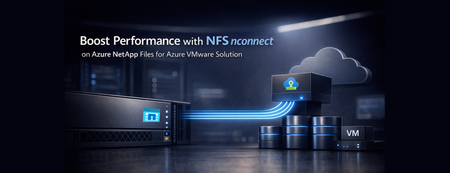
Azure VMware Solution now supports nconnect=4 with Azure NetApp Files datastores each ESXi host opens up to four parallel TCP connections to a single NFS datastore, raising throughput and lowering latency under load. Supported on both Gen 1 and Gen 2 private clouds, it makes Azure VMware Solution with Azure NetApp Files an even stronger home for databases and other storage‑intensive workloads.580Views0likes0Comments