Forum Discussion

Problems with creating a ‘Time Scale‘

1. Check the data format:
Select the time data column, right-click and select “Set Cell Format”.
In the Numbers tab, select Time or Custom to ensure the format is correct (e.g. HH:MM or HH:MM:SS).
2. Use the correct chart type:
Select the data range and click “Insert” > “Line Chart” or “Bar Chart”.
Make sure that the time data is on the horizontal axis (X-axis).
3. Set the horizontal axis to the time scale:
Right-click on the horizontal axis of the chart and select “Set Axis Format”.
In “Axis Options”, make sure that “Axis Type” is set to “Date Axis”.
Adjust the Units and Major Scale to match the time data.
4. Check the data range:
Make sure that the selected data range contains time data and corresponding numeric data.
If the data is not continuous or contains null values, the time scale may not be displayed correctly.
5. Use the pivot table:
Select the data range and click Insert > Pivot Table.
Drag the time fields to the Rows area and the numeric fields to the Values area.
Create a pivot chart and set the horizontal axis to the timescale.
6. Update Excel:
Click File > Accounts > Update Options > Update Now.
7. Fix Office:
Open “Control Panel” > “Programs and Features”, locate Microsoft Office, right-click and select “Change” > “Repair” and restart your computer.

First of all, I would like to thank you for your response.
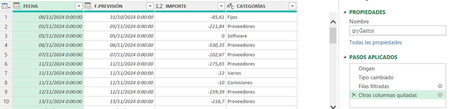
But, after following all the steps indicated, the problem remains. Even though Office 365 recognizes the date format of the field, it gives an error when trying to insert a time scale in a pivot chart